

If you have ever wanted to test a new configuration, train a new team member, or rehearse a year-end close without touching live data, Business Central gives you a built-in way to do it. “the Copy Company” action. Instead of rebuilding a company from scratch or exporting and importing a database, you can create a full replica of an existing company in a few clicks, directly from the Companies page.
This article walks through what the Copy Company action does, when to use it, the step-by-step process, and a few practical points worth knowing before you run it on a large production company.
What Does Copy Company Actually Do?
The Copy Company action creates a brand-new company within the same Business Central environment and populates it with the data from an existing company you select as the source. That includes master data, transactions, setup tables, and configuration, essentially a full snapshot of the source company at the time you run the copy.
Step-by-Step: Copying a Company
Step 1: Open the Companies Page
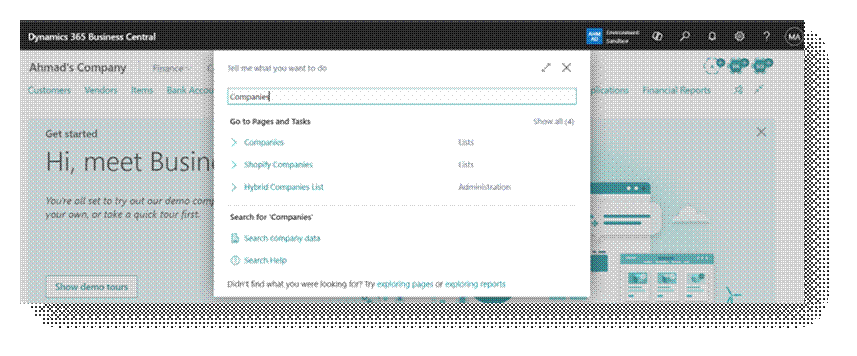
Use the search icon (Tell Me) and type Companies, then select the related link. This opens the list of all companies currently set up in your environment.
Step 2: Select the Source Company
On the Companies page, select the company whose data you want to copy.
Step 3: Choose the Copy Action
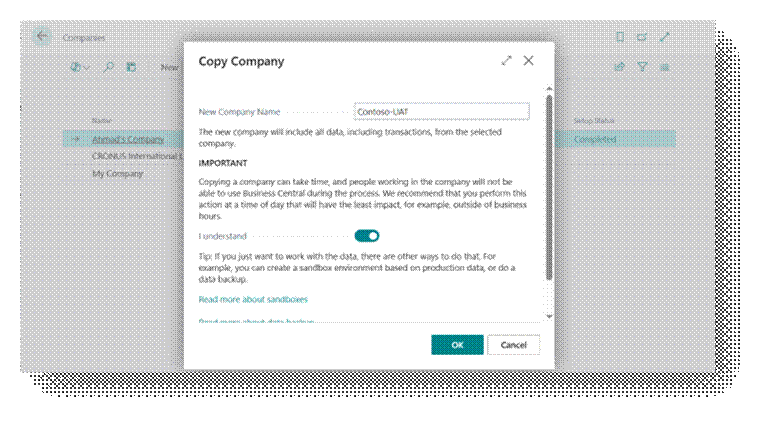
From the action bar, select Copy. This opens the Copy Company dialog.
Step 4: Enter the New Company Name
Give the new company a clear, descriptive name, for example Contoso-UAT or Contoso-Sandbox, so it is easy to distinguish from the live company later.
Step 5: Wait for the copy to complete
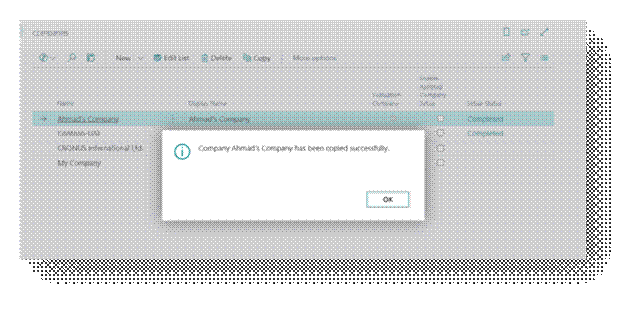
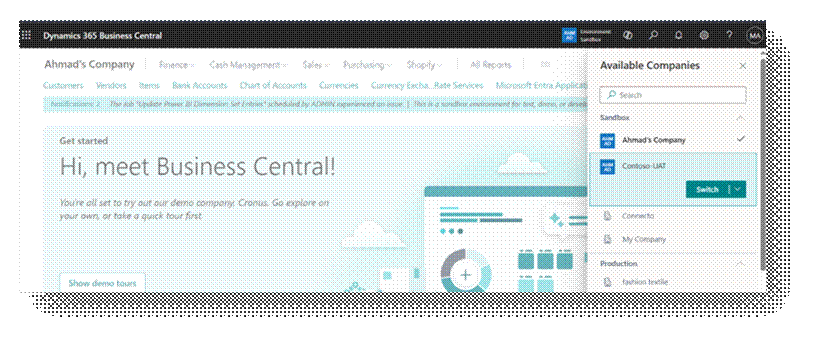
Depending on the size of the source company, this can take anywhere from a few minutes to considerably longer for large datasets. You can continue working elsewhere in Business Central while it processes in the background, and a confirmation dialog appears once the copy is finished.
What Gets Reset in the New Company
A copied company is a close replica, but it is not identical in every respect. A few settings are intentionally cleared or excluded so the new company does not silently interfere with live integrations:
- SMTP email account passwords are not carried over. You will need to re-enter the password on the SMTP Account page in the new company.
- If Dataverse or Sales integration is enabled in the environment, the related Dataverse and Dynamics Connection settings are cleared in the target company, so integration does not re-trigger unexpectedly from the copy.
- Any scheduled jobs, API keys, or webhook subscriptions tied to the source company’s identity should be reviewed manually, since they are not automatically remapped.
Practical Tips
- Name test and sandbox companies consistently (a suffix like -TEST or -UAT) so nobody accidentally posts into them thinking they are live.
- Remember to delete sandbox companies once testing is complete, to avoid clutter and unnecessary storage or licensing considerations in the environment.