

Run multiple financial reports as a single pdf will be starting with update 29.0 (October 2026). The feature is generally available and needs no extension.
Availability
| Detail | Value |
| Status | Launched, General Availability |
| Rollout start | October 2026 (update 29.0) |
| Roadmap ID | 573323 |
| Cloud instance | Worldwide (Standard Multi-Tenant) |
| Platform | Web |
What It Does
A Financial Report Package combines several financial reports into one PDF that you can print on demand or send on a schedule. Previously, sending four financial reports by email meant printing or configuring each one separately.
With a package, you can:
- Group multiple financial reports, such as Balance Sheet, Income Statement, and Cash Flow, in one package.
- Apply different filters and date ranges to each report in the package.
- Print the Package Immediately and get one combined PDF.
- Schedule the package to run automatically and email it to several recipients.
- Review every scheduled run in a log.
How to Set It Up
Create the Package
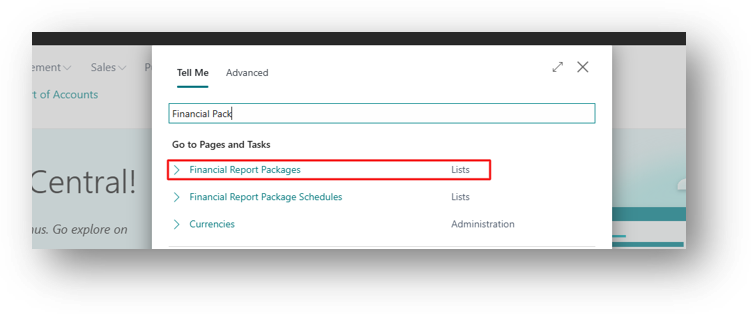
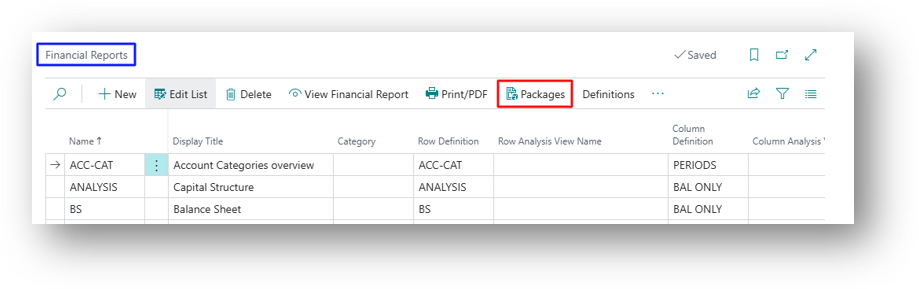
- Search for Financial Report Packages in Tell Me, or open Financial Reports and choose the Packages Action.
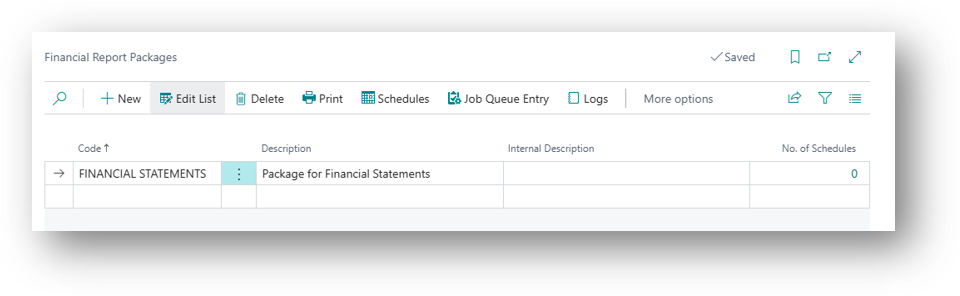
- Create a New Package and fill in the header, such as code and description.
- In the Reports section, add the financial reports you want to combine.
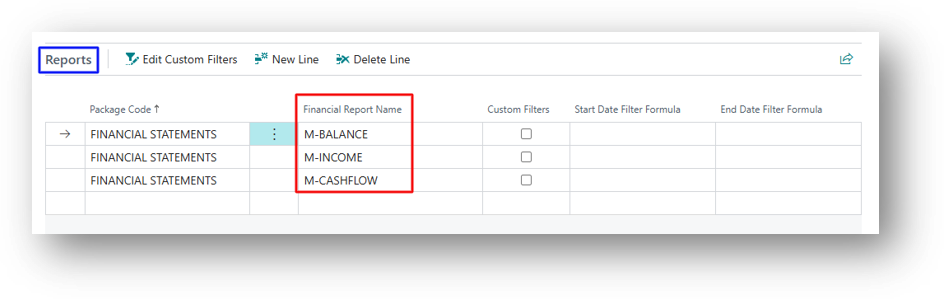
- Optional: choose Edit Custom Filters to set separate filters for each report.
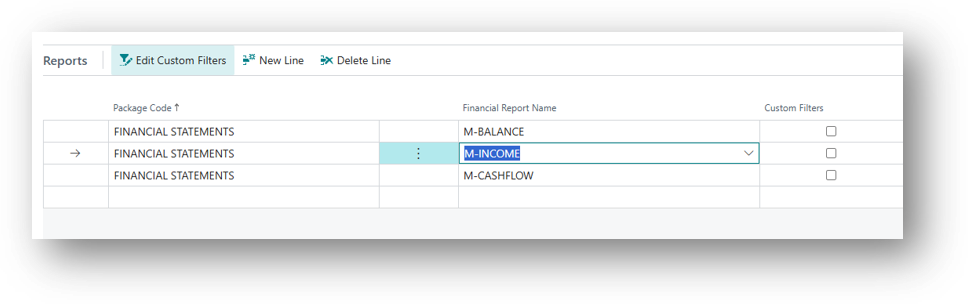
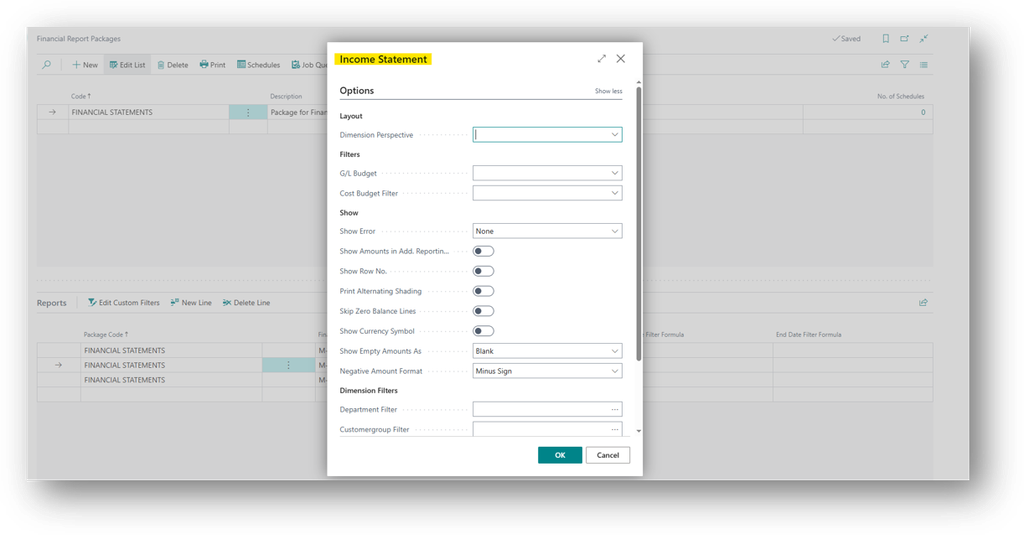
For Balance Sheet and Other Reports Filters will come Accordingly.
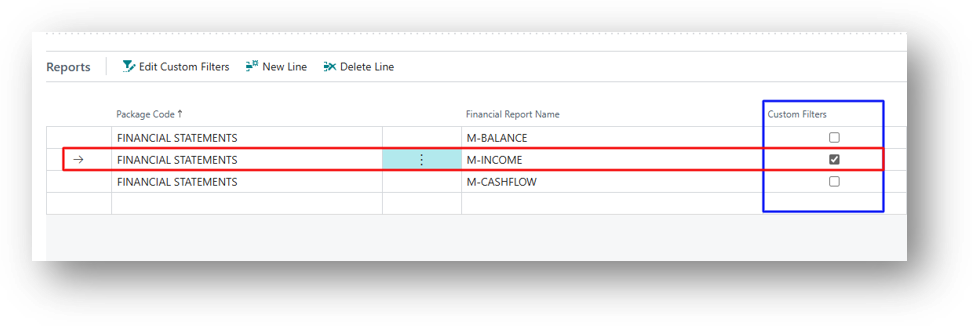
Remember if you apply Filters this Boolean will Automatically Enabled.
- Optional: set a Start Date Filter Formula and End Date Filter Formula for each report.
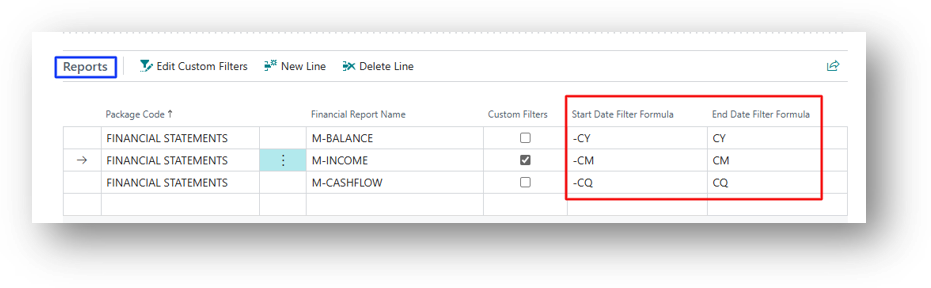
Common Date Formulas
| Period | Start Date Filter Formula | End Date Filter Formula |
| Current Month | -CM | CM |
| Current Quarter | -CQ | CQ |
| Current Year | -CY | CY |
| Previous and Current Month | -CM-1M | CM |
Run or Schedule it
- Choose Print to Generate and Download one combined PDF immediately.
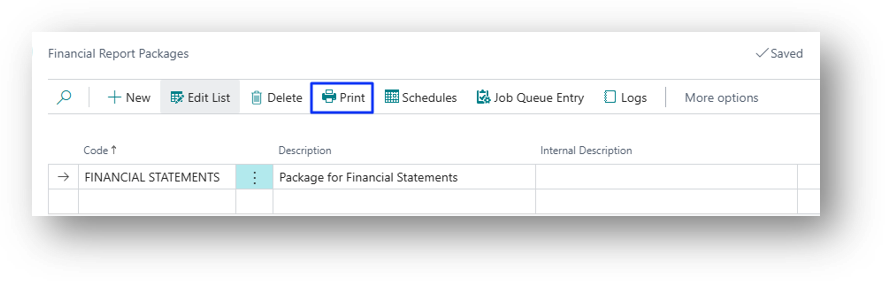
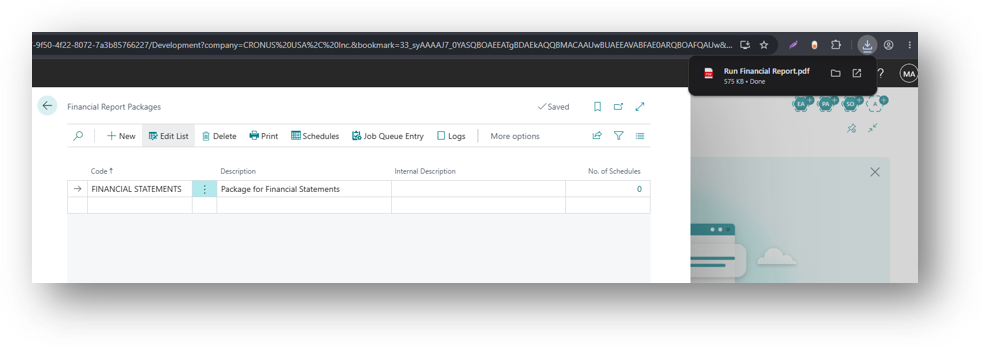
- After clicking on print it will download the file.
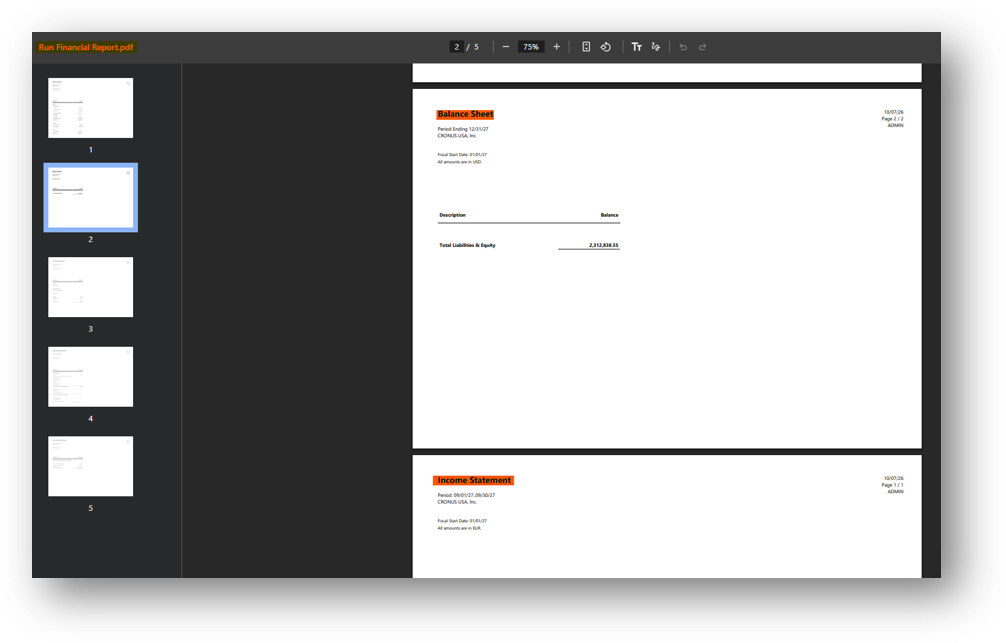
- And if you check that File then all 3 Reports will be Accumulated in one Report.
- Choose Schedules to automate delivery. One package can have several schedules.
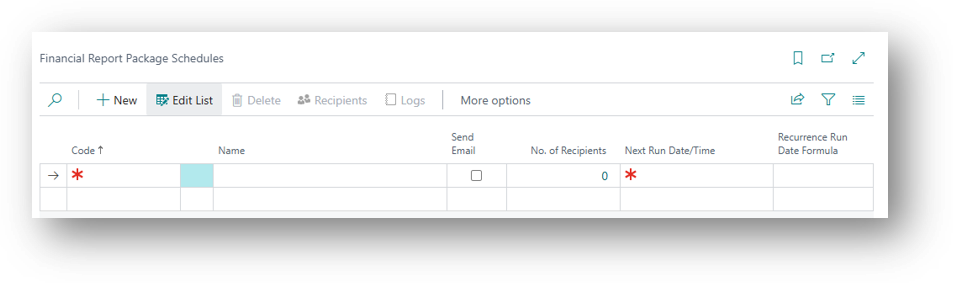
- Enter a code and description and set Next Run Date/Time and Recurrence Run Date Formula.
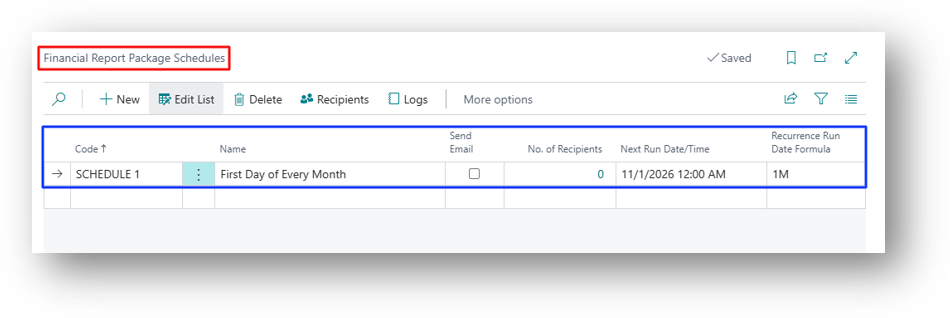
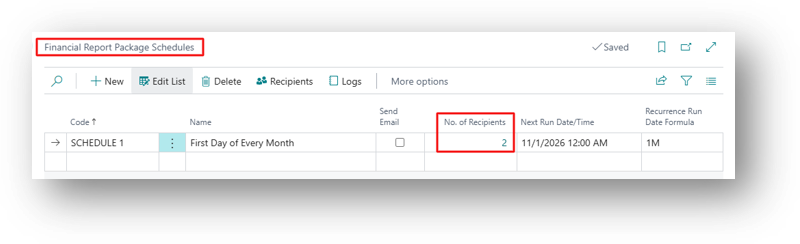
- Add the recipients. Each recipient’s email address comes from User Setup, so add users there first.
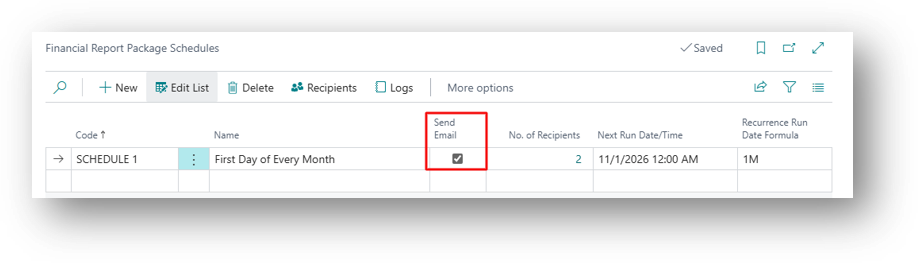
- Send Email. Specifies if the reports from this schedule will be sent to the recipients via email. You can specify who will receive the emails in financial report package recipients.
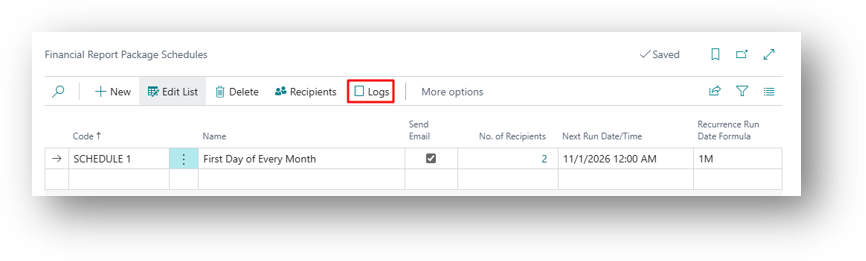
- Use Logs to review past runs.
Hope so this is Helpful 😃