

Ship-to Code is a field on the Customer Card that lets a customer have more than one delivery address. A customer may order from one location but want the goods delivered somewhere else, such as a branch, a warehouse, or a job site.
Where It Is Set Up
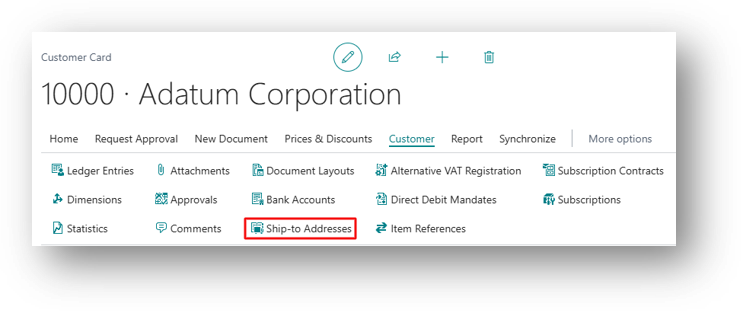
Each Ship-to Address is created from the Customer Card, under Customer, Ship-to Addresses. Every address gets its own code, name, and full address details.
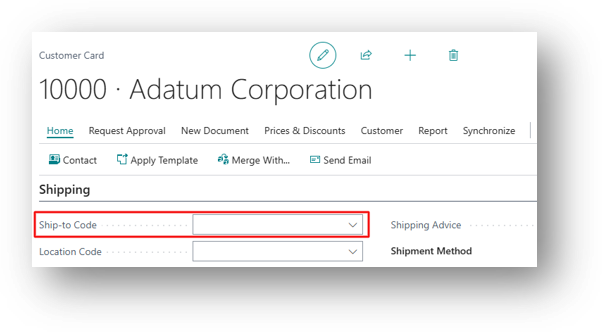
On the Customer Card itself, under the Shipping FastTab, the Ship-to Code field sets the default address to use when a new sales document is created for this customer.
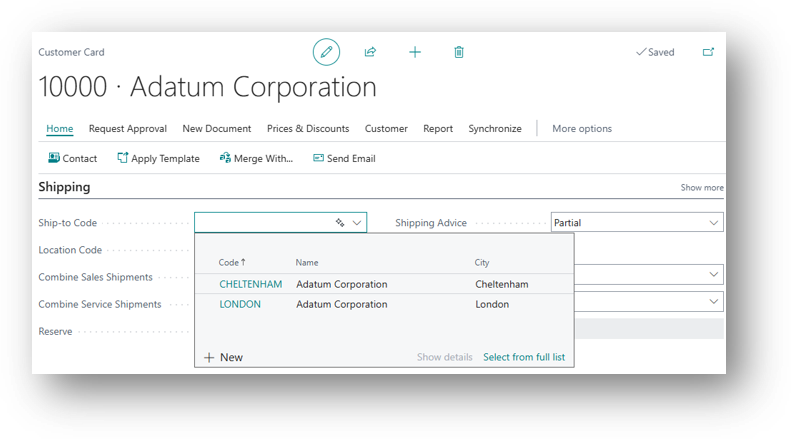
Note – Leaving it blank means the customer’s own main address is used by default.
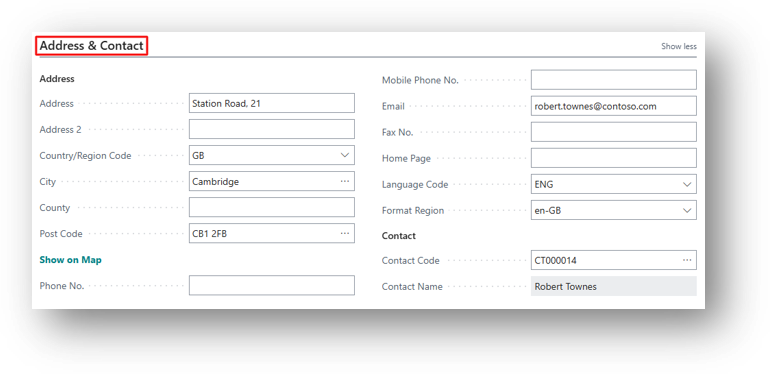
Ship-to Address Card Page
If you click on Ship-to Address Button in Action Button then it will open the Ship-to Address List Page.
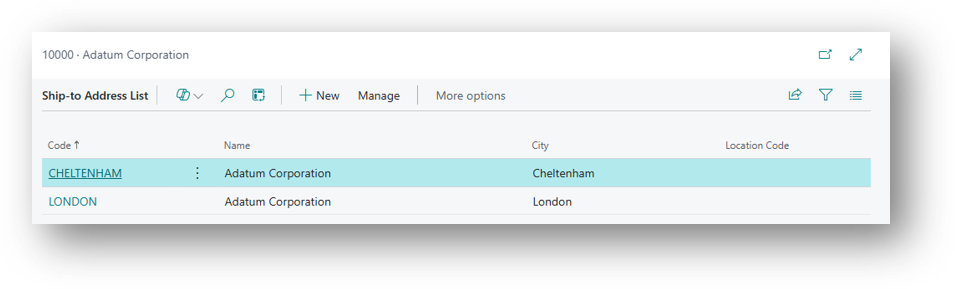
Click on the Code or if you want to create a New One than click on the + New.
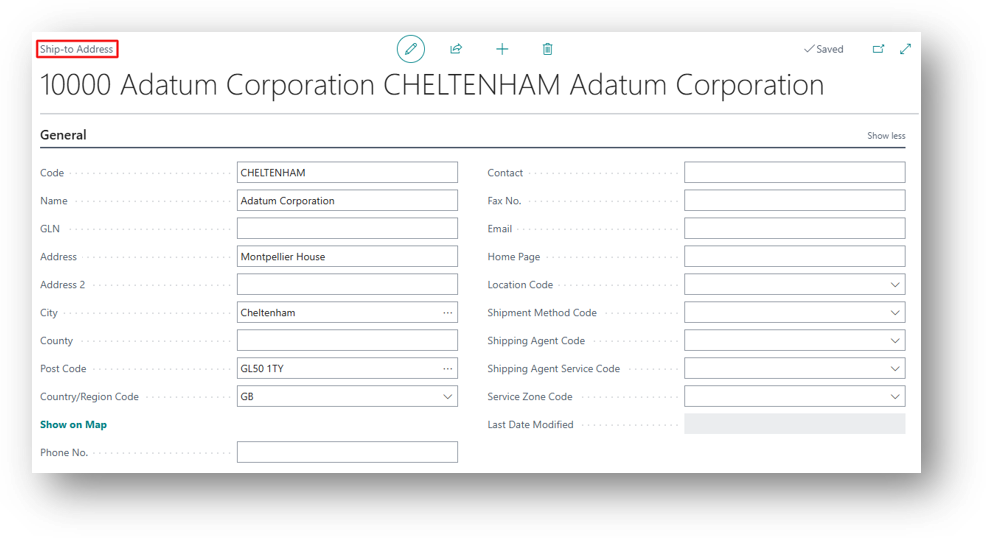
Just like Address related fields on Customer Card, the same fields are present here. Now, we can attach this Ship to Address on Customer Card.
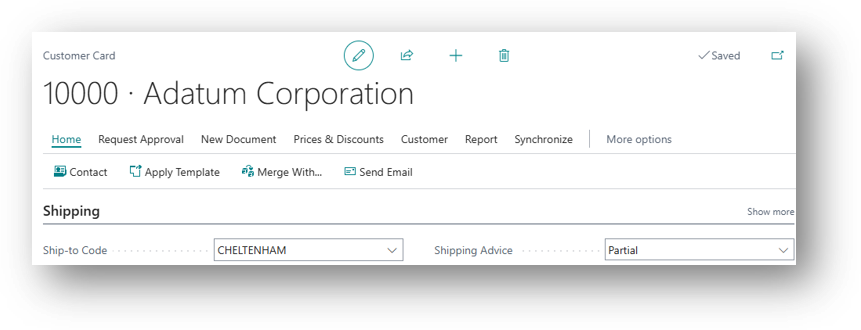
How It Works on a Sales Document
When a Sales Order or Invoice is created for a customer, business central checks the Ship-to Code field:
- If a code is set on the Customer Card, that address is pulled in automatically.
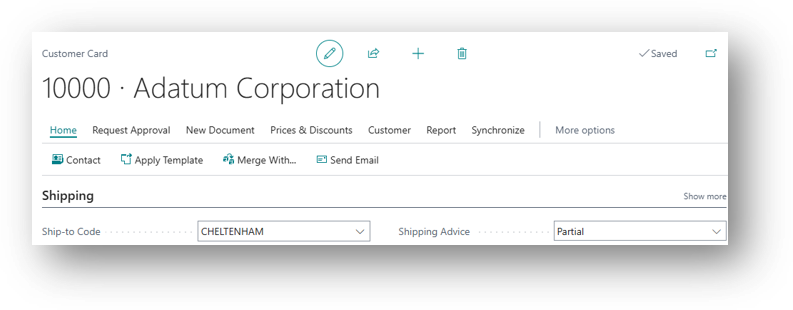
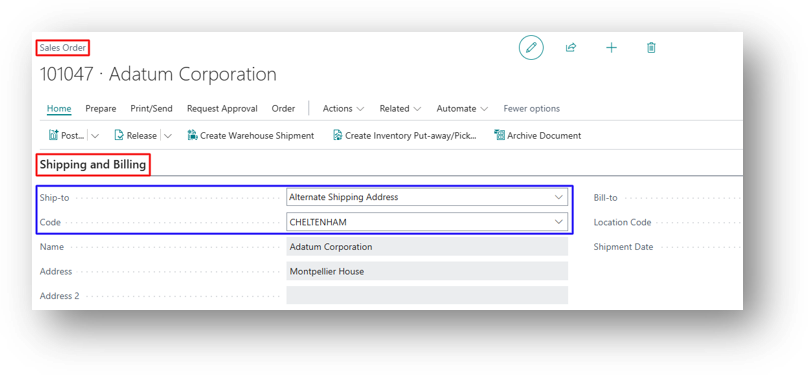
- If left blank, the customer’s main address is used.
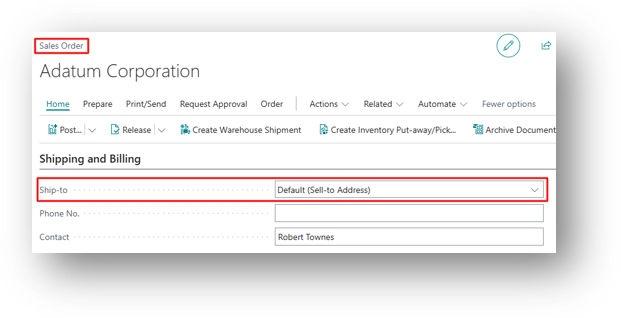
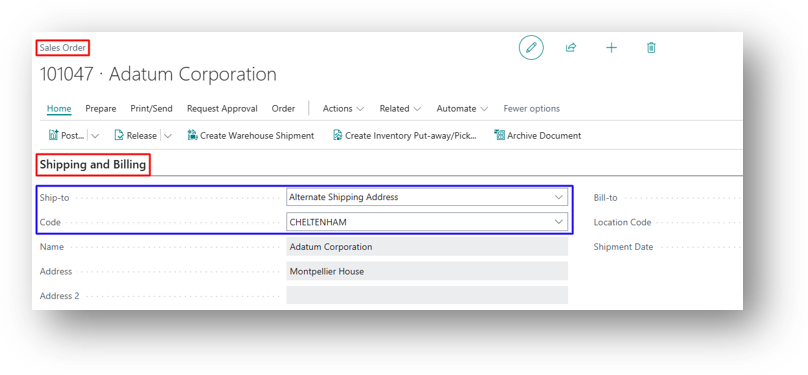
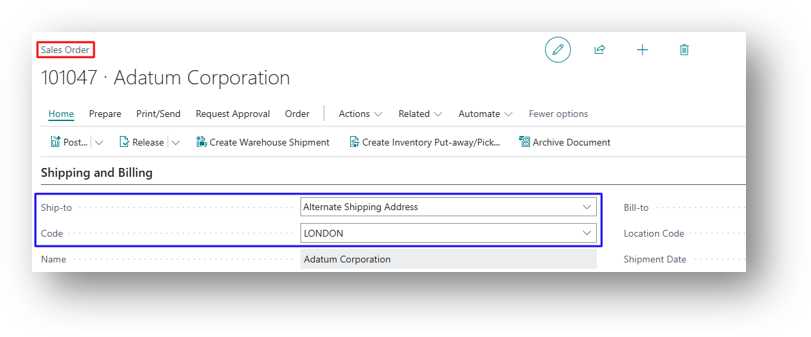
- On the sales document itself, the user can still change the Ship-to Code per order, so one customer can have different orders going to different addresses without ever editing the Customer Card.
Hope so this is Helpful 😃