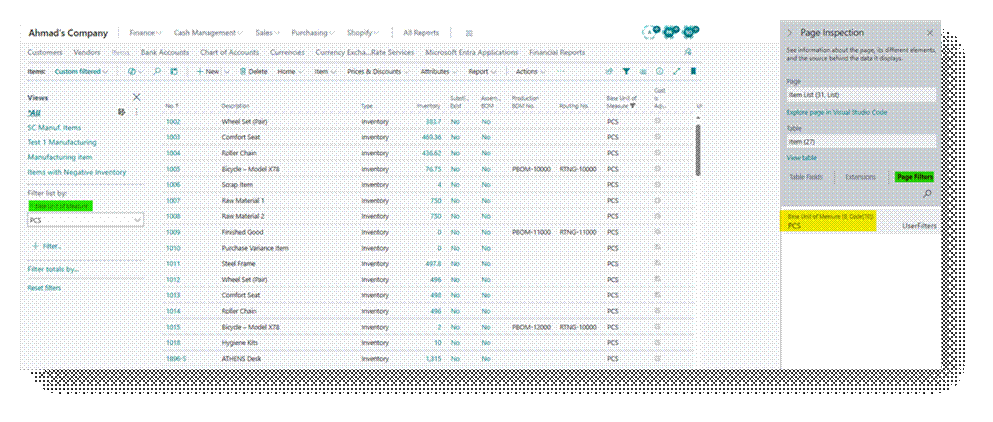
Page Inspection is a built-in Business Central feature that exposes the underlying design and data source of any page on screen:
- Page Name And ID
- Table it Reads From
- Every Field on that Table (not only the fields shown on the page)
- Any Extensions Modifying the Page
- Any Filters currently Applied
It is intended for administrators, power users, support personnel, and developers. Its main value is that it answers data and design questions directly inside the web client, without needing SQL access, a database copy, or a development environment.
Opening Page Inspection
Page Inspection can be started in either of two ways, from any page in the Business Central web client:
- Select the question mark (?) icon in the top-right corner of the client.
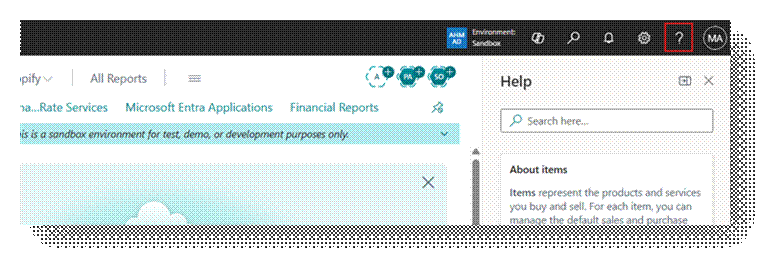
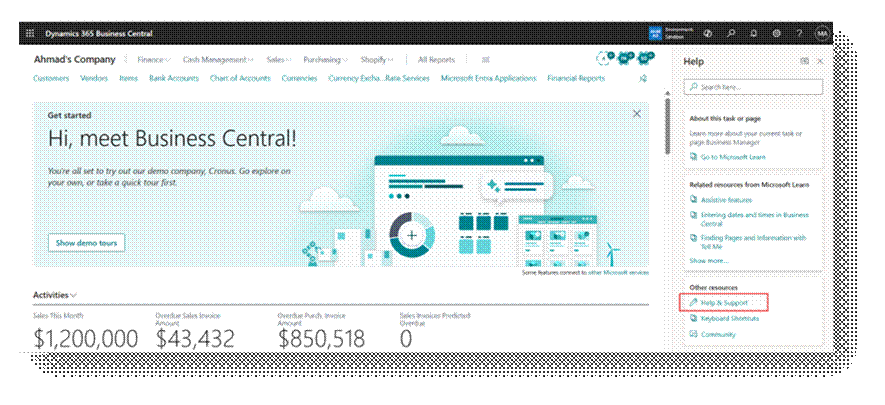
- Choose Help & Support.
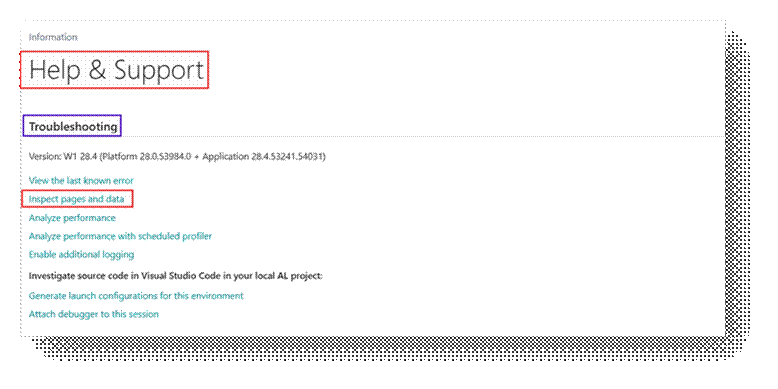
- Under Troubleshooting, choose Inspect pages and data.
Or, more directly:
- Press the keyboard shortcut Ctrl+Alt+F1 (on Mac, Ctrl+Option+F1).
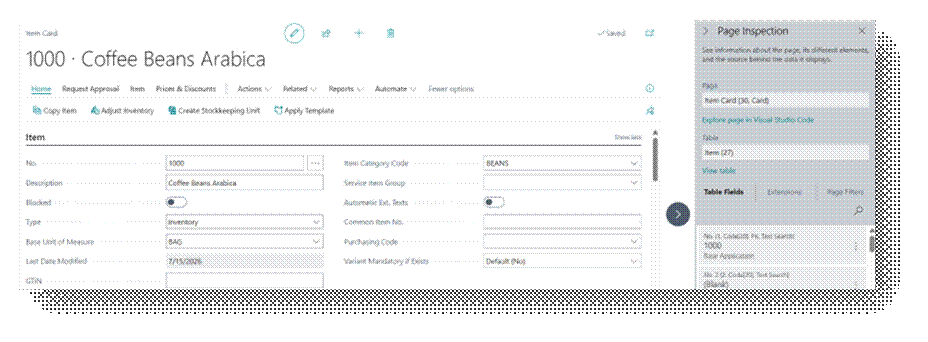
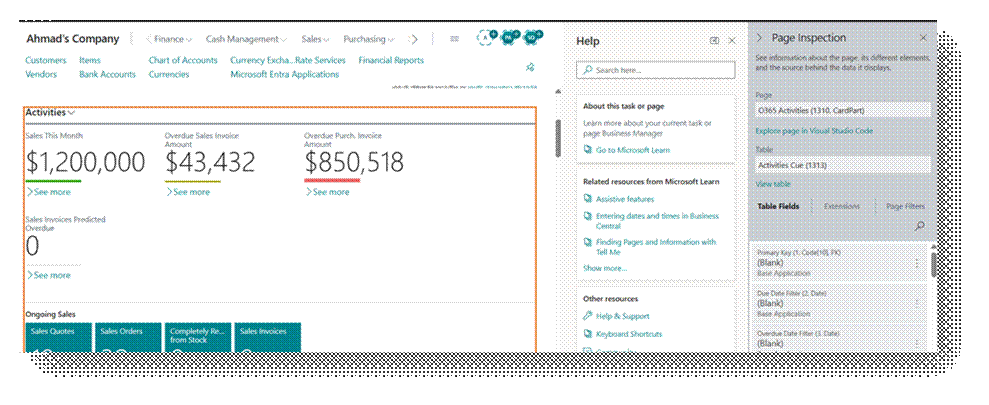
The Page Inspection pane opens on the side of the screen. When it first opens, it shows information about the main page object currently open.
Navigating Within the Pane
Page Inspection is not limited to the main page. Use the keyboard or the pointing device to move focus to different elements on the page: FactBoxes, parts, and subpages.
- When a FactBox or a part on the main page is selected, its bounding area is highlighted with a border on the page itself.
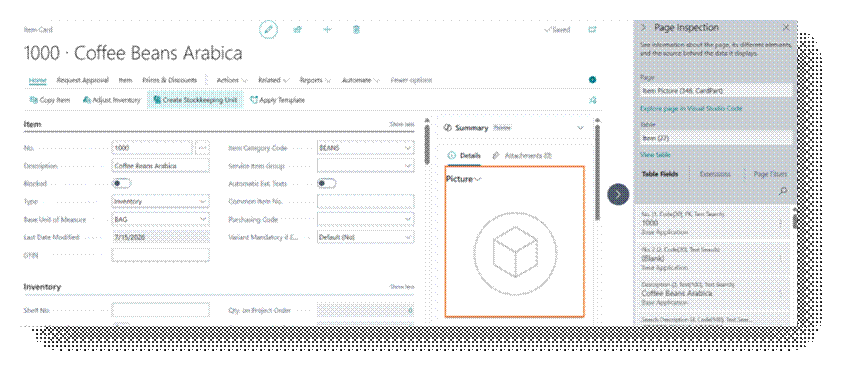
- As the user navigates to a different page in the application while the pane is open, Page Inspection automatically updates to reflect the new page.
What Page Inspection Shows
The Page Inspection pane is organized into tabs. The exact set of details visible depends on the user’s permissions.
Page Tab
Shows information about the main page, or about a selected (highlighted) subpage within a part:
- Name – as defined by the page’s Name property.
- ID – as defined by the page’s ID property.
- Type – as defined by the page’s PageType property (List, Card, Document, ListPart, CardPart, and so on).
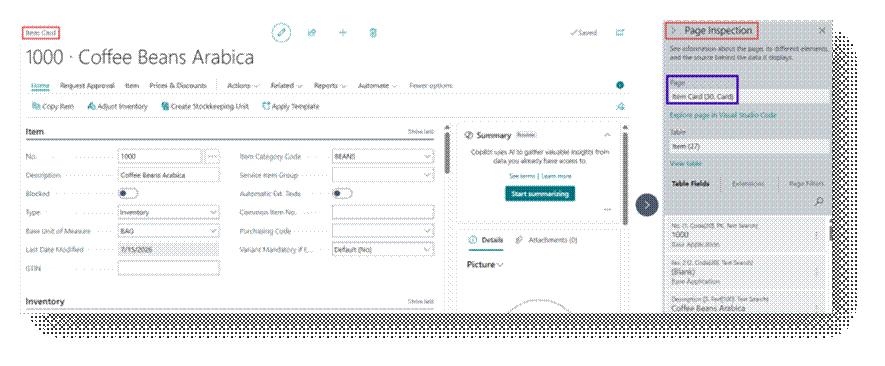
Table Tab
Shows the name and number of the table that the page’s data source is bound to. This is the direct link between what a user sees on screen and where that data physically lives in the database.
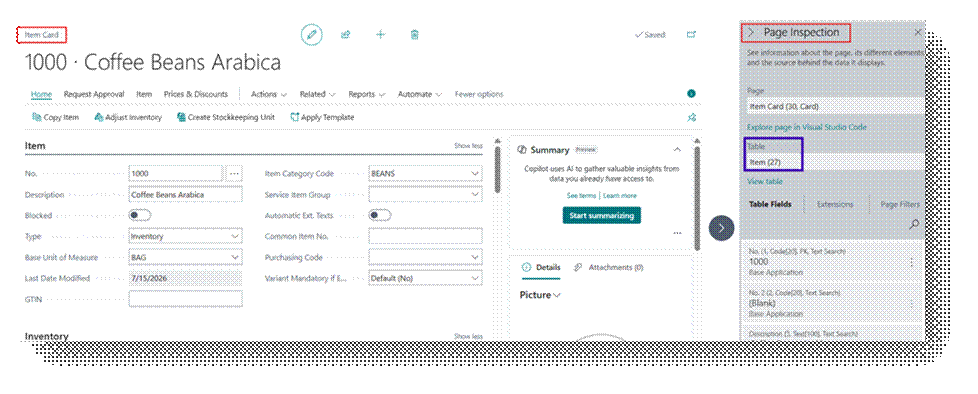
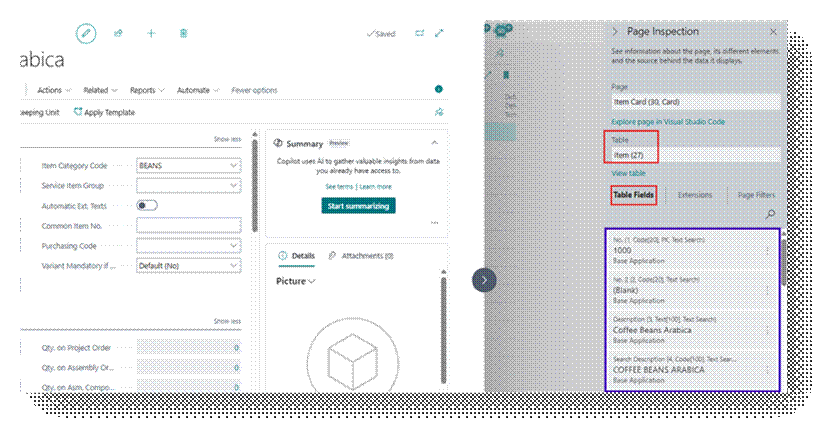
Table Fields Tab
Lists all fields that exist on the underlying source table, together with their current values for the record in context, not only the fields that happen to be placed on the page.
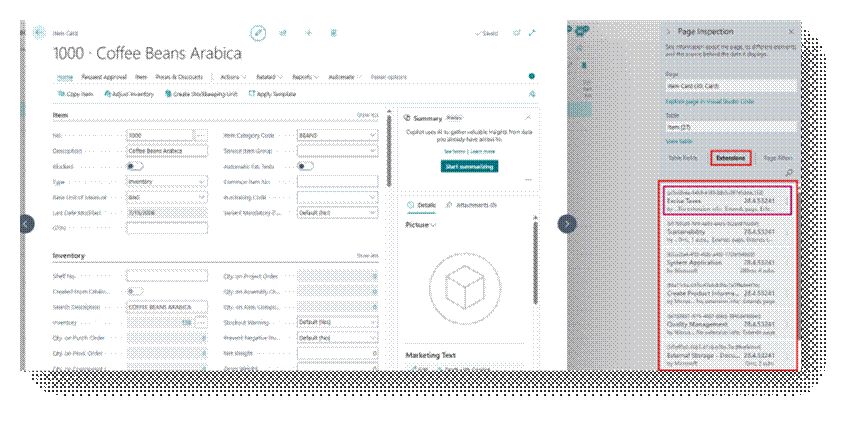
Extensions Tab
Lists the extensions that modify the current page, whether by adding fields, actions, or other elements. This is the fastest way to confirm whether unexpected page behavior originates from a customization rather than standard Business Central.
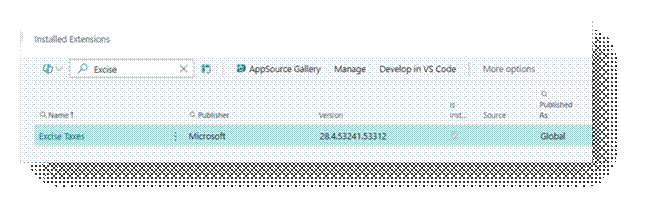
Now let me show you that in Extension Management Page just for Confirmation.
Page Filters Tab
Shows the filters currently applied to the page or part in view. Because Business Central applies both user-set filters and system-set filters (from personalization, views, or navigation context), this tab is the direct way to confirm why an expected record is not appearing in a list.
For Example, check the below screenshot and page filter is blank.
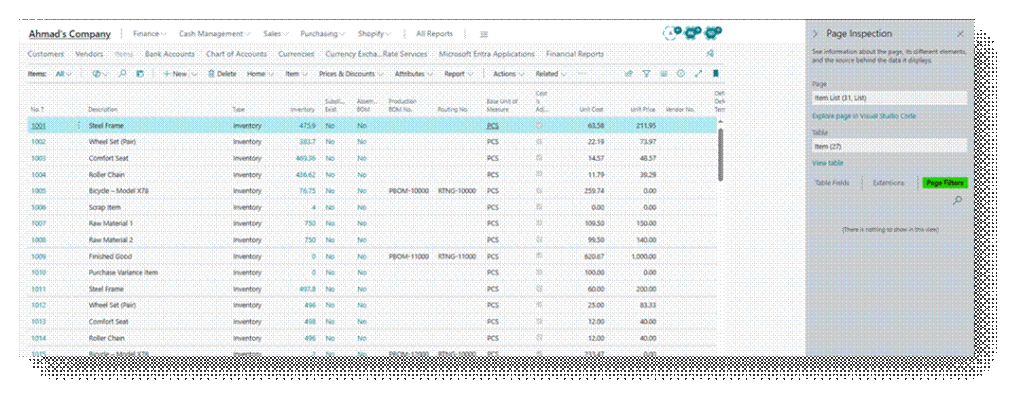
Now I will apply the Filter on Item List Page that only show me the Item with PCS Base unit of Measure.