
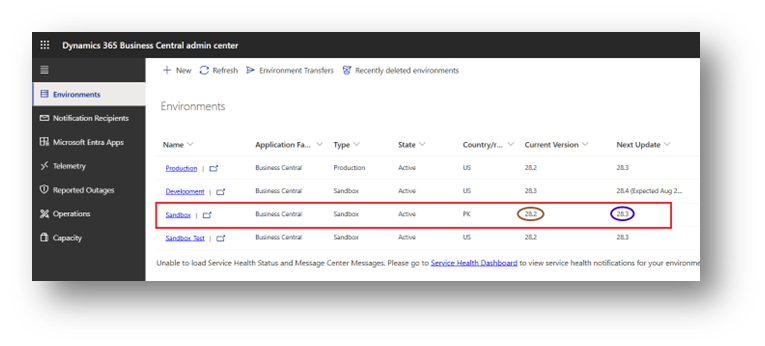
- Business Central online Environments are updated by Microsoft on a Fixed Release Cadence. For this Article we are going to update Sandbox Environment from 28.2 to 28.3. All the Relevant Details will explain along that.
Update Cadence
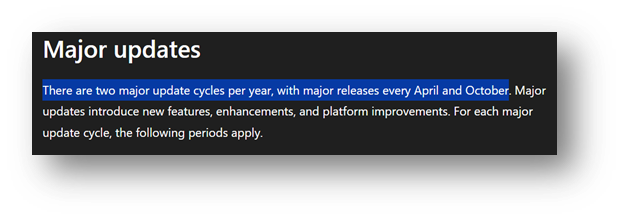
- Major Updates – April and October each year introduce new features, larger platform changes.
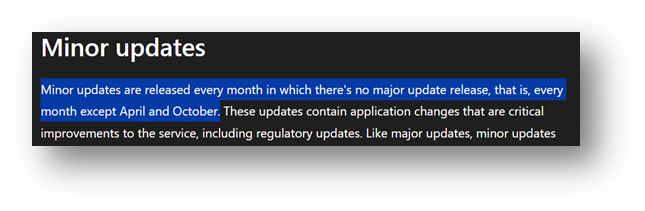
- Minor Updates – Monthly bug fixes, small improvements, and optional features (see Feature Management).
- An environment cannot skip a major update indefinitely. Microsoft enforces update within a defined period.
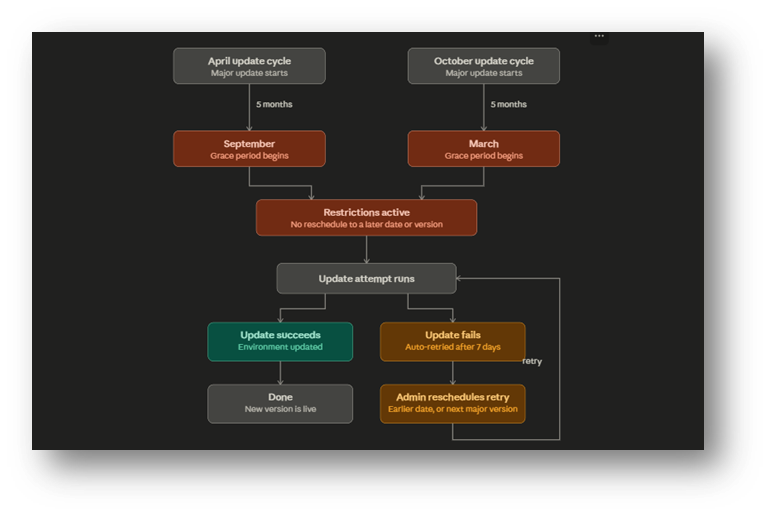
- Grace Period – April’s update will maximum extend to September. (5 Months)
- Grace Period – October’s update will maximum extend to March. (5 Months)
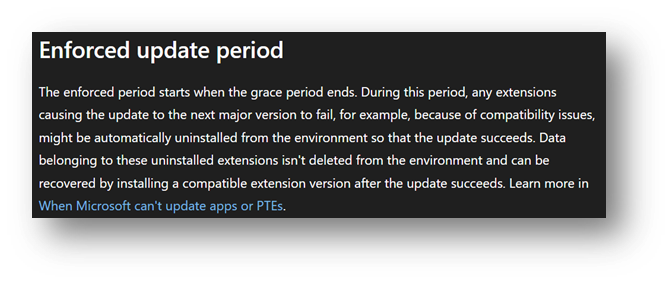
- Restriction will Automatically be applied once this Grace Period ends.
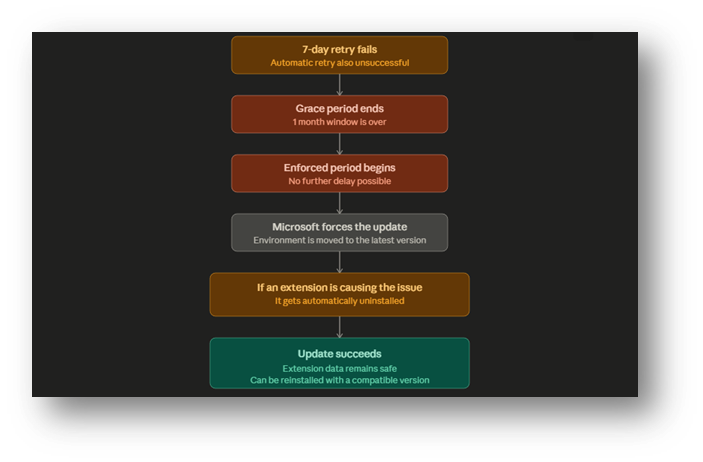
- It will Automatically update it and if it fails then it will Again try this after 7 Days.
- If it still fails, then it will try again until Grace Period Ends.
Update Window (When Updates are Allowed to Run)
Every Environment has a default update window normally 8:00 PM to 6:00 AM local time for the environment’s Country/Region, so updates run outside Business Hours.
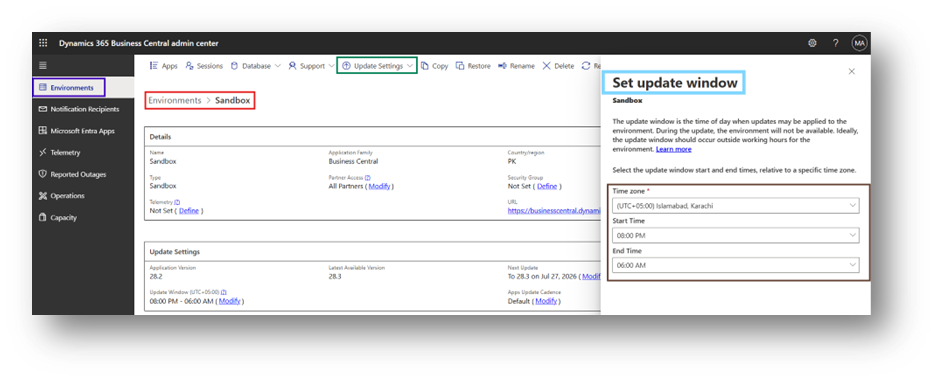
- Go to the Environments tab in the Business Central Admin Center.
- Select the environment Name to open its details page.
- Under Update Settings, choose Set update window.
- Specify the Time Zone, Start Time, and End Time for the window.
- Save. Future updates will only be applied inside this window.
Scheduling the Update Date
By default, Microsoft applies the update automatically within a communicated default date range. You can override this with your own preferred date within the allowed range.
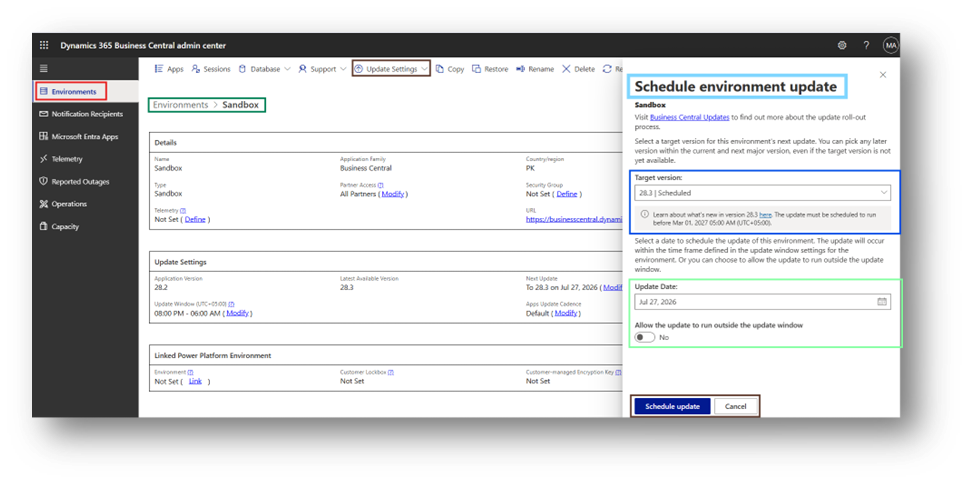
- Go to Environments → select the environment Name.
- Under Update Settings, choose Modify next to Next Update.
- Pick an available target version.
- Choose a date within the permitted range shown in the pane.
- Select Schedule Update.
Important: Choosing not to set a date does NOT stop the update, it will still be applied automatically within Microsoft’s default window. Setting a date only lets you control exactly when, within the allowed range.
Preview Environments (Testing Before Go-Live)
Before a major update reaches production, you can spin up a Preview environment. A sandbox that already contains the upcoming release to test customizations, extensions, and reports ahead of time. This is the safest way to catch breaking changes before they hit your live/production environment.
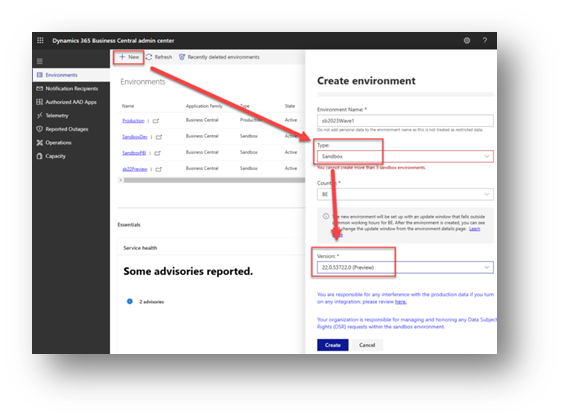
Taken this Picture from Google because at this time (When Writing this Article) no Preview Option is Available.
Updating Extensions / Apps (Per-Tenant & AppSource)
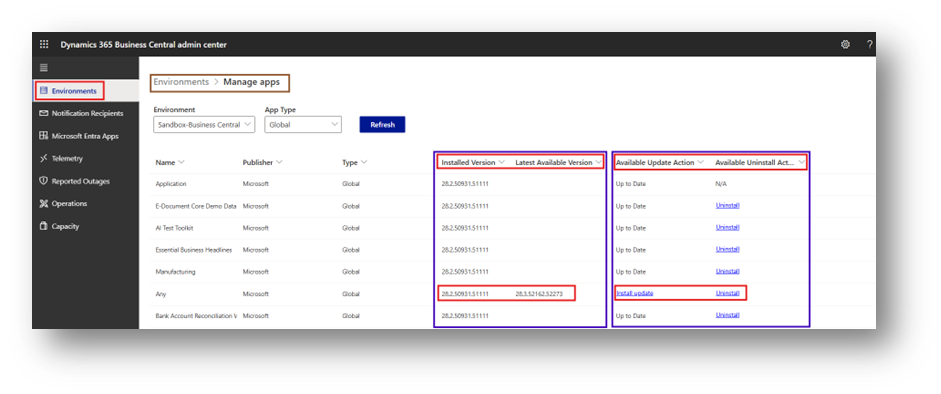
This is the page where all extensions/apps installed in an environment are managed and updated split into two types:
- AppSource Apps – Published and Certified Apps available publicly from Microsoft’s AppSource marketplace (e.g., third-party ISV solutions).
- Per-Tenant Extensions (PTEs) – Custom Apps built specifically for this one client/tenant, usually developed by the implementation partner (not published publicly).
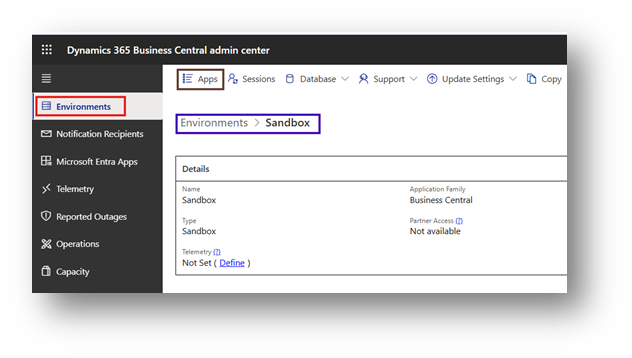
- In the Admin Center, open the relevant environment.
- Choose Apps.
- Wait for the app list to load fully.
- Find the app and choose Install update (or Action required if a dependency needs updating First).
- Confirm the update and confirm any dependent app updates if prompted.
Practical Tips for QA / Consultants
- Always test a Scheduled update in a Sandbox or Preview Environment first, especially if there are Per-Tenant Extensions (PTEs) involved.
- Check the Feature Management page immediately after an update new optional features may need a deliberate decision (Enable Now vs. Wait for Mandatory Enablement).
- Review the Operations log after every update for Warnings, even if the update shows as Succeeded.