

Purpose
Financial Reports produce the Balance Sheet, Income Statement and management packs that leadership and auditors rely on. A single edit to a report definition changes the output of every future run of that report and here comes the Financial Report Changes are not always logged feature comes.
In earlier versions, these edits were only traceable if an administrator had added the right tables to Change Log Setup and selected the fields to track. This step was often missed, so when a report changed, nobody could say who changed it or when.
Version 29 treats Financial Report Definitions as Audit-Relevant by default, so this setup step is no longer needed.
Availability
| Detail | Value |
|---|---|
| Status | Launched, General Availability |
| Rollout start | October 2026 (Update 29.0) |
| Roadmap ID | 573325 |
| Cloud instance | Worldwide (Standard Multi-Tenant) |
| Platform | Web |
What Changed
| Before Version 29 | Version 29 | |
|---|---|---|
| Change Log Activated | Required | Required |
| Add table in Change Log Setup | Required | Not required for report headers |
| Select fields to track | Required | Not required for report headers |
| Result | Logged only if fully configured | Header changes logged automatically |
What is Logged and What is Not
Testing in Version 29 Environment shows that automatic logging applies to the header level of the three financial report pages. Changes to the lines are not logged automatically.
| Page | Table No. | Table Name | Logged Automatically |
|---|---|---|---|
| Financial Reports | 88 | Financial Report | Yes |
| Row Definitions (header) | 84 | Financial Report Row Definition | Yes |
| Row Definition lines | 85 | Acc. Schedule Line | No |
| Column Definitions (header) | 333 | Column Layout Name | Yes |
| Column Definition lines | 334 | Column Layout | No |
The screenshot below shows the difference on a row definition. A change to the header fields (blue), such as Description or Status, is logged. A change to the lines (red), such as Description, Totaling Type or Totaling, is not.
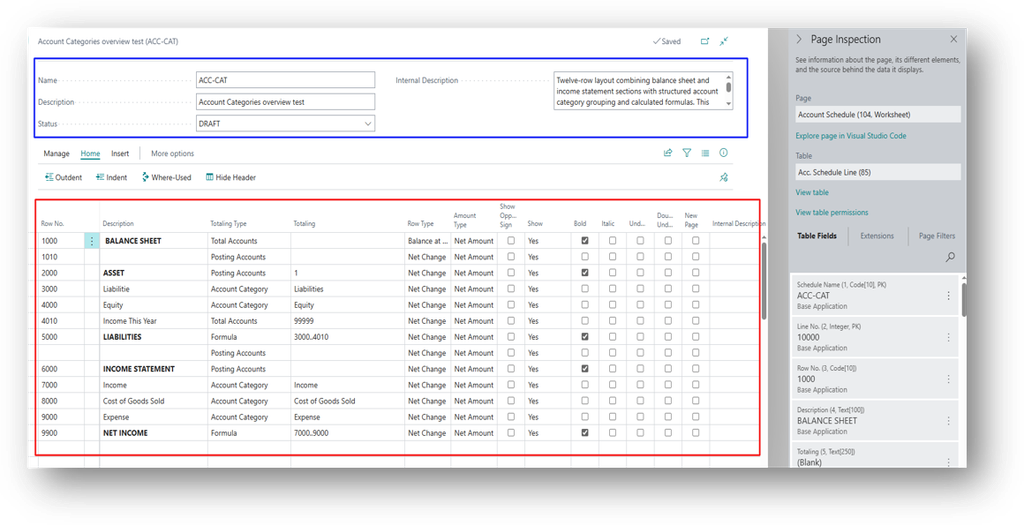
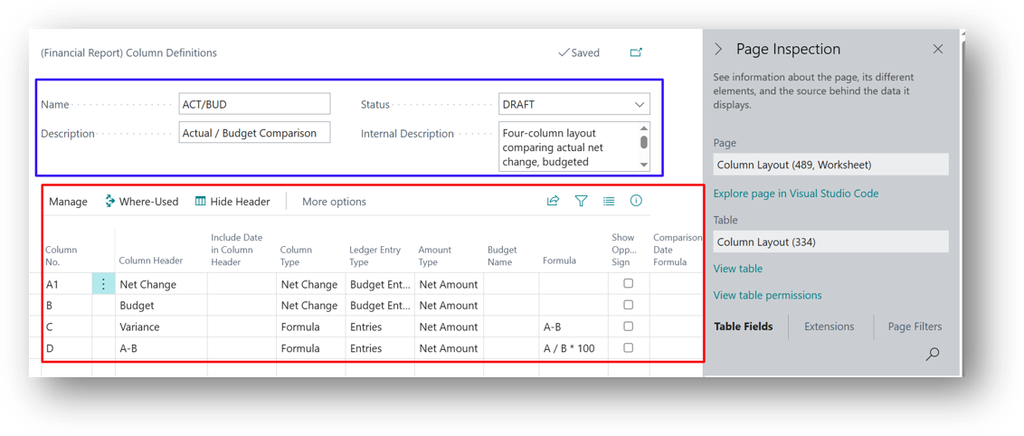
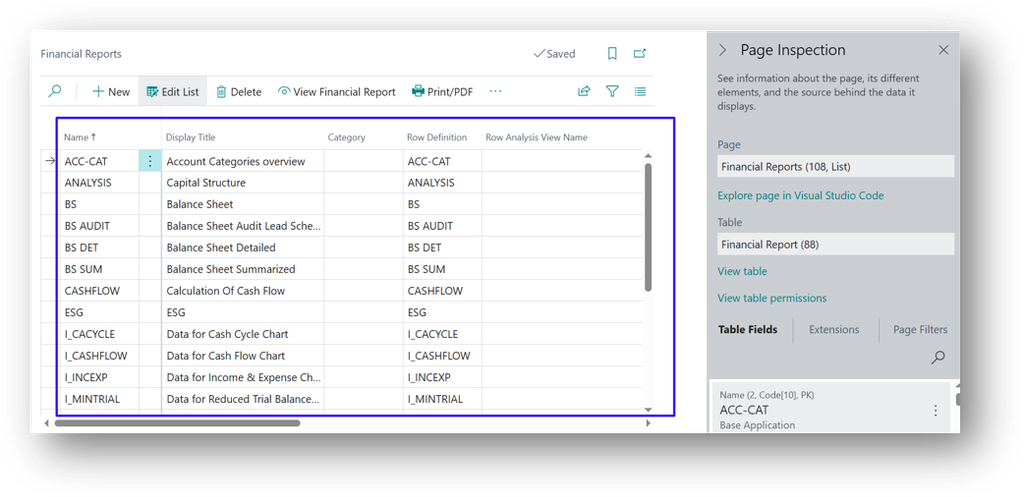
This matters because the lines hold the actual report logic. A change to a Totaling range or a formula, which is the change most likely to alter reported figures, still needs the classic Change Log Setup described later in this article.
How to Set it Up
One setting is required. Without it, nothing is logged, even in version 29.
- Search for Change Log Setup and open the page.
- Turn on Change Log Activated.
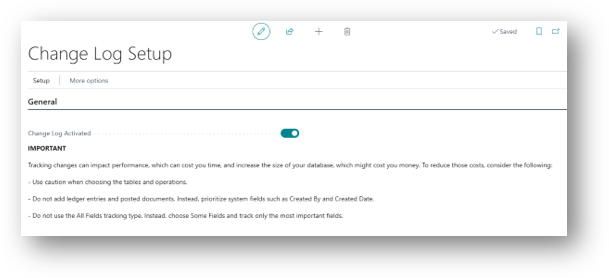
There is no need to open Tables and add the financial report tables for header-level logging. That is step 29 removes.
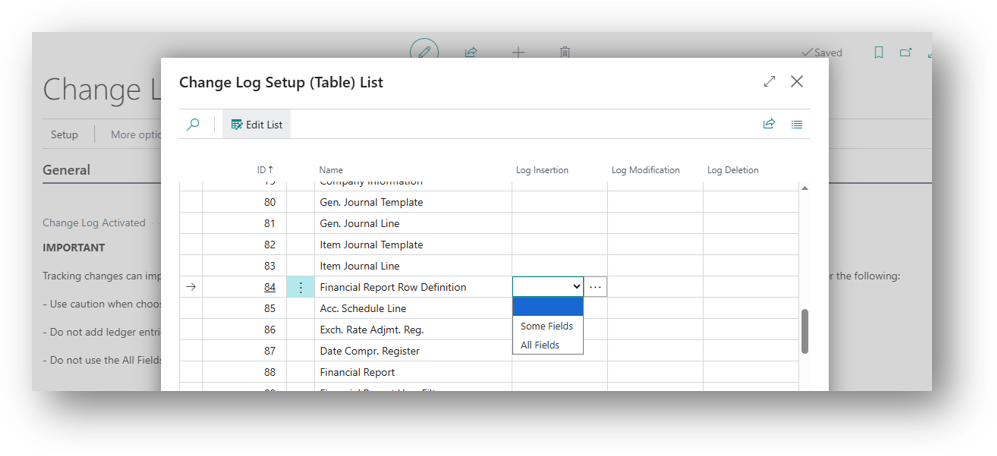
Example
Tracing a Header Change
The Row Definition ACC-CAT is used by several Financial Reports. Its description was changed from “Account Categories overview” to “Account Categories overview test”, and its status was set to DRAFT and now we want to change it to ACTIVE. The controller wants to know who made the change and when.
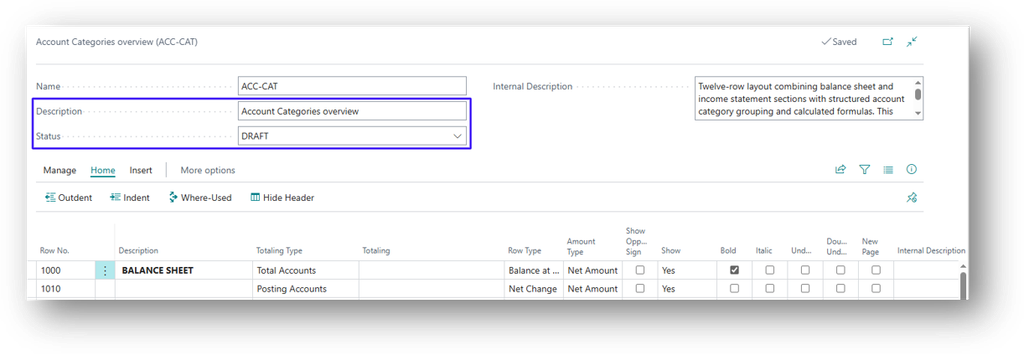
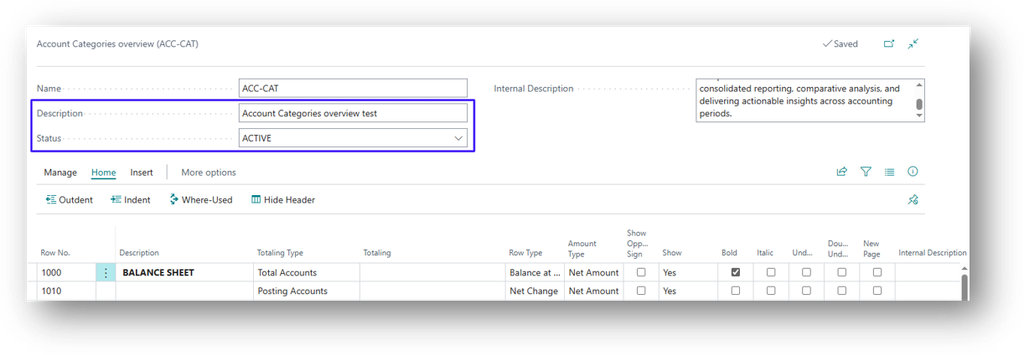
- Now system has tracked this in Change log Entries.
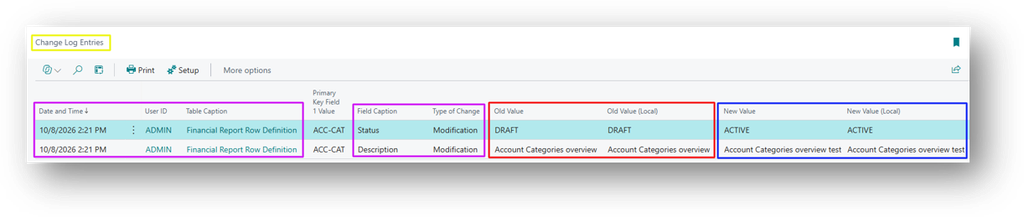
See that, system has recorded the changes.
Capturing Line Changes
The controller also needs to trace changes to Totaling ranges and formulas on row definition lines, because these change the reported figures. Version 29 does not log automatically, so the classic setup is still required for the line tables. Will not going to use the old feature and let me show you what am I saying.
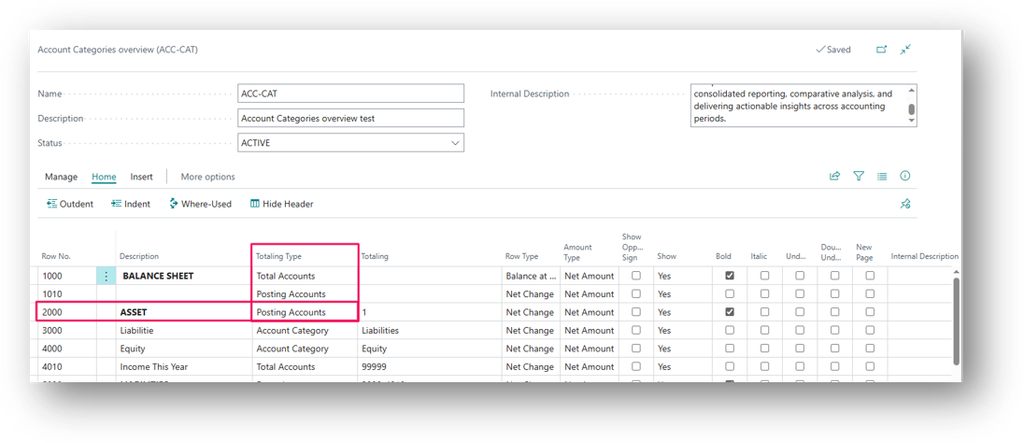
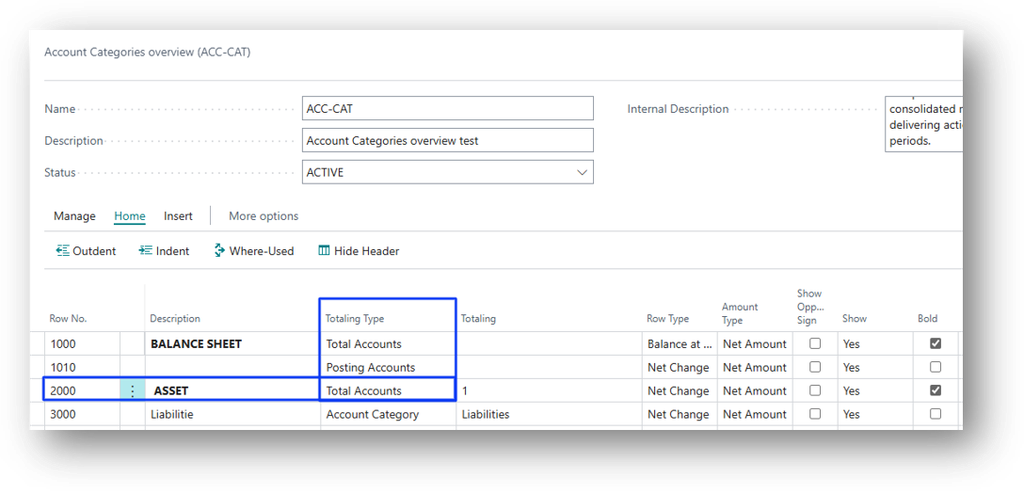
Let’s change the Totaling Type from Posting Accounts to Total Accounts.
- Now system did not track this in Change log Entries.

- See no new log entries are created.
Hope so this is Helpful😃