
This field exists on the General Journal Template and General Journal Batch and determines whether the VAT amount calculated by the system on a journal line can be manually overridden.
What it does
By default, Business Central calculates the VAT Amount field on a journal line automatically based on the VAT posting setup, and the user cannot change it. When Allow VAT Difference is enabled, the VAT Amount field becomes editable, and the user can enter a different value within the rounding tolerance defined in the VAT Posting Setup.
Why it Matters
This is needed when a vendor’s invoice shows a VAT amount that differs slightly from Business Central’s calculated amount, typically due to rounding on the vendor’s side. Without this option, small rounding mismatches between the system-calculated VAT and the actual invoice VAT would either block posting or force the user to post a mismatched amount.
Setups
This relevant fields related to this feature is available on 3 Setups.
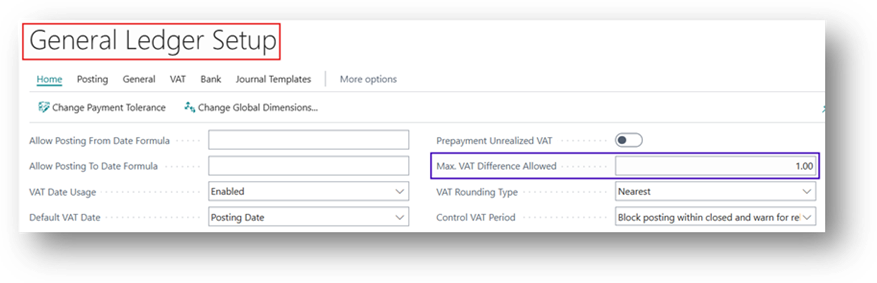
- General Ledger Setup
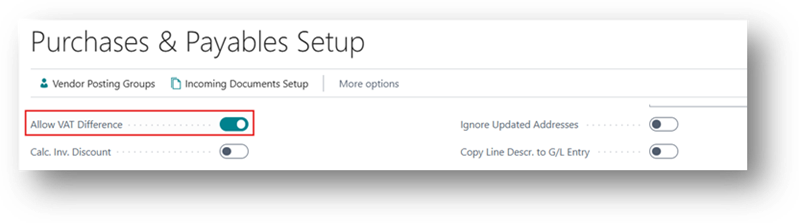
- Purchase & Payables Setup
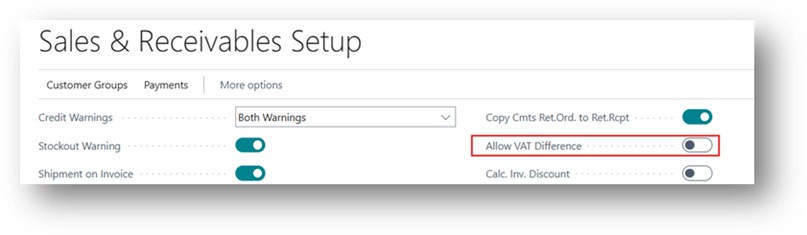
- Sales & Receivables Setup
Process
On General Ledger setup we are going to specify the maximum difference acceptable. Furthermore, in Sales & Purchase setup we are going to control that on which process you want to enable.
For the Sake of Example, we are going to enable that in Purchase Setup and disable on Sales Setup.
Purchase Process
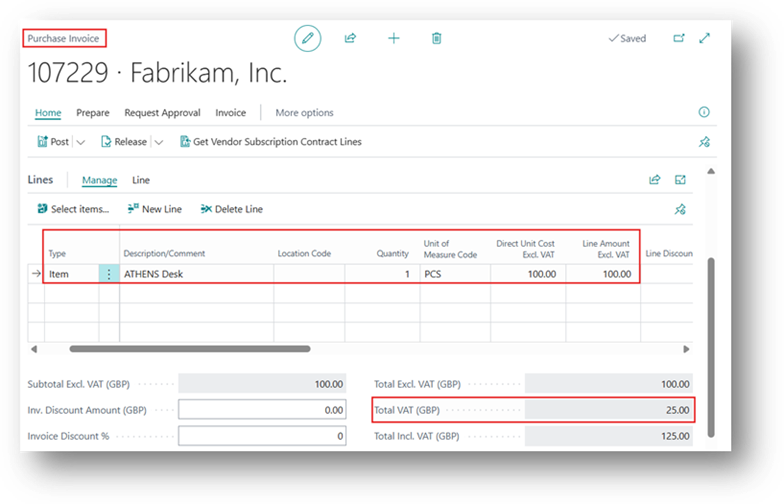
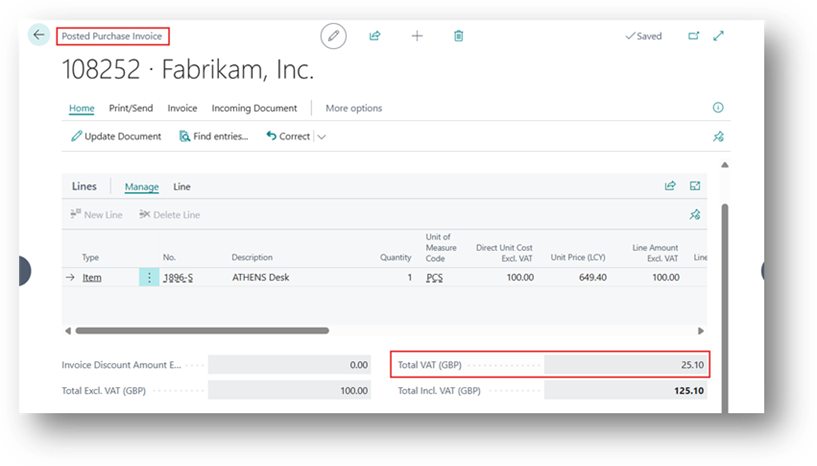
The Vendor share his Sales invoice with VAT Amount 25.1, and our system is Calculating 25.
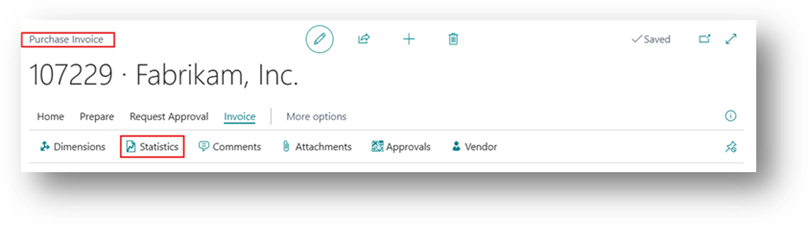
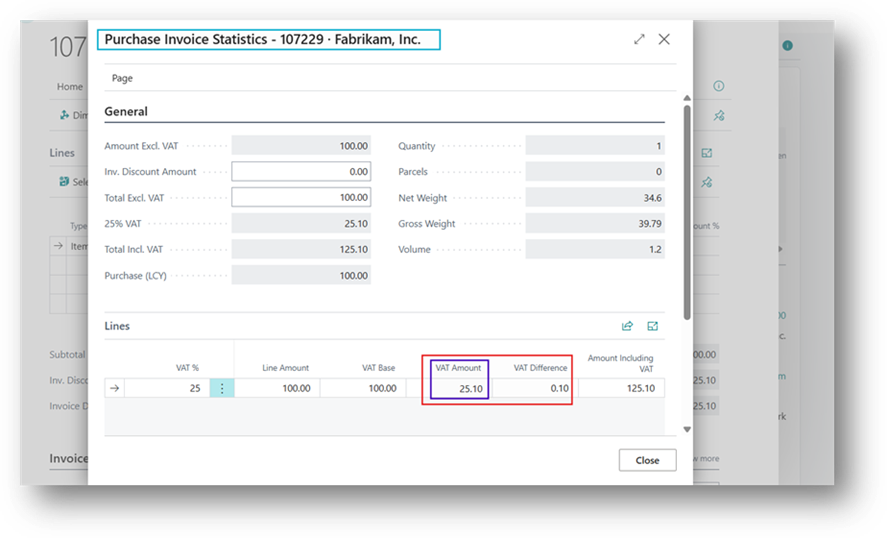
- Manually change the value in VAT Amount. VAT Difference will automatically calculate.
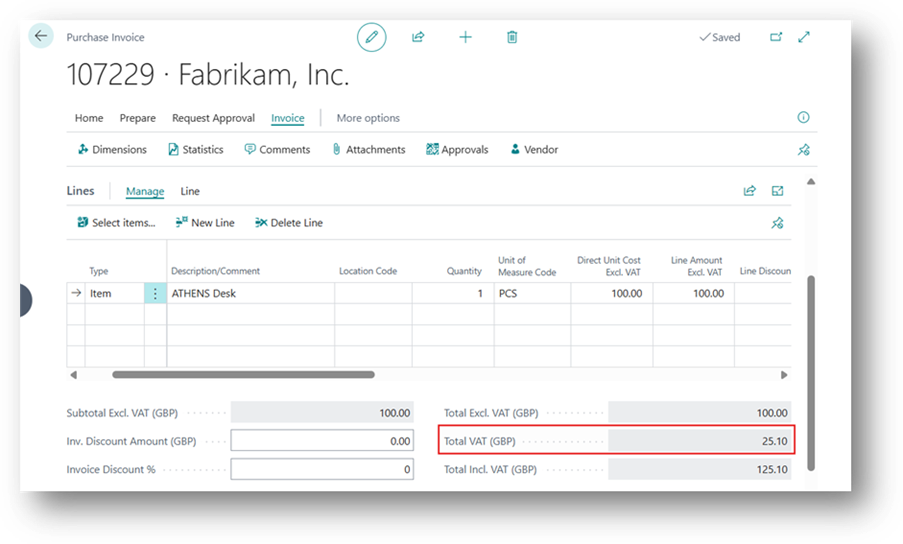
- Now let’s see the Posted Purchase Invoice Document.
Sales Process
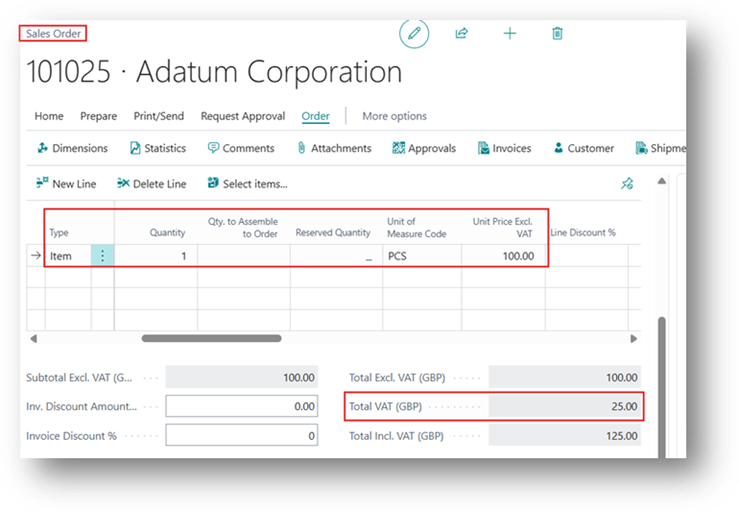
Now the same scenario will be for Sales Invoice now.
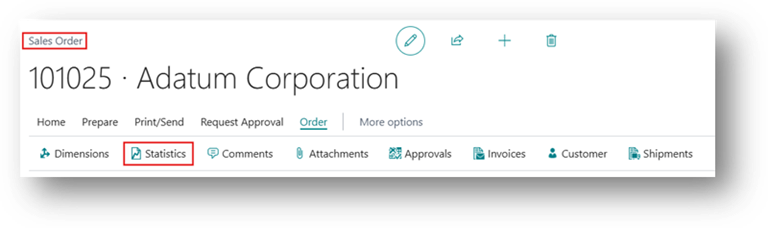
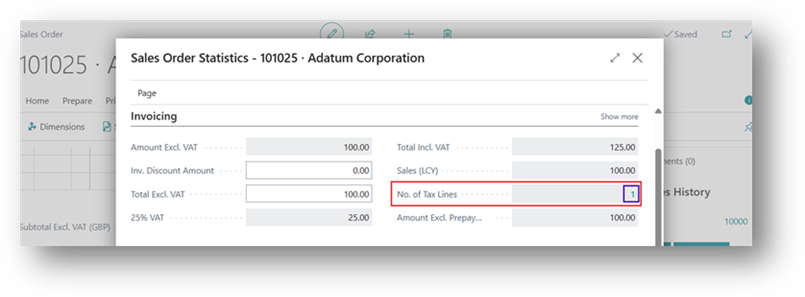
- In No. of Tax Line, click on the Number. “1”.
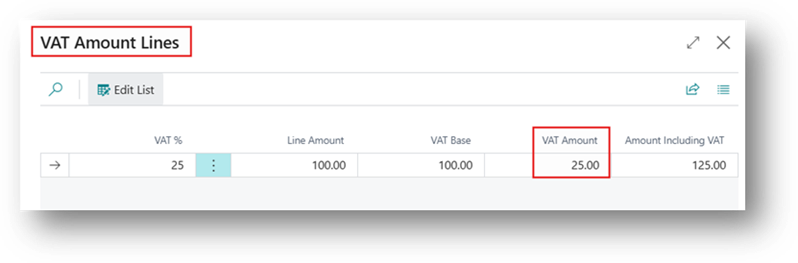
- After that VAT Amount Lines opens then on the VAT Amount field if you try to edit then it will not allow you to do this.
- It means that’s how this Boolean works if disable.