

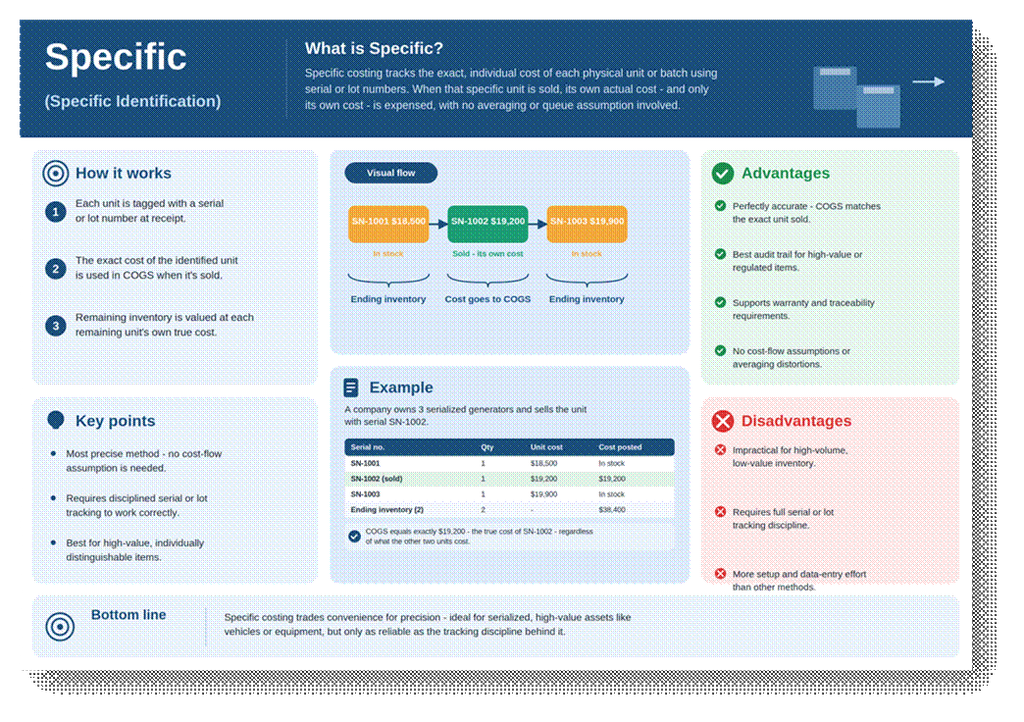
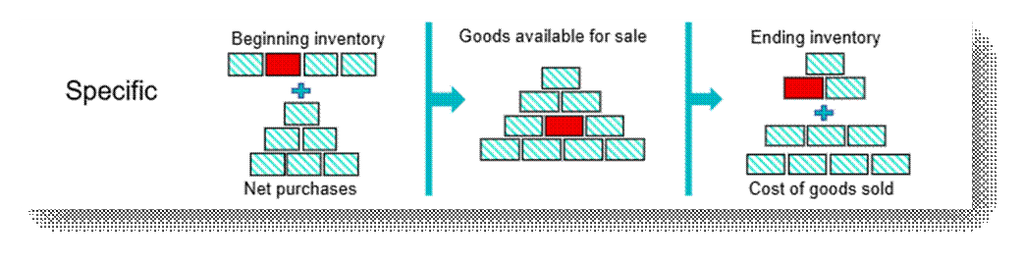
Specific costing assigns and tracks the exact, individual cost of each physical unit, rather than pooling costs into layers consumed by a rule like FIFO or LIFO. When that specific unit is sold or consumed, its own actual cost is booked.
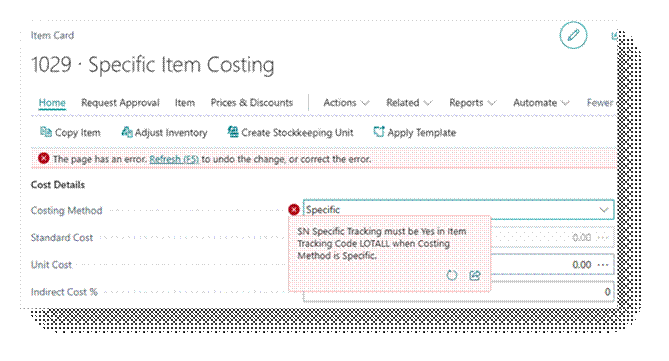
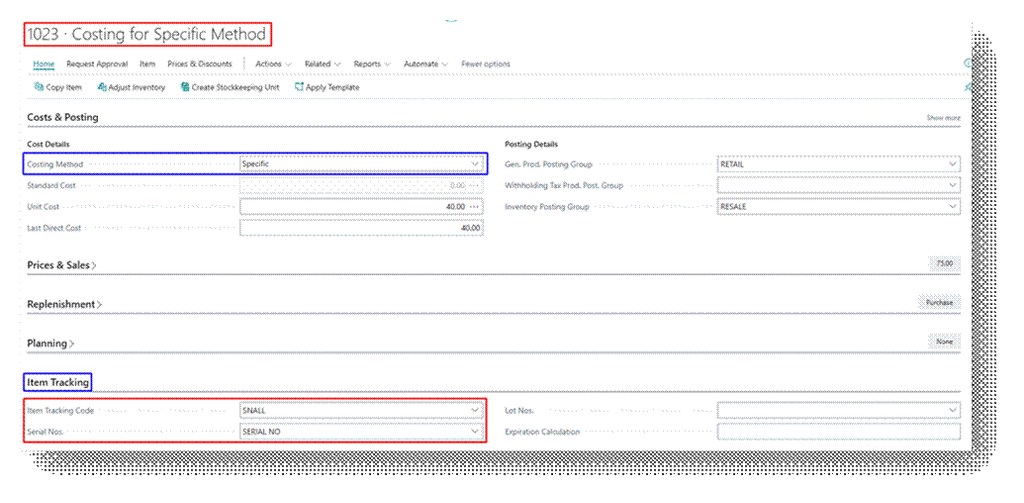
In Business Central, Specific costing is almost always paired with Serial No., tracking on the item, because the system needs a concrete identifier to know exactly which physical unit is leaving inventory.
Serial Number is acceptable and on Lot Number it will give the Error.
Common Misconception
Regardless of which Costing Method is assigned to an item, the Unit Cost field on the Item Card is always populated by an average calculation the total remaining cost of on-hand inventory divided by the remaining quantity.
Costing Method Field
Specific is set on the item card’s Costing Method field and requires Item Tracking Code configuration (serial tracking) to function correctly.
Worked Example
Item ‘ITM-GEN-500’, an industrial generator, is costed under Specific with serial number tracking. Three units are received at different costs, and different specific serial number is sold.
| Serial No. | Quantity | Unit Cost | Status |
| SN-1001 | 1.00 | 40.00 | In stock |
| SN-1002 | 1.00 | 42.00 | In stock |
| SN-1003 | 1.00 | 43.00 | In stock |
When the sales order ships SN-1002 specifically, Business Central posts COGS of exactly 42.00, the true cost of that unit, regardless of what SN-1001 or SN-1003 cost.
This holds true even though SN-1002 was not the oldest (FIFO) nor the newest (LIFO) unit in stock; its cost is tied to its identity, not its position in a queue.
Remaining inventory value is simply the sum of what’s left: SN-1001 (40.00) + SN-1003 (43.00) = 83.00.
When to Use This Method
- High-value, individually distinguishable items: vehicles, machinery, Jewelry with unique stones.
- Items where warranty, or traceability requires proof of exactly which unit was sold to which customer.
- Low-volume, high-cost inventory where per-unit precision matters more than processing speed.
In Business Central
Let’s go the Item card first.
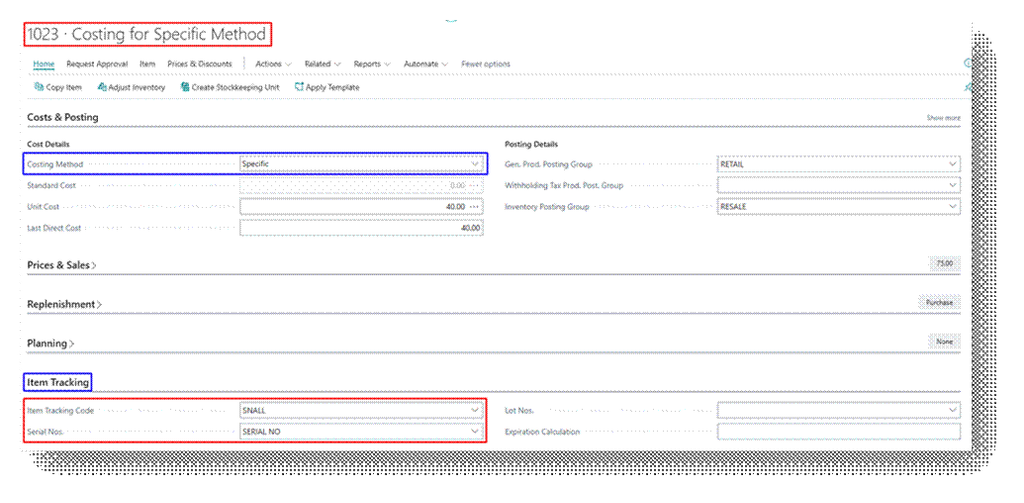
Now let’s Purchase this Item in a way we do normal Purchases.
Refer this document to learn the Procure to Pay Process in detail – https://ahmad365.com/procure-to-pay-process/
I have created the Example I explained above and in Business Central you can see the Details.
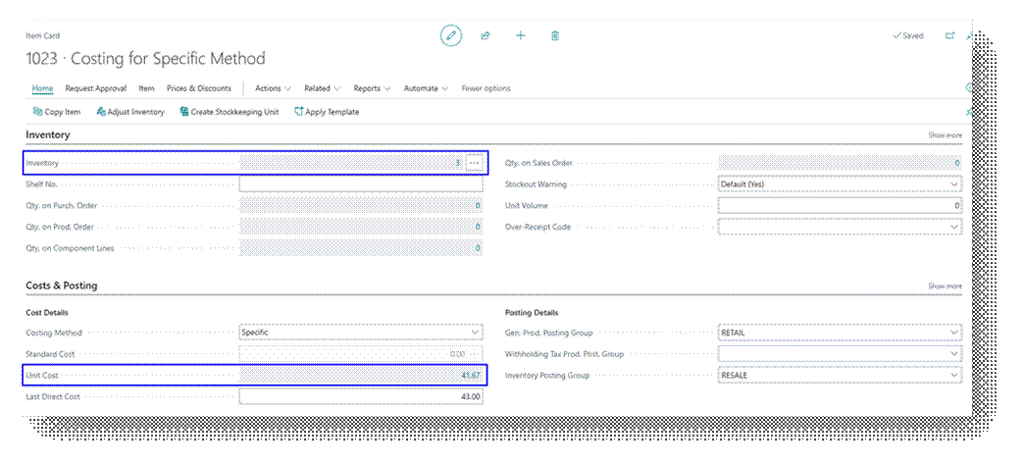
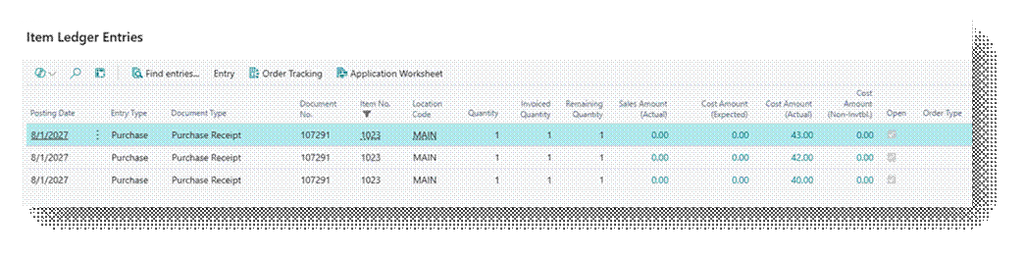
Now let’s Sell 130.00 Quantities.
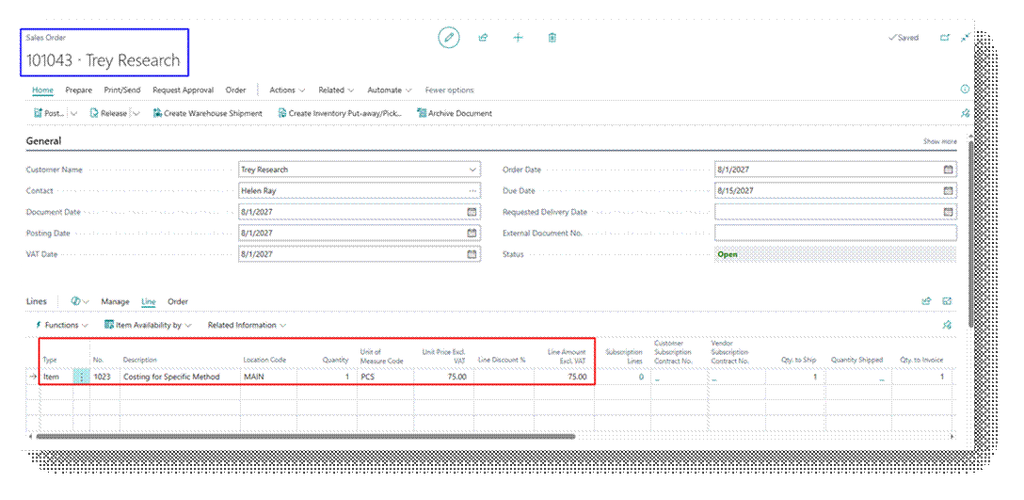
As you can observe that Unit Cost is 42.13 Per Item, which you can see in the Unit Cost field on item card, and it is calculated based on AVCO even though we selected FIFO. But this field is just for Reporting Purpose. Actual Entries will follow the Costing Method you will select in the Item Card.
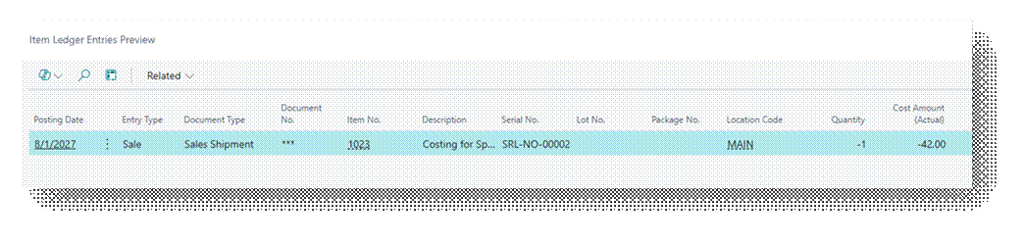
Let’s Preview this Sales Order:
Cost Amount (Actual) – 42.00
| Transaction | Quantity | Unit Cost | Total Cost |
| AVCO Calculation | |||
| Sales Shipment # 1 | 1.00 | 41.67 | 41.67 |
| Total Amount (AVCO) | 41.67 | ||
| Specific Calculation | |||
| Purchase Receipt # 2 | 1.00 | 42.00 | 42.00 |
| Total Amount (Specific) | 42.00 | ||
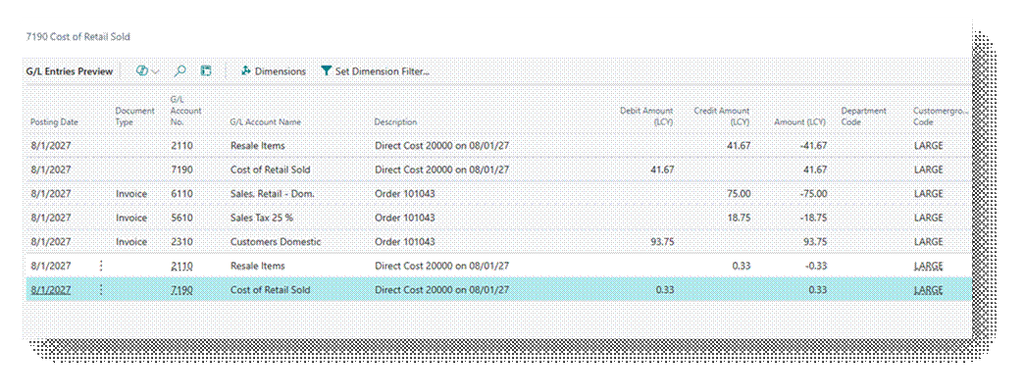
Check the GL Entry closely that Amount is coming according to AVCO.
- Cost of Retail Sold – 41.67 (Debit)
- Resale Items – 41.67 (Credit)
But look closely check the entries of 56.90 Amount. So, in Practical system record the value in FIFO after adjusting the entry of difference in AVCO and FIFO.
- Cost of Retail Sold – 41.67 (Debit) + 0.33 (Credit) = 42.00 (Debit)
- Resale Items – 41.67 (Credit) + 0.33 (Debit) = 42.00 (Credit)
So, in short this is how it works.