Configuration Table Processing Rules let a configuration package do more than insert data. After the package creates the records, it can also process them, for example by posting, invoicing, shipping or receiving them. In this post, we will invoice a sales order through a configuration package and also see which actions are available.
Preparing for Processing Rules
- The package SALES ORDER contains table 36 – “Sales Header” and table 37 – “Sales Line”. Sales Line uses Parent Table ID 36, so the package always processes the header before its lines.

- First, select the Sales Header table, go to Table and click Processing Rules.

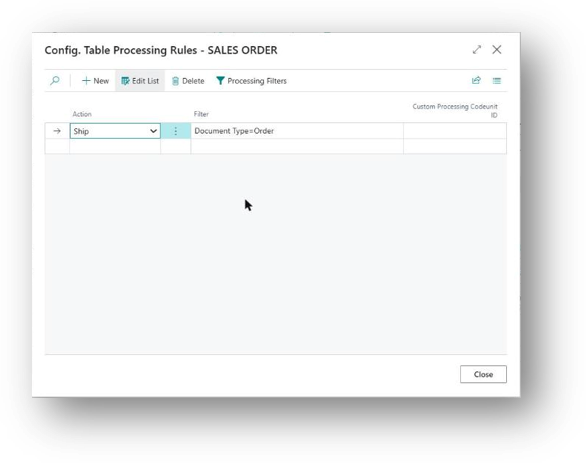
- A rule has four parts:
- Table: The table it belongs to.
- Action
- Filter: It limits which records the rule applies to.
- Custom Processing Codeunit ID
The Action field offers Five Values: Custom, Post, Invoice, Ship and Receive.

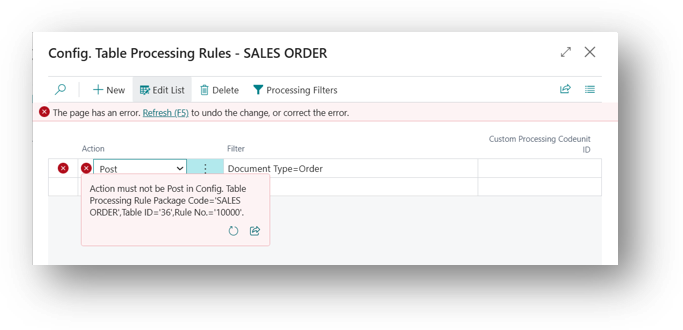
- Not every action is valid for every table. Business Central validates the choice. For example, if you select Post on the Sales Header table, you get this error:
- The valid actions as per my testing and reference are:
- Post: Tables 81 (Gen. Journal Line), 232 (Gen. Journal Line related) and 27 (Item journal related). However, Sales Header does not allow it.
- Invoice: Sales Header (36) and Purchase Header (38).
- Ship: Sales Header (36) and Transfer Header (5740).
- Receive: Purchase Header (38) and Transfer Header (5740).
- Custom: Any table, together with a Custom Processing Codeunit ID that contains your own code.
I selected Invoice for this test and kept the filter Document Type=Order, so the package processes only orders.

Prepare the Data in Excel for Processing Rules
- I added one order and one quote. The quote is there because it proves that the filter works.
Sales Header Sheet

Sales Line Sheet

Import Data into the Package
- Click Import from Excel and then Import.


Apply the Package with Processing Rules
- Then click Apply Package and confirm. The Processing Rules run, and the result shows that the package processed 2 tables, inserted 4 records and found 0 errors.

- The Sales Header count moved from 89 to 90. The package inserted two headers, then invoiced and removed the order, which leaves only the quote as a new record.
Check the Processing Rules Result
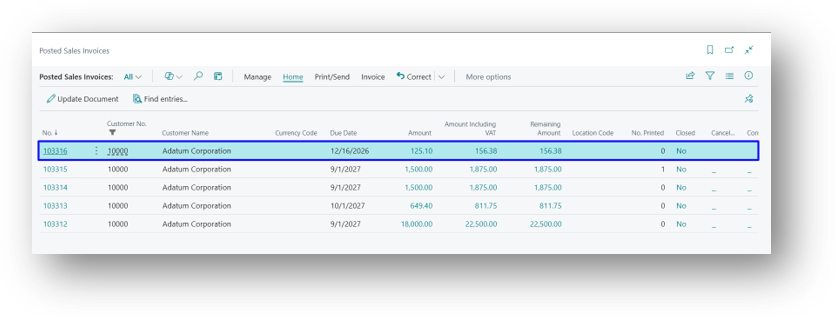
- Open the Customers list and select customer 10000. Posted Sales Invoices increased from 69 to 70 and Ongoing Sales Quotes increased from 2 to 3. As a result, we can see that the Processing Rules invoiced the order and left the quote untouched.

- As a result, the new posted invoice is 103316.
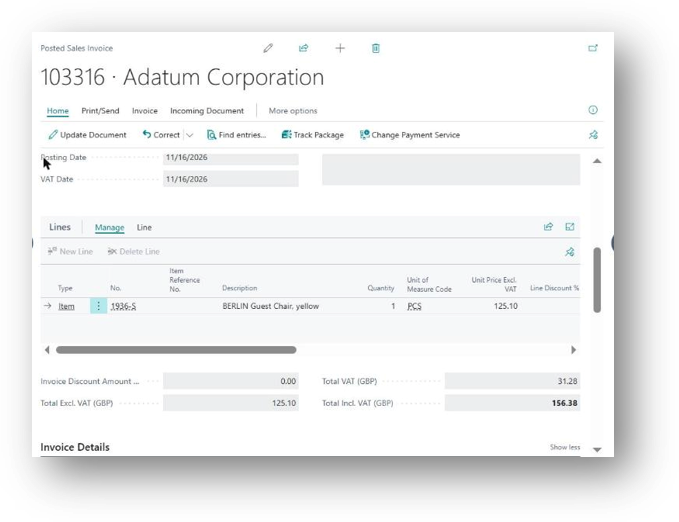
- Open the invoice. As expected, the Order No. is CFGINV01 and Your Reference is INVOICE TEST, which matches the data from the package.


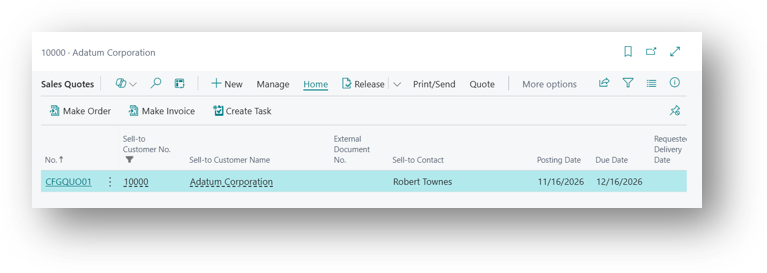
On the same side, the Sales Quote is also created.

Conclusion
- Processing rules turn a configuration package into a small automation tool.
- Therefore, always use a filter so that the package processes only the intended records.
- For logic that Post, Invoice, Ship or Receive do not cover, use Custom with your own codeunit.
Also, read more Business Central guides on Ahmad365 Blogs.
Hope so this is Helpful 😃