A customer asked me if sales transactions can be posted using a configuration package. Yes, it is possible by using processing rules in the configuration package. In this article, we will see how to ship a sales order using a configuration package.
Create the Configuration Package
- Create a package and add table 36 – “Sales Header” and table 37 – “Sales Line”.

- Select the table and go to Table > Fields. Click Clear Included, then tick only the fields you need.
- Sales Header: Sell-to Customer No., Your Reference, Order Date and Posting Date.

- Sales Line: Type, No. and Quantity.

- Use Parent Table ID option when some data depends on other data, like headers and lines in a document. The header must be created first, before its lines. Enter 36 as the Parent Table ID on the Sales Line.
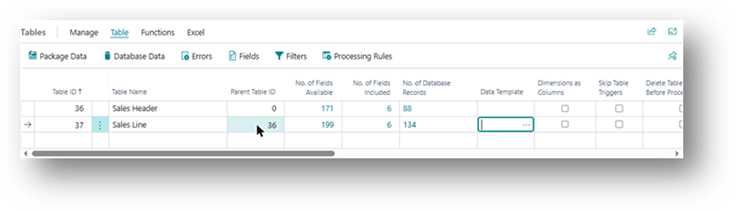
- Select table 36 (Sales Header) and click Table > Processing Rules.
{Reference Document Link}
Add Processing Rules to the Configuration Package
- In Processing Rules, set the filter Document Type = Order.

- Set the filter Document Type = Order.

- The processing rule now shows Ship with the filter Document Type=Order.

Export the Data to Excel
- Click Export to Excel on the package.

Enter the Order Data for the Configuration Package
- Enter the order data in the Excel file. Header sheet:
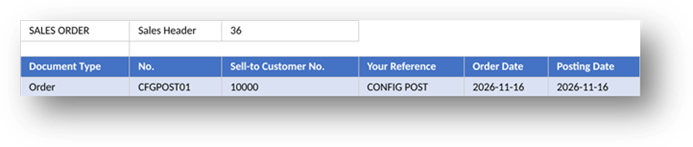
- Line sheet:

- Note: The exported file contains all existing sales documents from the database. Delete the other rows and keep only the order you want to process. Otherwise the Ship action will be applied to every existing order.
- Click Import from Excel, select the file and click Import. Confirm the overwrite message for both tables.


Review the Package Data
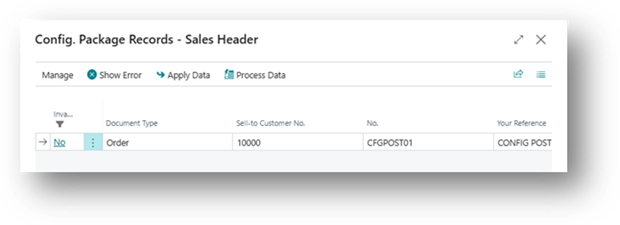
- Check the package data. It shows the one order we added.
Apply the Configuration Package
- Click Apply Package and confirm.

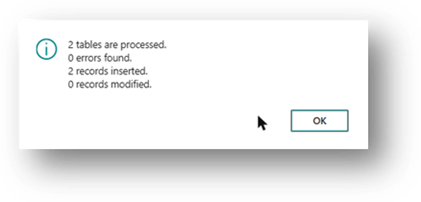
- The result shows 2 records inserted and 0 errors.
Check the Posted Shipment
- Open Posted Sales Shipments. The new shipment is created with Order No. CFGPOST01 and the item line.

Hope so this is Helpful 😃