Microsoft Power Platform Admin Center includes a Known Issues section where you can track active and resolved bugs affecting your Business Central environment. This article shows you exactly how to find and read these known issues.
Steps to Check Business Central Known Issues
- Go to https://admin.powerplatform.microsoft.com in your browser. Sign in with your Microsoft 365 or Dynamics 365 credentials. You will land on the home dashboard.
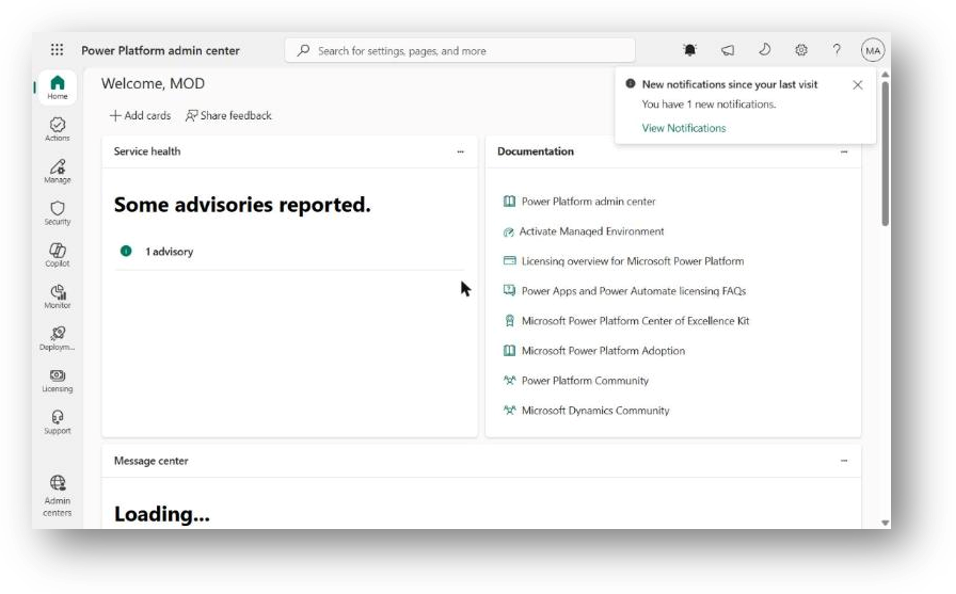
Power Platform Admin Center home dashboard
- In the left-side navigation bar, scroll down and click Support. This expands a sub-menu with three options:
- Support Requests
- Known Issue
- Service health

Support section showing sub-menu options
- Under Support, click Known Issues. The page opens with a list of issues across all Microsoft products. By default, all product categories are selected and you may see up to 100 issues.

Known Issues page showing all products (100 issues by default)
- To narrow the results to Business Central only, use the Product category filter at the top of the page:
- Click the Product category dropdown. A list of all products appears with checkboxes.
- Uncheck “All products” to clear all selections.
- Check “Dynamics 365 Business Central” from the list.

Product category dropdown — uncheck All products, then select Dynamics 365 Business Central

Dynamics 365 Business Central selected in the dropdown
- After Applying the Filter, the list updates to show only Business Central known issues. Each row shows:
- Title — A Short Description of the Issue.
- Status — Active (Currently Affects Environments) or Resolved (Fix has been released)
- Product — Confirms Dynamics 365 Business Central
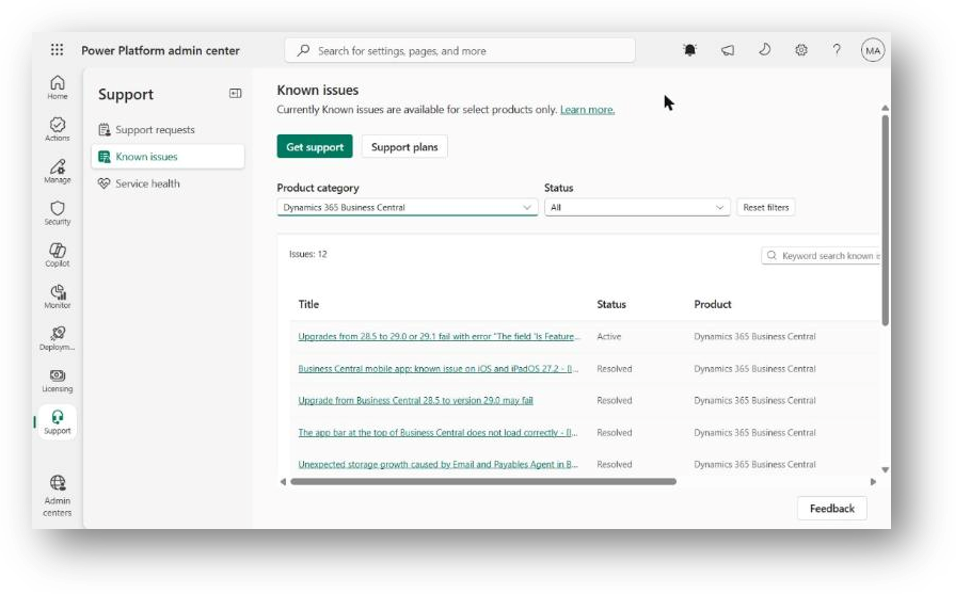
Known issues filtered to Dynamics 365 Business Central (12 issues found)
- Click on any issue title to open its detail page. The detail page shows:
- Issue ID and full title
- Status badge (Active or Resolved)
- Product and Creation Date
- Problem — A Description of what is Failing and which Environments are Affected.
- Workaround — Steps to follow while a permanent fix is pending, or confirmation that the fix is in an upcoming update
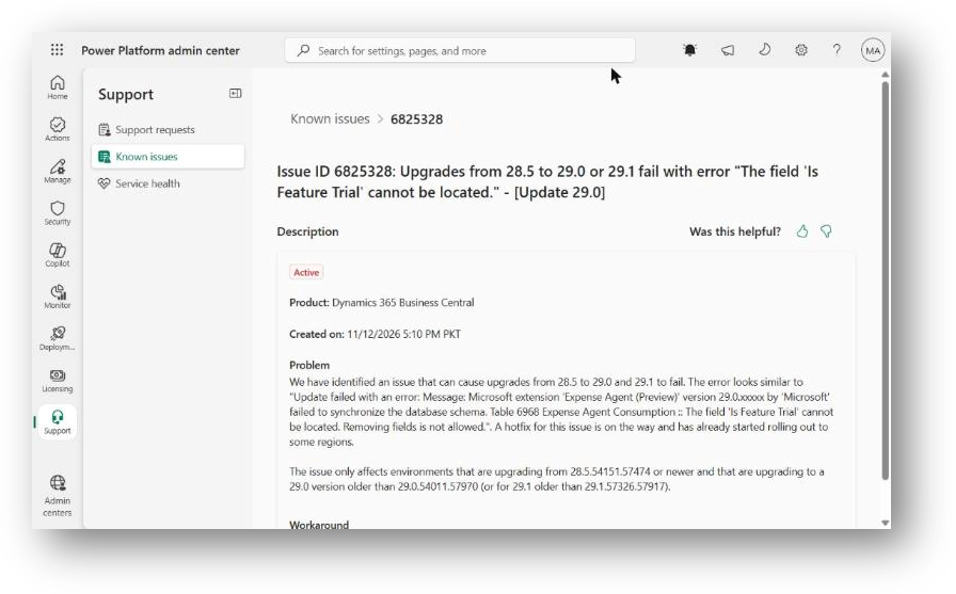
Issue detail page showing Status, Product, Problem description, and Workaround

Scrolled view showing the full Workaround section
- You can also filter the list by Status using the second dropdown:

- All — shows both active and resolved issues (Default)
- Active — shows only issues that are currently affecting environments
- Resolved — shows issues where a fix has been released
Use Active to focus only on issues that may currently impact your environment.
You can bookmark the Known Issues page.
(https://admin.powerplatform.microsoft.com/support/knownIssues) and check it whenever you encounter unexpected behavior in Business Central.
Hope so this is Helpful 😃