

Key Points About Budgeted Fixed Assets (“Budgeted Asset”)
- Purpose: It allows you to record projected acquisition costs for Fixed Assets you plan to purchase.
- Restriction: You cannot mark a Fixed Asset as “Budgeted” if it’s already been acquired.
- Usage: Acquisition costs for budgeted assets are posted via the Fixed Asset Journal instead of the G/L Journal or Purchase Invoice.
Why Use Budgeted Fixed Assets?
- Helps include planned assets in capital expenditure analysis.
- Allows for projecting depreciation and asset value for future periods.
- Supports better planning and budgeting by distinguishing actual vs. planned acquisitions.
Example Scenario: Budgeted Fixed Assets
- You flag a truck as a “Budgeted Asset” and post a projected acquisition cost in the Fixed Asset Journal.
- This cost is included in reports like Projected Value to analyze total depreciation and values as of a specific date.
- Reports can be filtered to include or exclude “Budgeted Assets” based on your needs.
The “Budgeted Asset” field on the Fixed Asset card in Dynamics 365 Business Central often goes unnoticed or is hidden through personalization. However, this field offers more functionality than it may seem.
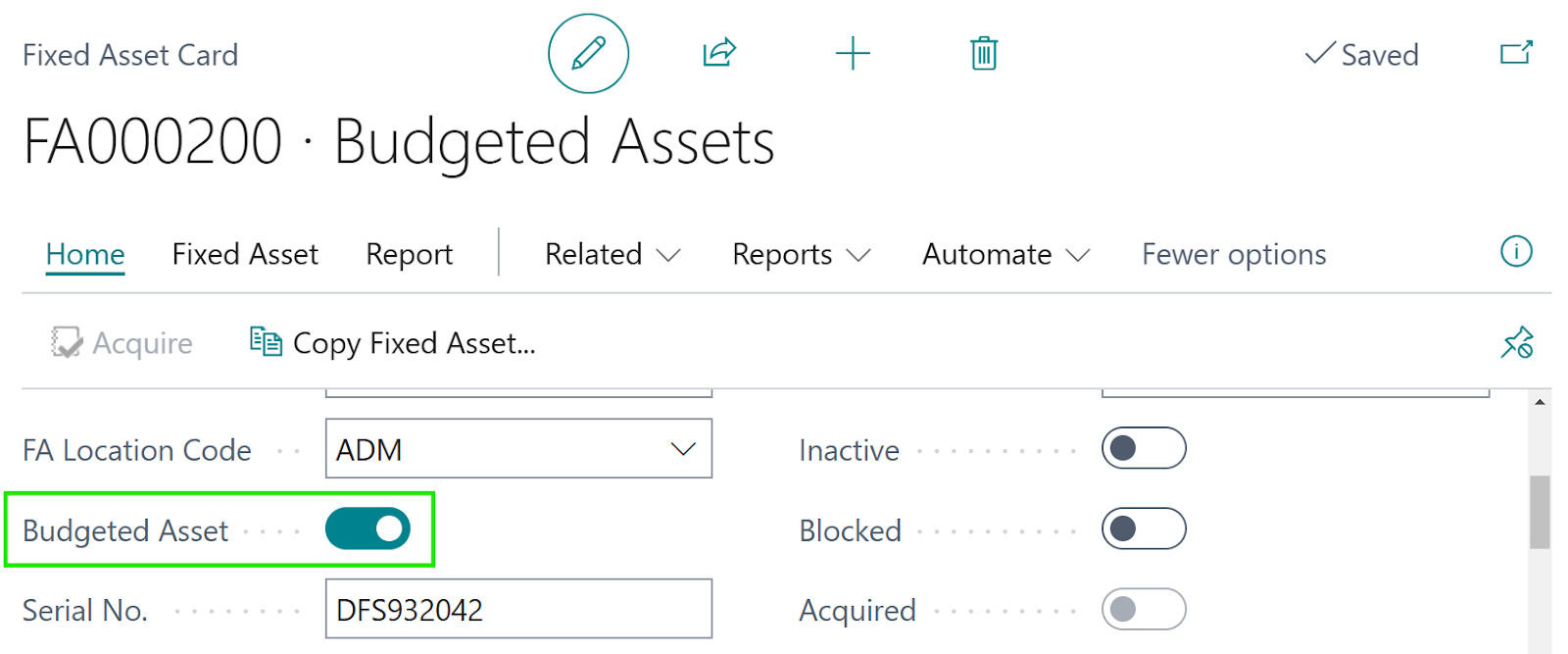
In addition, when activated, it enables users to do more than just apply a filter.
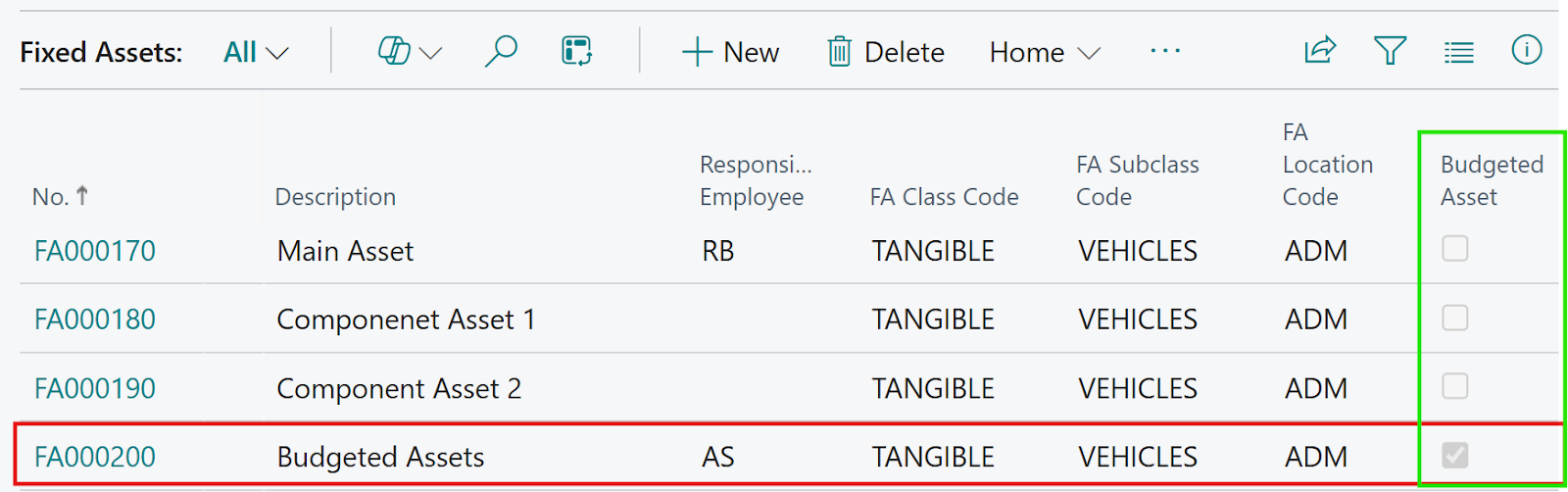
Note: You cannot mark an already acquired Fixed Asset as a “Budgeted Asset,” which hints at its specific use.
For example, if we look at a fleet of trucks, only one (FA000200) is marked as a “Budgeted Asset.” All other assets are set up in the Company Depreciation Book with G/L Integration for Acquisition Cost, Disposal, and Depreciation. Usually, you must post acquisition costs using the Fixed Asset G/L Journal or a Purchase Invoice.
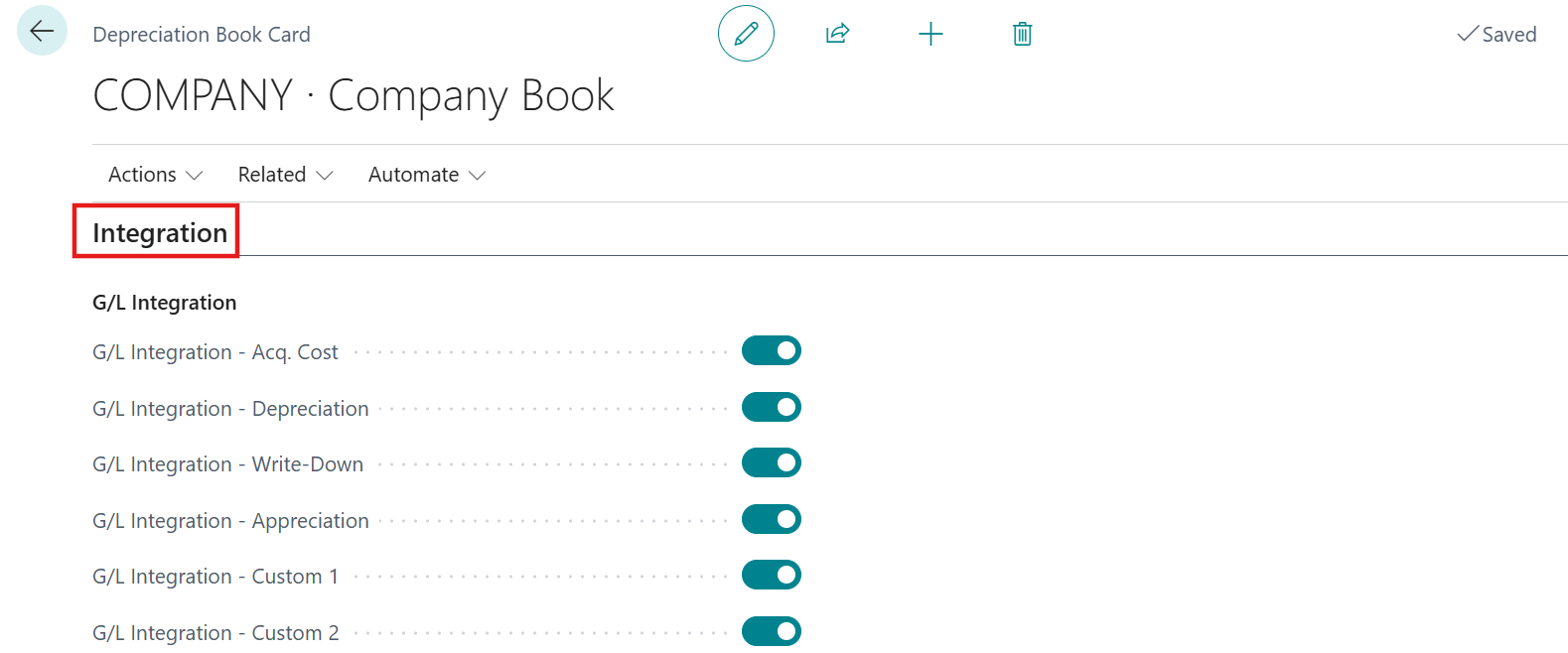
Posting Acquisitions for Budgeted Fixed Assets
However, for “Budgeted Assets,” you can post projected acquisition costs directly through the Fixed Asset Journal, making it a useful feature for planning.
- FA No. – FA000200
- FA Posting Type – Acquisition Cost
- Amount – 10,000

Next, when you post this:

As you can see, the amount of 10,000 appears in the Book Value field, which means the asset is acquired. Now, we can see this in the form of a report. In the Fixed Asset Book Value 01 report, you can see a Budgeted Asset filter. In this example, we keep it blank so you can see both Budgeted and Non-Budgeted Assets.

Then, simply click Preview.

As a result, in the report you can see 10,000 in the Acquisition Costs column.
Posting Depreciation for Budgeted Fixed Assets
- FA No. – FA000200
- FA Posting Type – Depreciation
- Amount – 2250

After you post the entry, check the Book Value on the Fixed Asset Card.

Amount – 7750 (10,000 – 2,250). You can also check the FA Sub-Ledger Entries posted in the system.

A very useful report is “Fixed Assets Projected Value”. It calculates the projected value of depreciation.
The Current Date in the system is 01/11/25 (Book Value of 7,750.00 on this date).
The Ending Depreciation Date is 31/12/26 (the date on which the Book Value will be 0).
The total number of days between these two dates is 420, and we want to calculate what the depreciation amount will be on 15/11/25 (14 days). Therefore, simply enter the Ending Date in the filter:

Now, simply click Preview & Close:

When You Acquire a Budgeted Asset
When you acquire the “Budgeted Asset” (FA000200), you must remove the “Budgeted Asset” flag from the Fixed Asset Card before posting its actual acquisition cost. Otherwise, you will get an error.
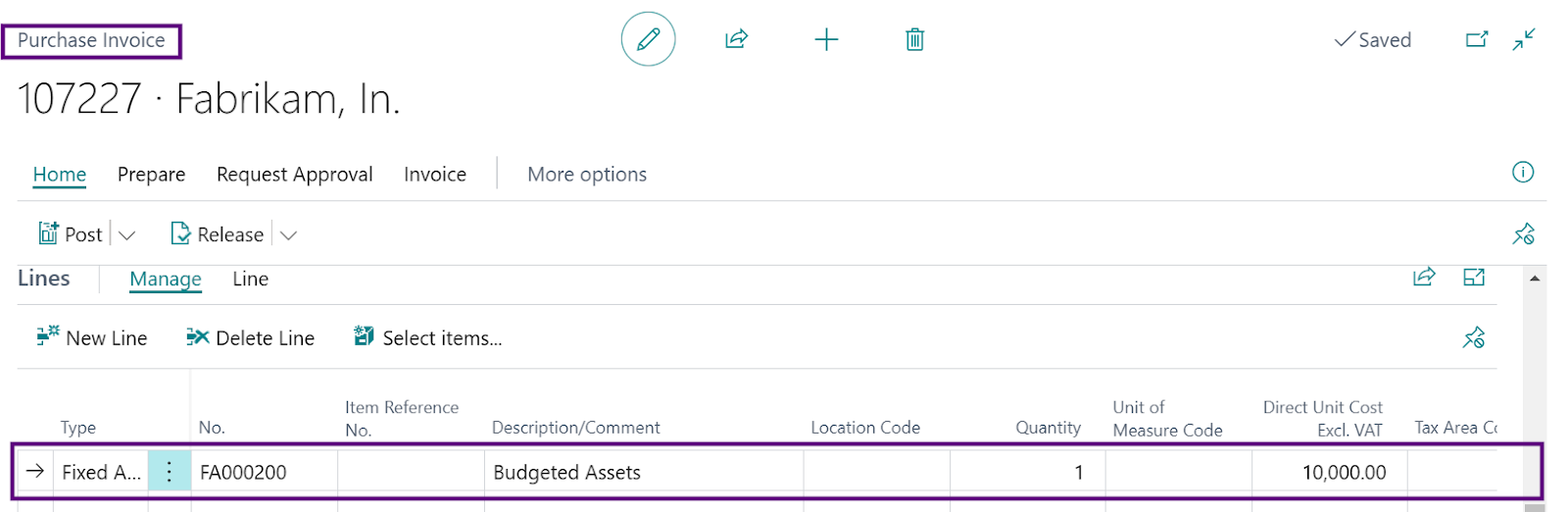
Here, we add the same amount of 10,000 to the Purchase Invoice. Now, simply click Post:

You will then see the error ” Budgeted Asset must be equal to ‘No’ in Fixed Asset: No.=FA000200. Current value is ‘Yes’. “
So, How to Acquire Budgeted Fixed Assets?
Option 1: Cancel the Initial Budgeted Acquisition
- Cancel the Budgeted Acquisition Cost:
-
- Open the Fixed Asset Journal.
- Reverse the initial acquisition entry for your Fixed Asset (FA000200 in this example).


-
- Then, simply post it, and the system reverses the entry.
-
Uncheck the “Budgeted Asset” Flag:
- Go to the Fixed Asset Card (FA000200 in this example).
- Uncheck the “Budgeted Asset” field.
-
Post the Actual Acquisition:
- Finally, use the Purchase Invoice or Fixed Asset G/L Journal to record the actual acquisition cost.
Option 2: Create a New Fixed Asset
- Copy the Budgeted Asset:
-
- Use the Copy Fixed Asset function to create a new Fixed Asset based on the Budgeted Fixed Asset for which you posted the entries.


-
Adjust the New Asset:
- Uncheck the “Budgeted Asset” flag on the new Fixed Asset Card.
- I changed the description and added “For Actual” at the end.
- Then disable the Budgeted Asset flag.
- Uncheck the “Budgeted Asset” flag on the new Fixed Asset Card.

-
Post Acquisition for the New Asset:
- In the Purchase Line or G/L Journal, select the new Fixed Asset No.
- Enter the Budgeted Fixed Asset number (FA000200 in this case) in the “Budgeted FA No.” field on the G/L Journal and Purchase Line.

-
Post the Purchase Invoice or G/L Journal:
- This automatically:
- Posts the acquisition cost to the new Fixed Asset.
- Cancels the acquisition cost of FA000200 (Budgeted Asset).
- This automatically:
Why Option 1 is Better for Budgeted Fixed Assets
- No need to create a duplicate Fixed Asset.
- Avoids additional steps like using the “Budgeted FA No.” field.
- Ensures that the canceled amount matches the original acquisition amount.
If you rely on the Purchase Invoice or the Fixed Asset G/L Journal to create the cancellation, the system uses the amount entered on the line for the reversal. However, this introduces potential risks:
- If the amount is less than the original transaction: A residual balance remains on the “Budgeted Asset.”
- If the amount is greater than the original transaction: Posting will fail, as it would result in a negative value for the “Budgeted Asset”.

Using the first option ensures an accurate reversal and prevents errors, which simplifies the process. Finally, if you use the first option, you will not have to personalize pages to show the “Budgeted FA No.” field.
Planned Disposals: Accurate Asset Valuation
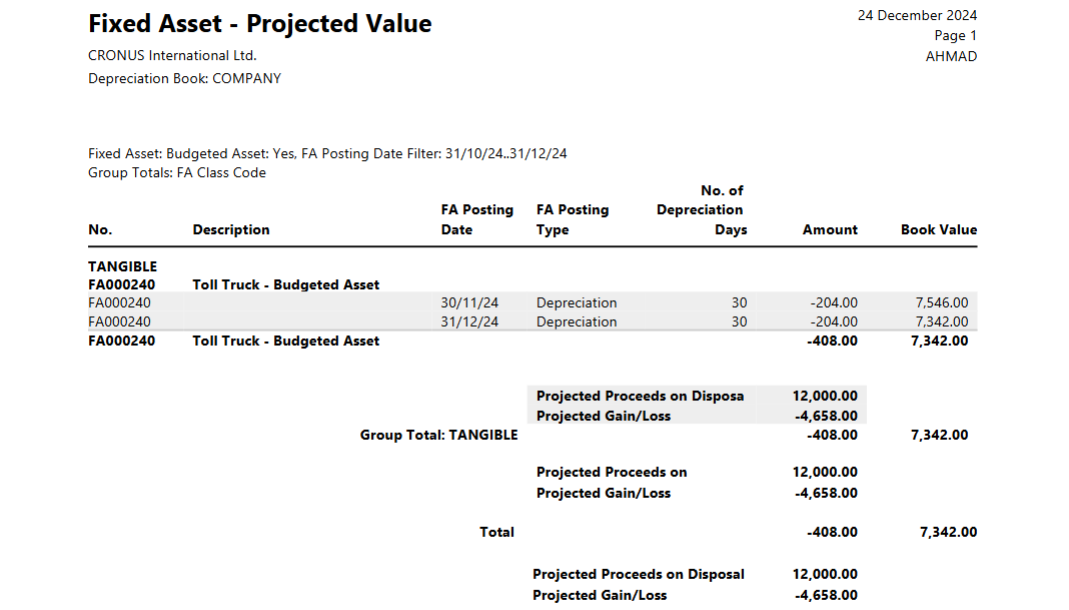
Projecting asset valuations for the next month or year isn’t just about additions. It’s equally crucial to account for planned disposals. D365 BC enables you to seamlessly plan and manage disposals as part of your future asset valuation strategy.

To leverage this functionality, use the Personalize tool to add two hidden fields to the FA Depreciation Books Subform (Page 5666):
- Projected Disposal Date
- Projected Proceeds on Disposal
For this example, we’ll update the Company Depreciation Book only. However, if you’re managing multiple depreciation books with varying depreciation methods, you can add disposal dates and projected proceeds across all relevant books.
Once updated, the Projected Disposal Date and the Projected Proceeds on Disposal fields will reflect planned disposals, allowing precise forecasting of asset valuations.

Viewing Projected Disposals: Step-by-Step Guide
- Select the Depreciation Book
Choose the depreciation book where you’ve updated the Disposal Dates & Projected Proceeds. - Set Accounting Period Options
Leave the Number of Days and No. of Days in First Period fields blank. Instead, select the Use Accounting Period option to let the report calculate activity based on the accounting periods configured for the chosen date range. - Report Customization Options
The report can provide subtotals by:- FA Class | FA Subclass | FA Location | Main Asset | Global Dimension 1 & 2 | FA Posting Group
For more granular details, enable the option to Print per Fixed Asset.
- Purpose of the Report
While this report serves multiple purposes, in this example we focus on projected disposals. - Output Results
When viewing results for a single Fixed Asset, the report will display the Projected G/L based on the updated Projected Proceeds on Disposal field. This enables accurate assessment of financial impact for planned disposals.
Transferring Budgeted Fixed Assets Entries into the G/L Budget
This is a great feature provided by Microsoft: transferring the amounts to a G/L Budget. Let me show you what I mean with the screenshots below. However, for this you need to specify the following.

- Copy to G/L Budget Name: Specifies the name of the budget you want to copy Projected Values to.
- First Depreciation Date: Specifies the date to be used as the first date in the period for which you want to calculate projected depreciation.
- In this case: 01/11/2024
- Last Depreciation Date: Specifies the Fixed Asset posting date of the last posted depreciation.
- In this case: 31/12/2024

Similarly, in the G/L Budget:

For the value 612.00, when we drill down into the entries behind it, you can see (204.00).

While the report creates budgeted entries for depreciation expense, the report does not create budgeted entries for the gain or loss on projected disposals.
For more details, see Manage FA Budgets on Microsoft Learn. You can also read the Fixed Asset Module Overview in Business Central.
Watch this video to understand Budgeted Fixed Assets in more detail
Hope so this is Helpful 😃
Best Regards
Ahmad Subhani
Business Central Functional Consultant
WhatsApp – +923357687164
Email – ahmadsubhani424@gmail.com






 Ahmad Subhani