

The Physical Inventory Journal is the primary tool in Business Central for counting physical inventory and posting adjustments to match the books to reality. It compares system-expected quantities against actual counts and posts any differences.
This journal suit’s locations that don’t use directed put-away and pick. Advanced warehouse setups use the Warehouse Physical Inventory Journal instead. [Covered in a Separate Blog]
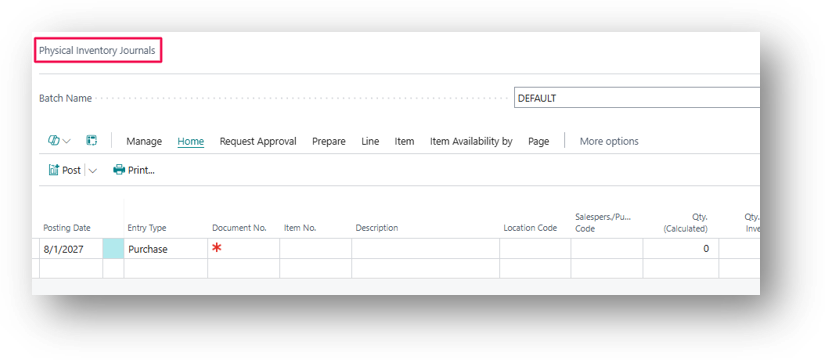
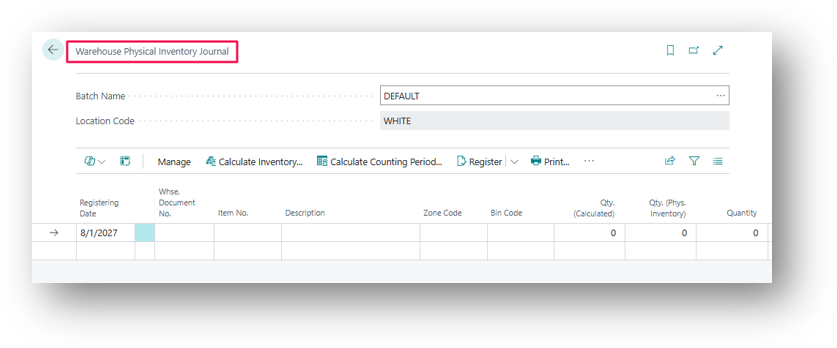
Why Use It?
Inventory naturally drifts from system records like damage, miscounts, theft, or unrecorded transactions all play a part. The Physical Inventory Journal handles this by:
- Calculating expected inventory from system records
- Generating a printable worksheet for warehouse counts
- Posting the difference between expected and actual quantities
- Creating item ledger and physical inventory ledger entries as an audit trail
Step-by-Step Guide
Calculate Expected Inventory
- Search icon (Alt+Q), enter Physical Inventory Journals.
- Choose Calculate Inventory from the Prepare menu.
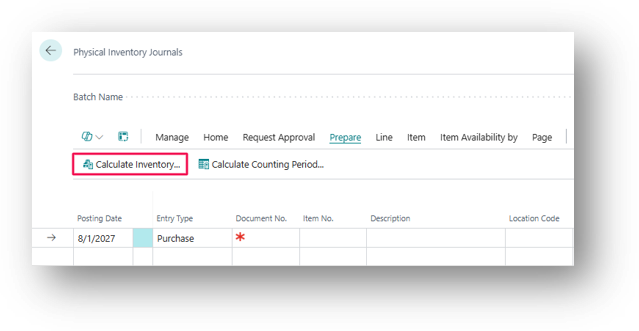
- On the Calculate Inventory page, set conditions. Plus let’s understand few fields.
- Items Not on Inventory – It is an option in the Calculate Inventory action. When turned ON, it includes items in the journal even if their system quantity is 0. So, if the item is actually sitting in the warehouse (but shows zero in the system), it still gets counted and adjusted. When OFF, items with zero calculated quantity are skipped entirely.
For More details refer to this Article – https://ahmad365.com/items-not-on-inventory-in-calculate-inventory/
- Include Item without Transactions – This feature goes a step further — it includes items that not only show zero quantity but have never had any transaction at all (no purchases, sales, or adjustments ever posted). Turning it ON adds these completely untouched items to the count too, so even brand-new or never-used items can be verified and get their first inventory entry if physical stock is found.
For More details refer to this Article – https://ahmad365.com/include-item-without-transactions-in-calculate-inventory/
- Apply filters if you only want to count specific items, bins, locations, or dimensions.
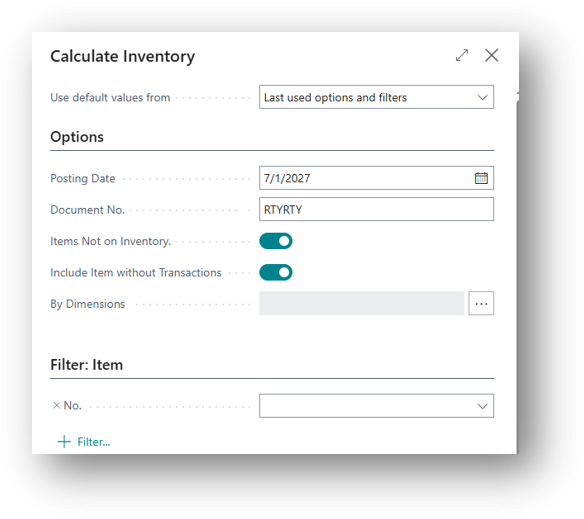
- Select OK.
Business Central then creates journal lines based on your filters. The Qty. (Phys. Inventory) field starts out equal to the Qty. (Calculated) field you only need to change it where the actual count differs.
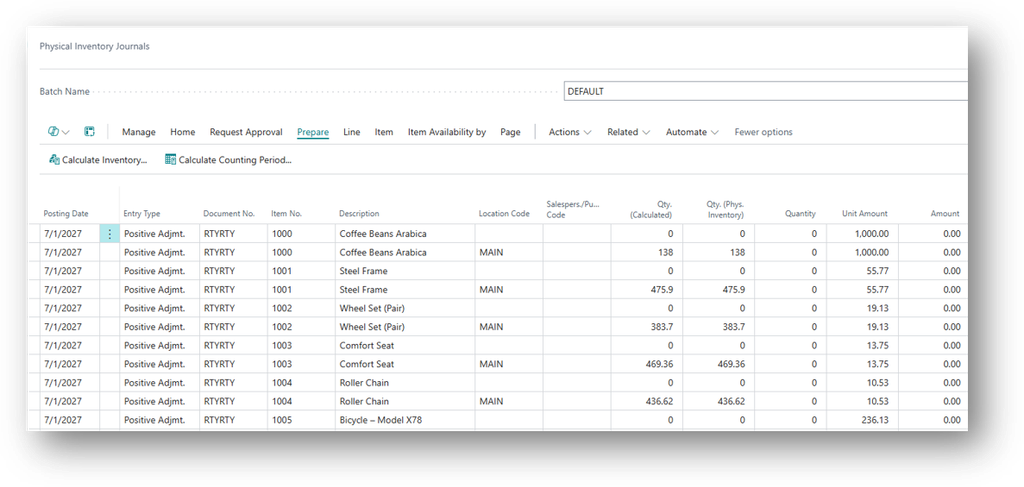
Print the Count Sheet
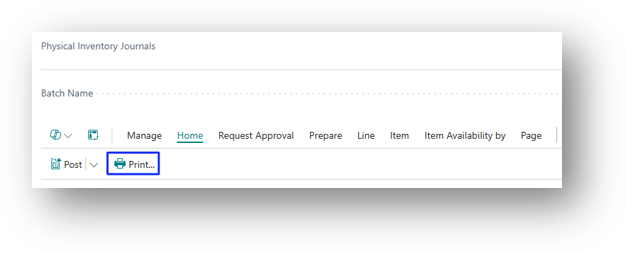
- From the Physical Inventory Journals page, choose Print under Home.
- On the Physical Inventory List page, decide whether to show calculated quantities and items by serial/lot number.
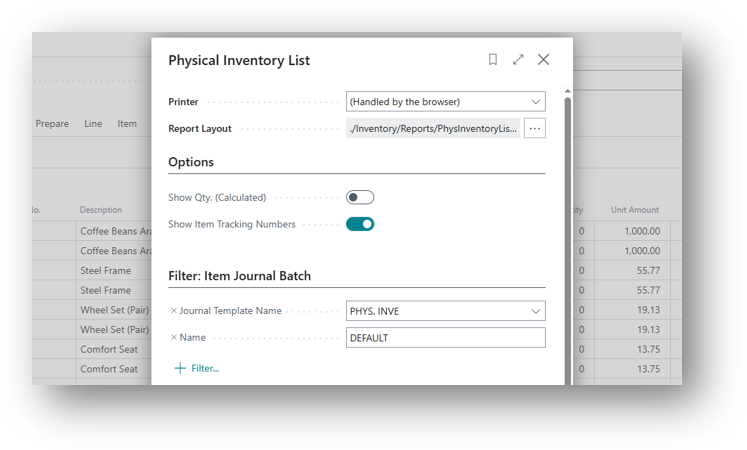
- Apply any filters needed for the print run.
- Choose Print or Preview.
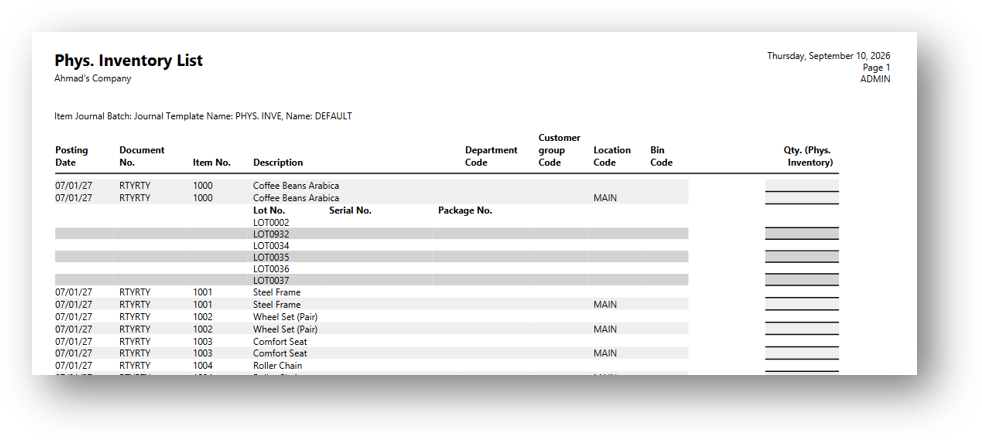
Warehouse staff use this printed sheet to record actual counts and note any discrepancies.
Tip: Once a count sheet has been printed, don’t recalculate the expected inventory again for that batch the expected quantities could change and throw off the reconciliation. If you need separate print, then use separate journal batches.
Enter and Post Actual Counts
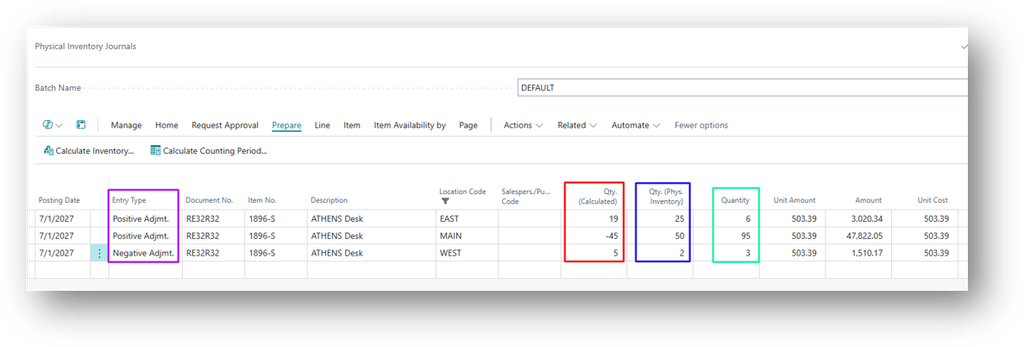
- For each line where the physical count differs from the calculated quantity, enter the Actual Amount in Qty. (Phys. Inventory) and the difference will automatically calculate in Quantity Field. Furthermore, Entry Type will automatically change to Positive and Negative Adjustment depending on quantity is increased or decreased.
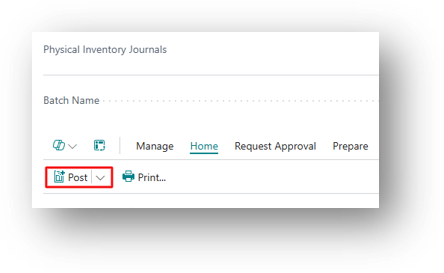
- Choose Post from Home.
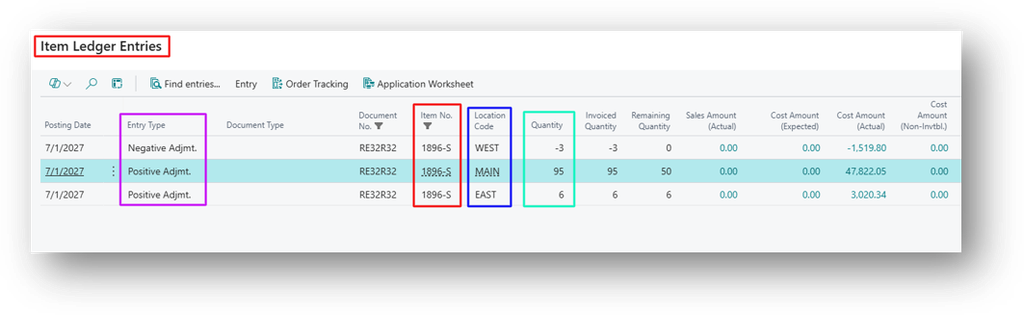
Posting does two things simultaneously:
- Creates Item Ledger Entries that adjust the on-hand quantity and value.
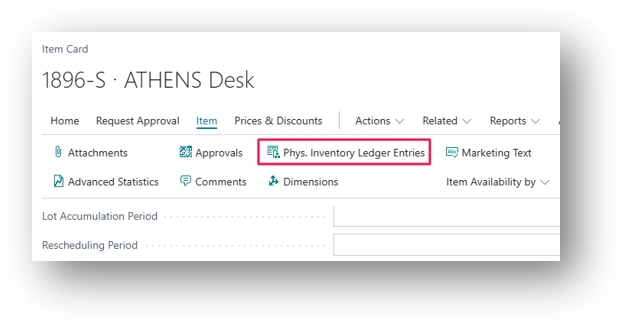
- Creates Physical Inventory Ledger Entries that document the count itself.
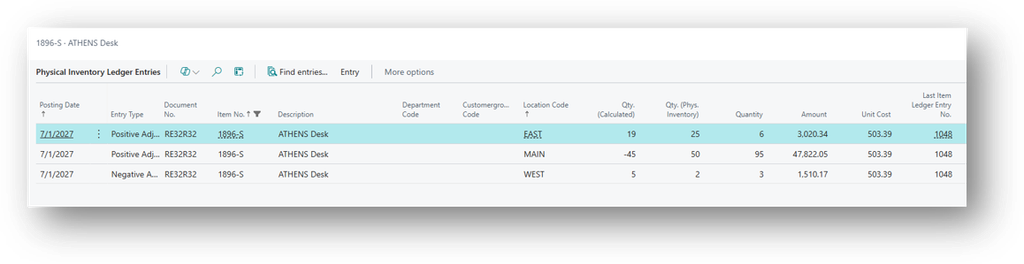
Note: If a discrepancy is caused by items posted to the wrong location rather than a genuine quantity difference, don’t correct it in the physical inventory journal. Use a reclassification journal or transfer order instead.
Calculate Counting Period
Rather than counting everything at once, many businesses count higher-value or higher-turnover items more frequently using cycle counting.
For More details refer to this Article – https://ahmad365.com/calculate-counting-period-in-physical-inventory-journal/
Best Practices
- Use Edit in Excel for Large Counts
If a journal has many lines, the Edit in Excel action can make data entry faster and less error prone.
- Don’t Recalculate after Printing
Preserve the original calculated quantities once a count sheet is issued.
- Separate Batches Per Location/Team
Keep count sheets organized if multiple teams or locations are counting simultaneously.
- Review Physical Inventory Ledger Entries after Posting
Confirm counts were recorded correctly and use the history for future audits.