
What Is Analysis Mode?
Analysis Mode is a built-in feature that lets users turn any list page into a pivot-style analysis view grouping, summing, and filtering data directly inside Business Central, without exporting to Excel.
It’s powerful that’s why it needs a Permission Gate. Analysis Mode reads live data across a page’s underlying table, and in later versions it can even pull in Related Tables. An admin needs a way to control who gets that reach.
The Core Permission Sets
Microsoft introduced a dedicated Permission Sets for Analysis Mode:
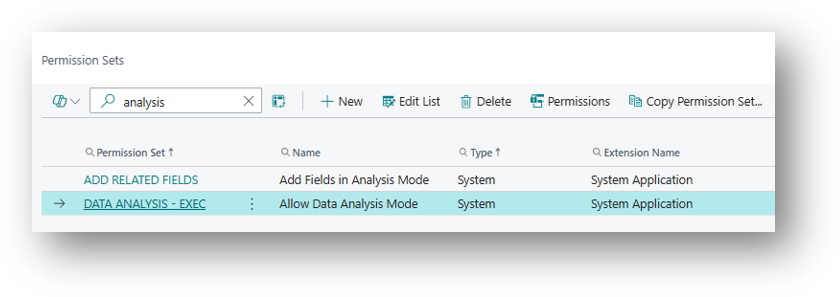
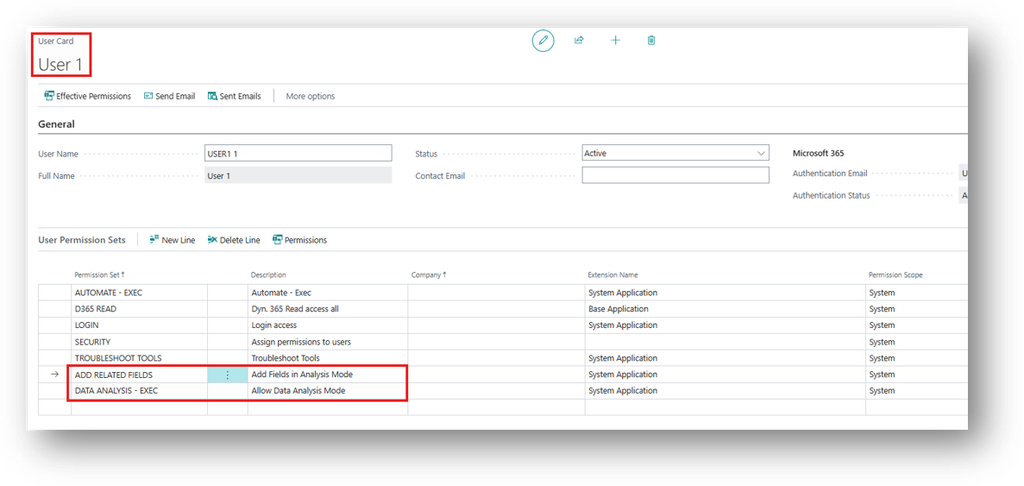
DATA ANALYSIS – EXEC – “Allow Data Analysis Mode”
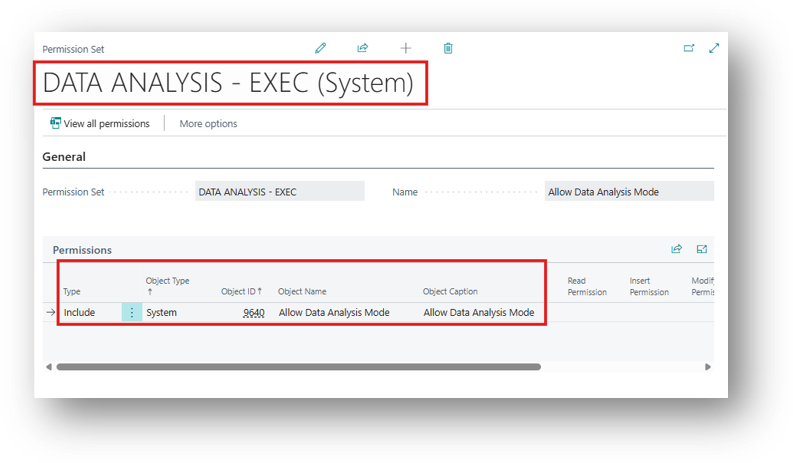
The row you shared shows:
- Object Type: System
- Object ID: 9640
- Object Name: Allow Data Analysis Mode
- Purpose: Allow users to Access the Analysis Mode.
ADD RELATED FIELDS – “Add Fields in Analysis Mode”
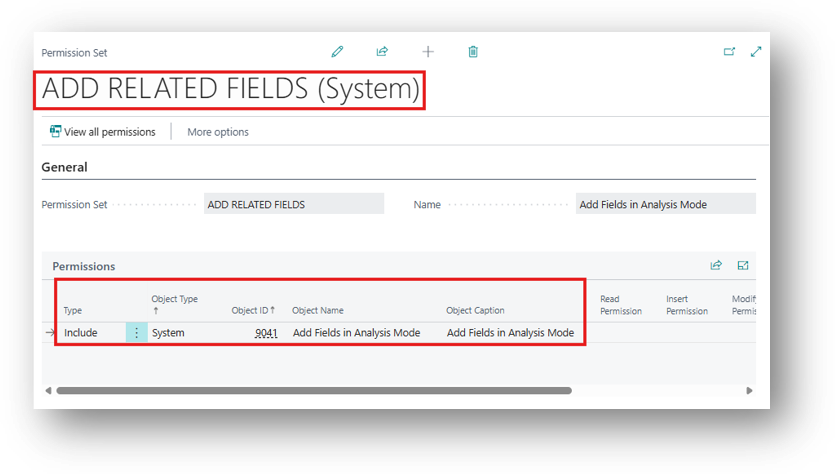
This row shows:
- Object Type: System
- Object ID: 9041
- Object Name: Add Fields in Analysis Mode
- Purpose: Allows users to add fields while using Analysis Mode.
Scenario’s
There are 4 Scenario’s from which you can understand this:
Scenario – 1 [Both Permission Sets Are Assigned]
When they both Permission Sets are Assigned:
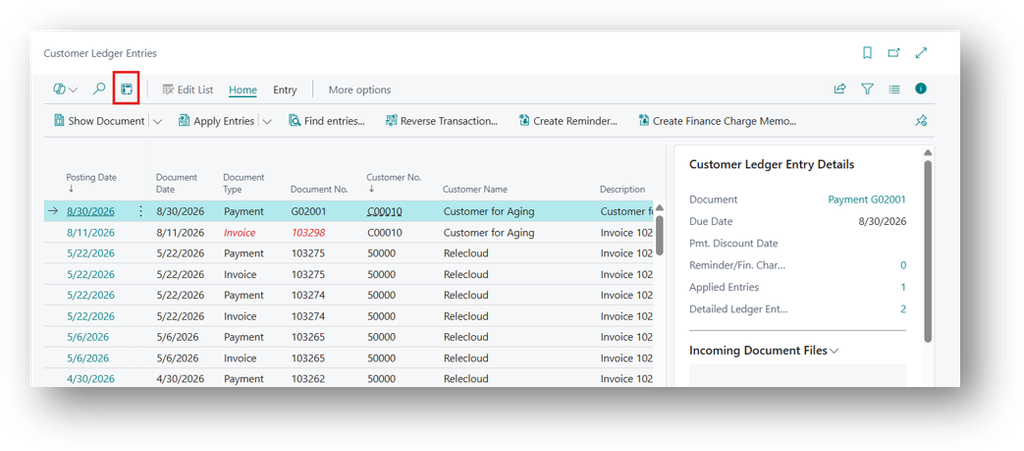
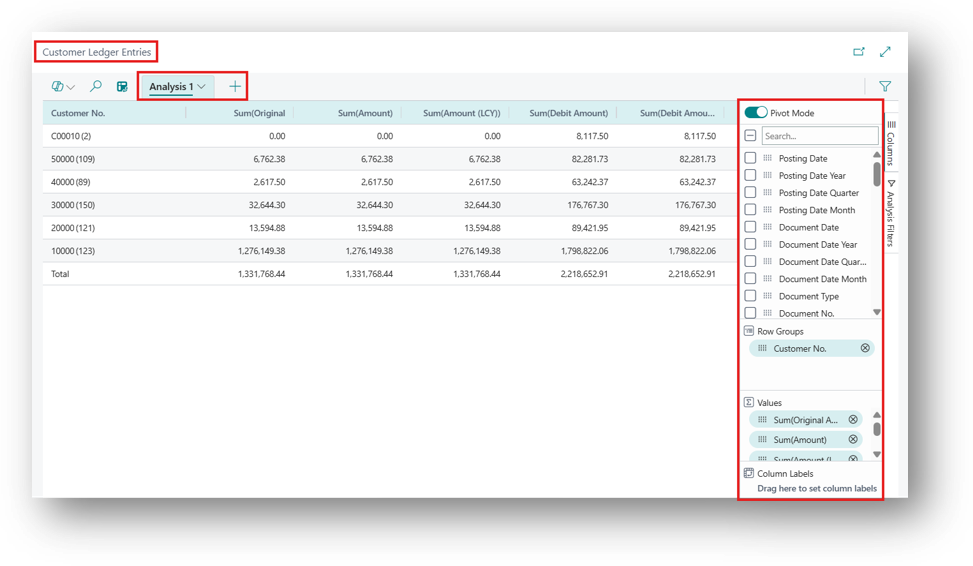
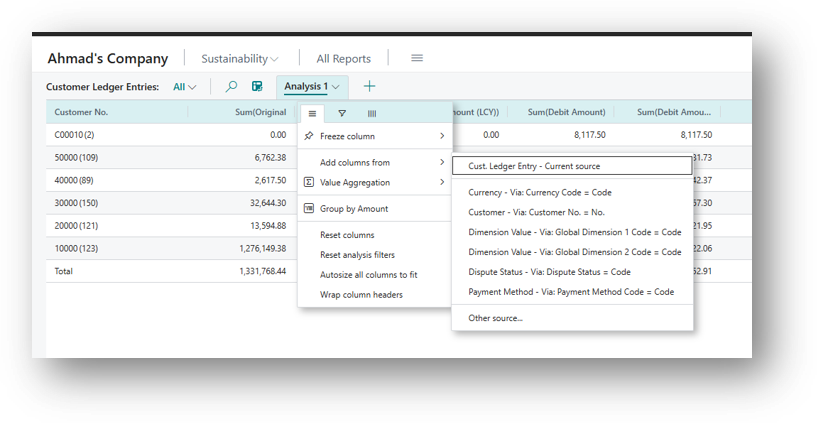
And Because of ADD RELATED FIELDS, this Add Columns from Options are coming.
Scenario – 2 [Both Permission Sets Are Removed]
When they both Permission Sets are Removed:
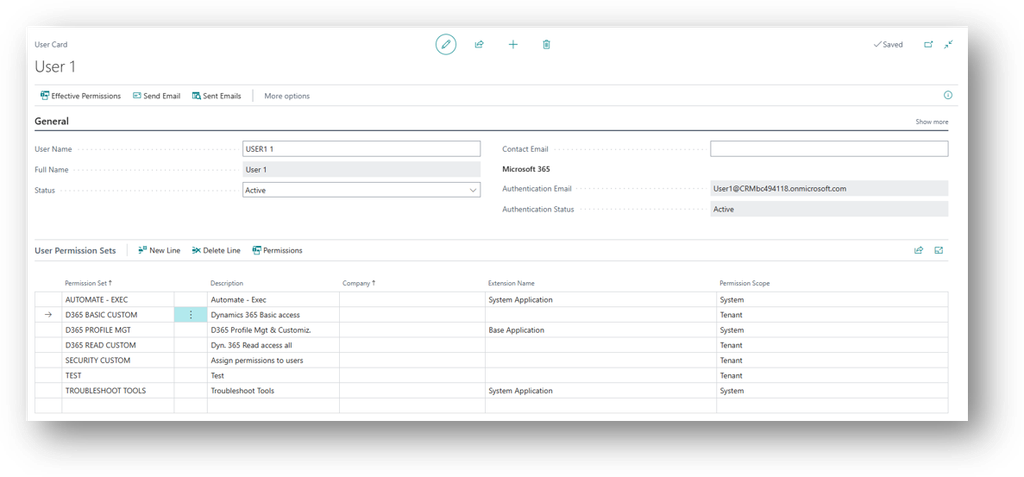
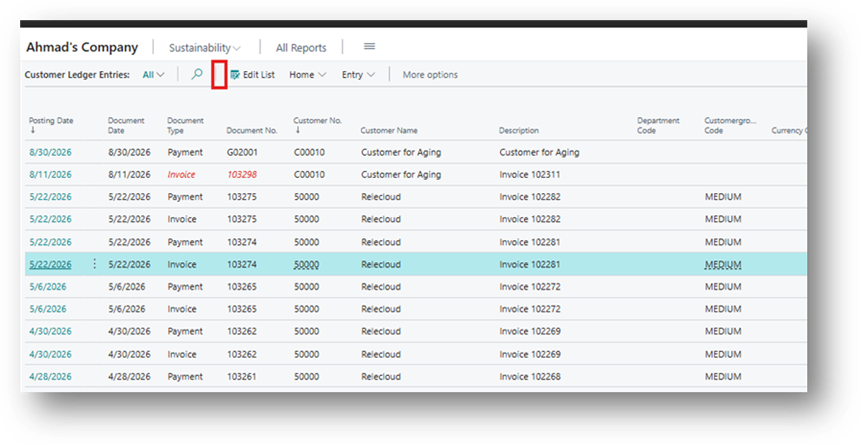
Analysis Mode Button is Removed.
Scenario – 3 [Only DATA ANALYSIS – EXEC Permission Set Is Assigned]
When only One Permission Set “DATA ANALYSIS – EXEC” is Assigned then:
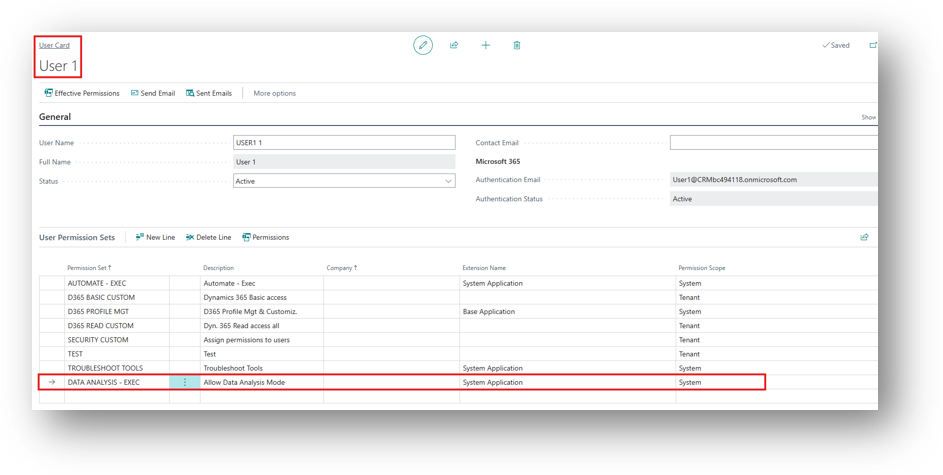
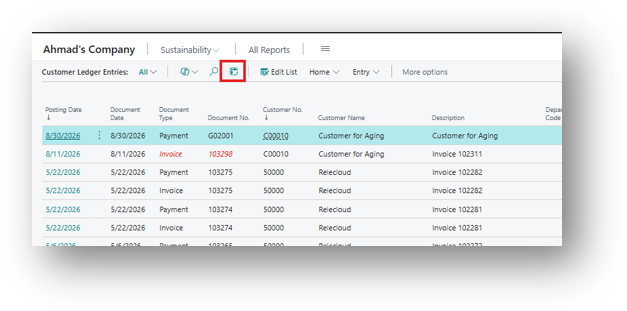
The Analysis Button is Coming.
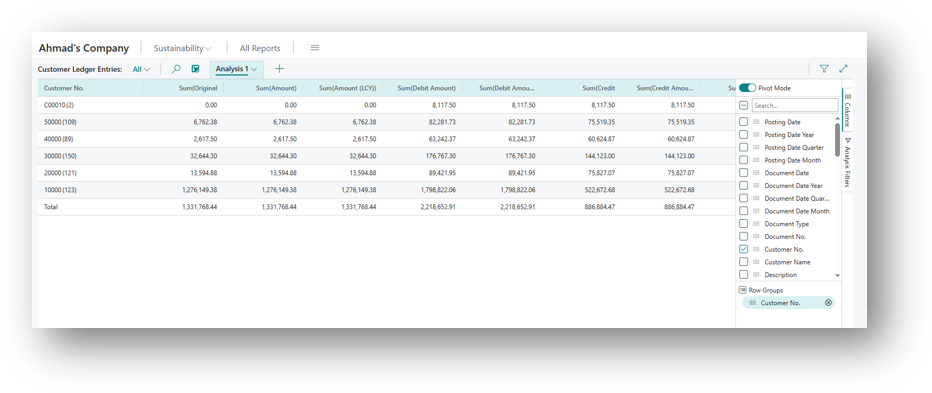
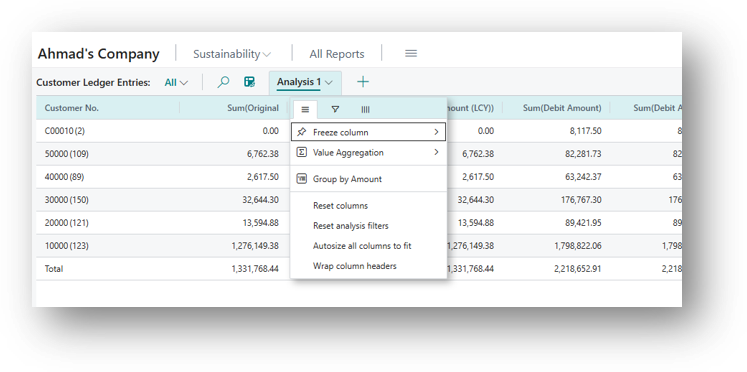
But there is No Option for Add Related Field coming in this.
Scenario – 4 [Only ADD RELATED FIELDS Permission Set Is Assigned]
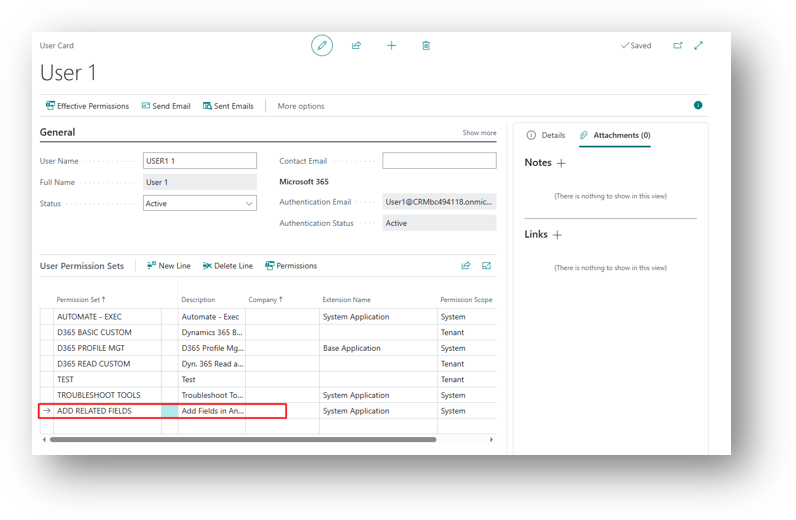
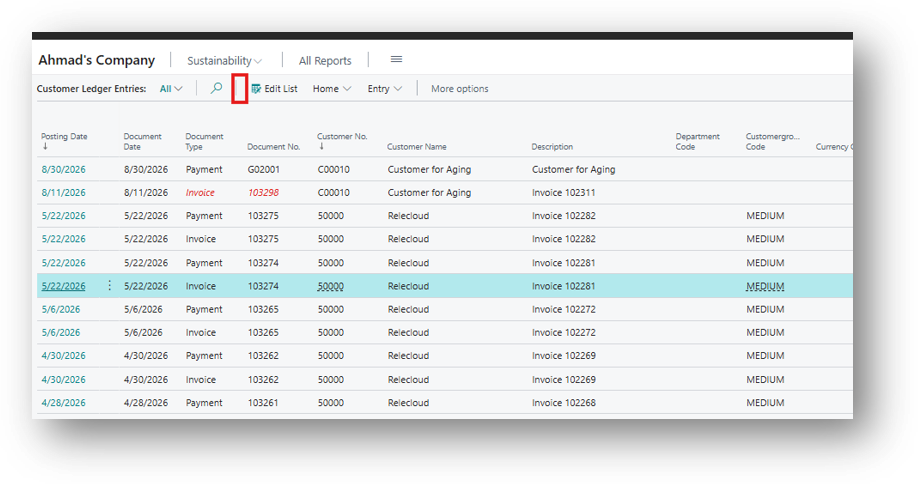
When you assign “ADD RELATED FIELDS” Permission on User but do not assign DATA ANALYSIS – EXEC than you won’t be able to Open the Analysis Mode so it will be Useless.
Hope so this is Helpful.