Microsoft Dynamics 365 Business Central users can keep track of changes made to data in the system using the Change Log Setup feature. As a result, it is possible to track and audit any changes or deletions made to existing records as well as the creation of new ones.
Once configured, the Change Log Configuration will keep track of changes made to specific tables and their fields. In addition to the old and new values of the modified fields, this information may include the name of the user who made the change, the date and time of the change, and the type of change (insert, modification, or deletion).
If you want to work on the Change Log Setup, search it in the search bar and enable the toggle of Change Log Activated.
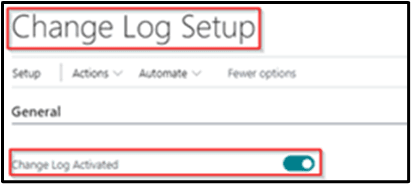
Change Log Activated
One thing to remember when enabling the Change Log Setup is that we need to select all the modules we want to include in the audit trail. It is better to select the required tables rather than enabling all tables. This is because your system will be overburdened with data you do not want to track. For that, go to Setup and then select Tables.
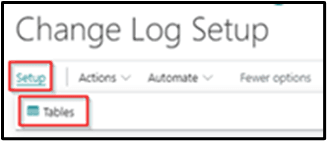
Setup — Tables
When you click on the table, a new window will open, showing several options.
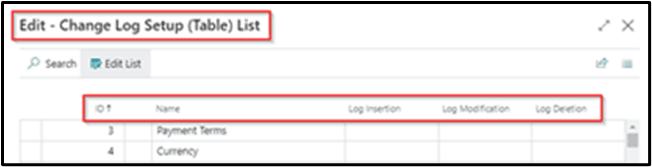
Change Log Setup (Table) List
ID: The ID of the Table.
-
- Name: The name of the table for which we want the Log.
-
- Log Insertion: If we enable it in the customer table, then whenever we enter a new customer master, it will create a new Log entry.
-
- Log Modification: If we enable it in the customer table, then whenever we modify a customer master, it will create a log entry for the modification.
-
- Log Deletion: If we enable it in the customer table, then whenever we delete a customer master it will create a log entry for the deletion.
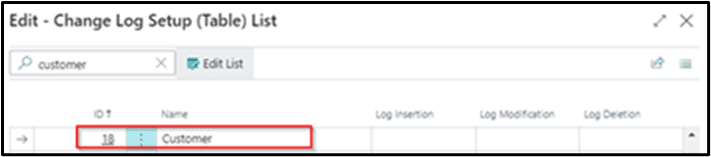
Customer Table
There are two further options present in every Log Insertion, Log Modification, and Log Deletion, as shown below:

Further Options
Some Fields allows you to manually select the customer fields on which the log entry will be made. All Fields selects the fields automatically.
To select the fields manually, click on Some Fields.

3-Dots
-
- Select the required fields of the customer master and then mark the log insertion, modification, and deletion (depending on your requirements).
-
- Log Modification: The same applies to log modification.
-
- Log Deletion: The same applies to log deletion.
-
- After that, you can check the entries on the Change Log Entries page.
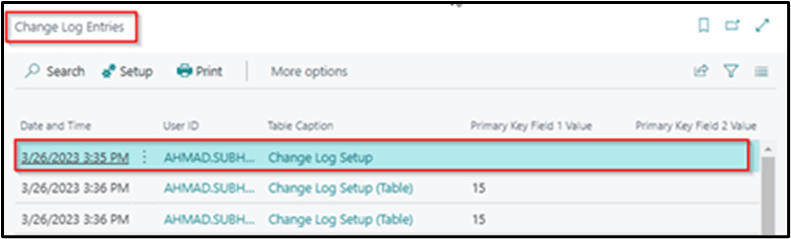
Change Log Entries
Hope so this is Helpful 😃
Related Articles
For more details, see Auditing changes on Microsoft Learn.
Best Regards,
Ahmad Subhani
D365 Business Central Functional Consultant
Email – ahmadsubhani424@gmail.com
WhatsApp – +923357687164