Introduction
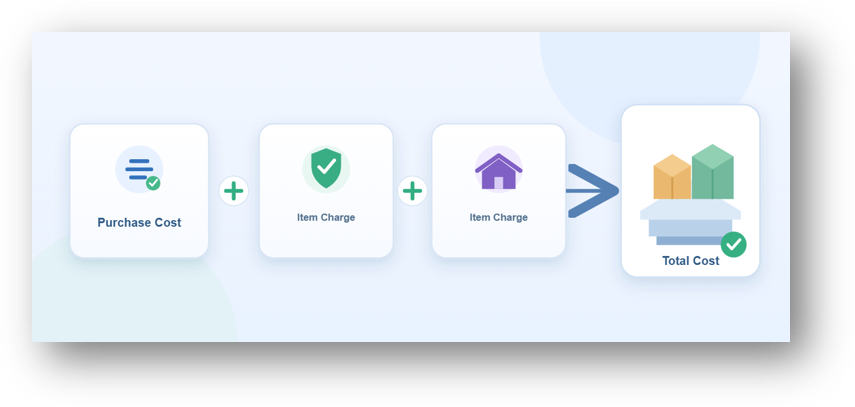
When a company buys goods, the supplier price is rarely the only cost. Freight, insurance, customs duty, and handling fees are also part of what the goods truly cost. In Business Central, these additional costs are recorded as Item Charges. An Item Charge is posted on a document line and then assigned to the item entries it relates to. This way the extra cost becomes part of the item cost instead of sitting only in an expense account. For Microsoft guidance, see Use item charges to account for extra trade costs on Microsoft Learn.
Setting Up Item Charges
Item charges are created on the Item Charges page. Each type of additional cost should have its own code, for example FREIGHT, INSURANCE, CUSTOMS, and CLEARING.
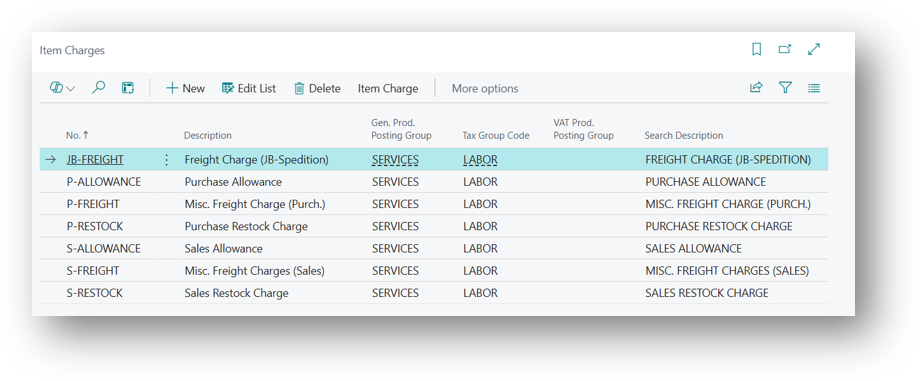
- No.: Specifies the number of the involved entry or record.
- Description: Specifies a description of the item charge number that you are setting up.
- Gen. Prod. Posting Group: Together with the vendor or customer Gen. Bus. Posting Group, it decides the G/L account used when the charge is posted.
- Tax Group Code: Specifies the sales tax group code that this item charge belongs to.
- VAT Prod. Posting Group: Decides how VAT is calculated on the charge.
- Search Description: Specifies text to search for when you do not know the number of the item charge.
Item Charge Assignment Methods
The Suggest Item Charge Assignment action distributes the charge using one of four methods.
| Method | How the Charge is Distributed | Typical Use |
| Equally | Same share for every selected line | Fixed handling fee per shipment line |
| By Amount | In proportion to each line amount | Insurance, customs duty |
| By Weight | In Proportion to line weight, based on the Item Card | Freight for heavy goods |
| By Volume | In Proportion to line volume, based on the Item Card | Container freight for bulky goods |
Example: A freight invoice of SAR 1000 is assigned By Amount to two receipt lines. Item A has a line amount of SAR 6000 and Item B has SAR 4000. Item A receives SAR 600 and Item B receives SAR 400.
The suggestion can always be changed manually before posting.
Documents That Can Receive an Item Charge
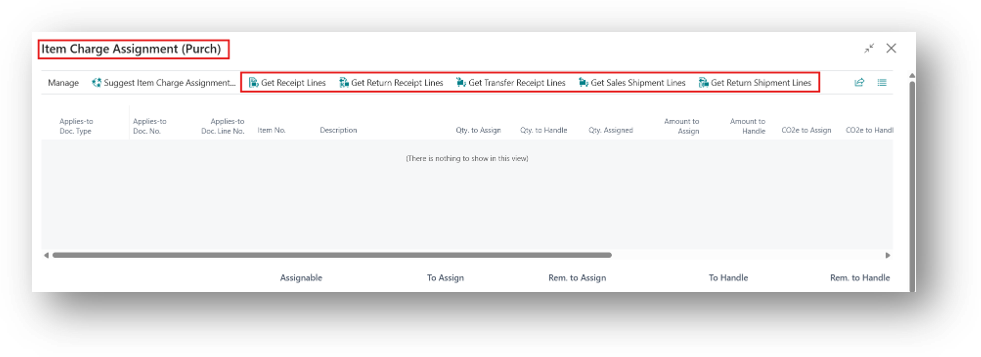
A purchase item charge can be assigned to:
- Purchase Receipt Lines
- Purchase Return Shipment Lines
- Transfer Receipt Lines
- Sales Shipment Lines
- Sales Return Receipt Lines
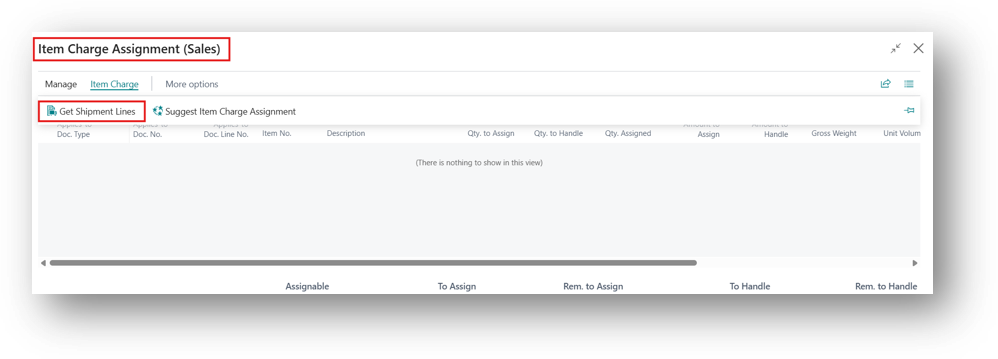
A Sales item charge can be assigned to:
- Get Shipment Lines
Item Charge Process
The standard process on a document is as follows:
Remember that the fields I show in this section are available on both sales and purchase documents. For this Section I am using the Purchase Document.
- Post the Receipt/Shipment for the items as usual.
- Create an Invoice for the Charge. The vendor can be the item supplier or a different vendor, such as a shipping company.
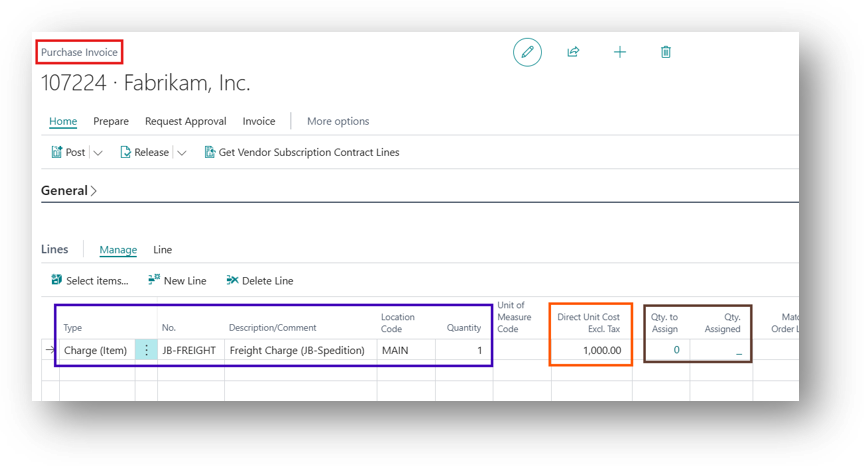
- Add a line with Type set to Charge (Item) and select the item charge, for example FREIGHT.
- Enter the Quantity (usually 1) and the Direct Unit Cost.
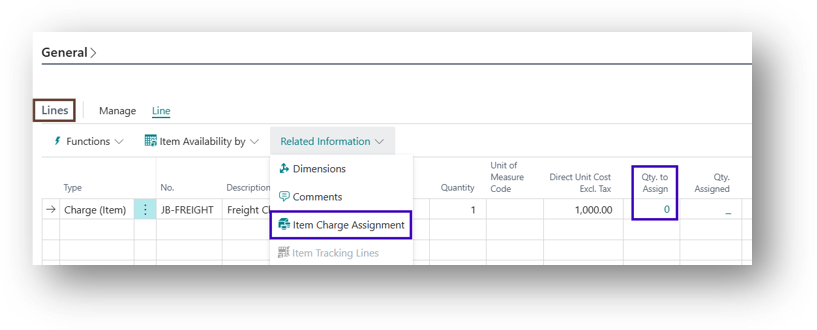
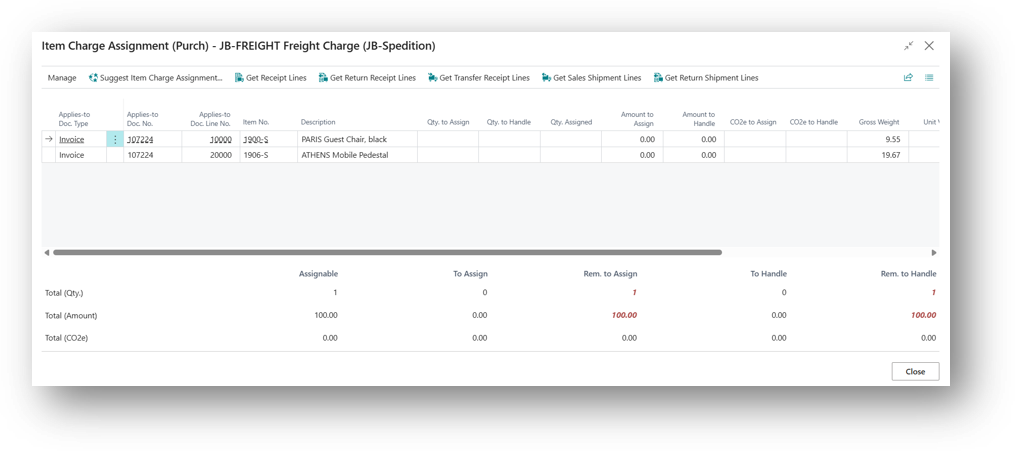
- On the line, choose Item Charge Assignment, or as a shortcut, click the number in the Qty. to Assign field.
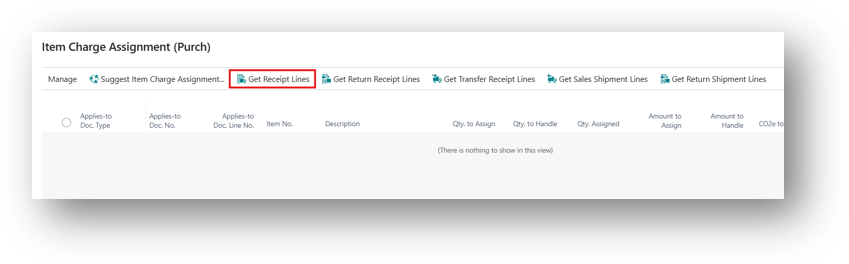
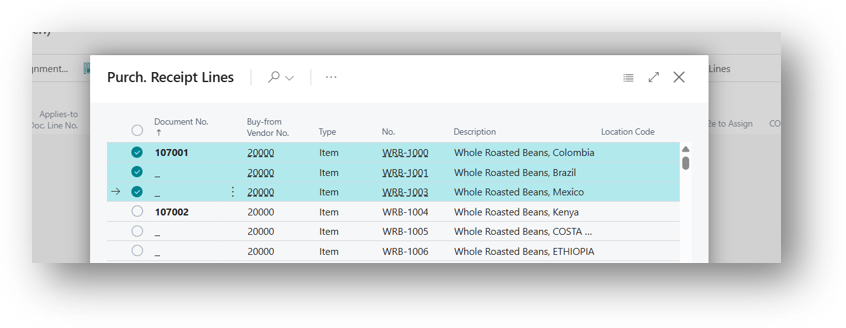
- Choose Get Receipt/Shipment Lines and select the Receipt/Shipment lines the charge relates to.
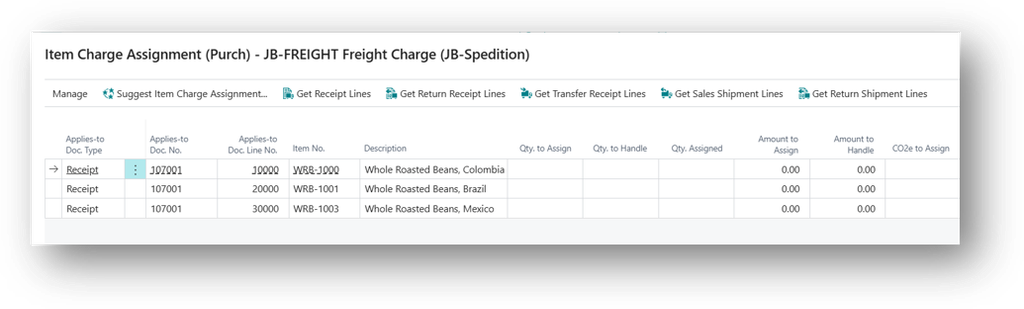
- Choose Suggest Item Charge Assignment and select a distribution method.
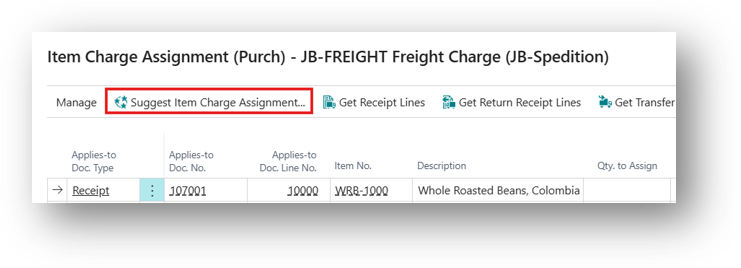
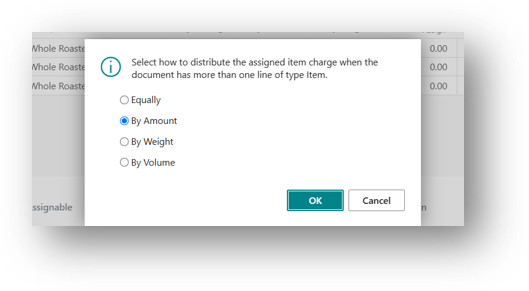
- Select the Method and click on Ok and then review the Qty. to Assign and Amount to Assign on each line, then close this page.
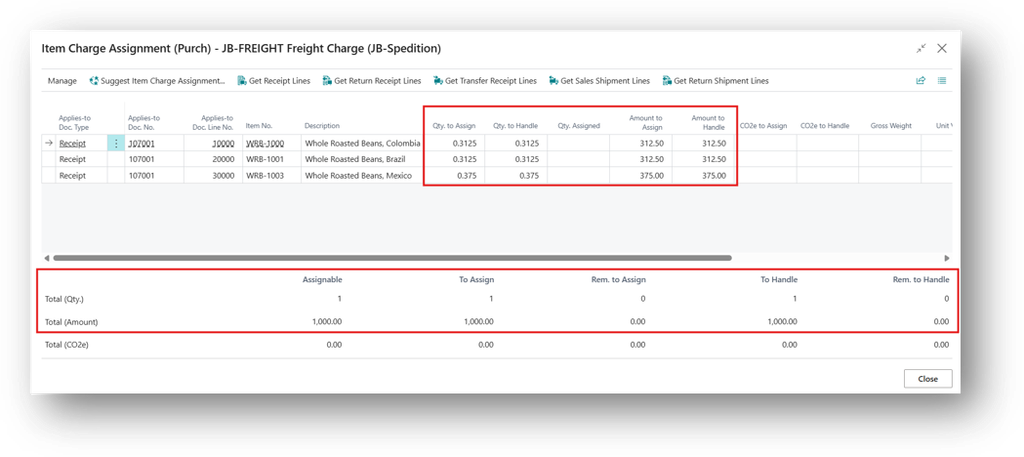
- At the bottom of this page, there are a few options that need discussion. To show them, we will manually remove the quantity to assign for one line and then check the numbers below.
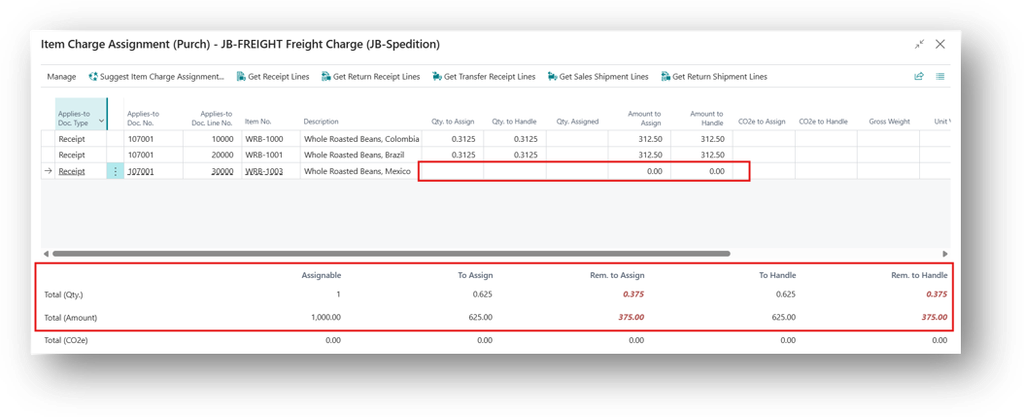
- Assignable – Quantity currently available to be assigned.
- To Assign – Total quantity that is assigned to the document.
- Remaining to Assign – Quantity left to assign after partial assignment.
- To Handle – Total quantity that is handled as per above lines.
- Remaining to Handle – Quantity left to handle after partial processing.
- If the items and the charge are on the same purchase invoice, the item lines of that document appear in the assignment page automatically. There is no need to get receipt lines.
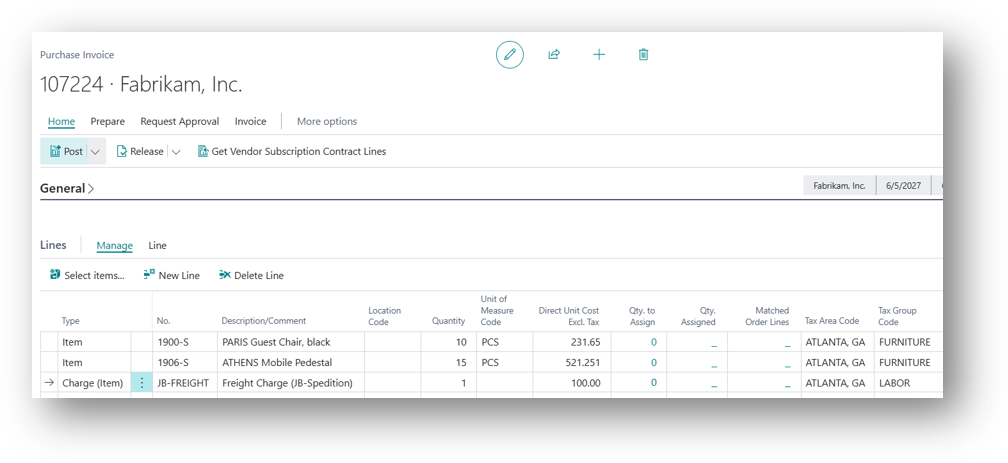
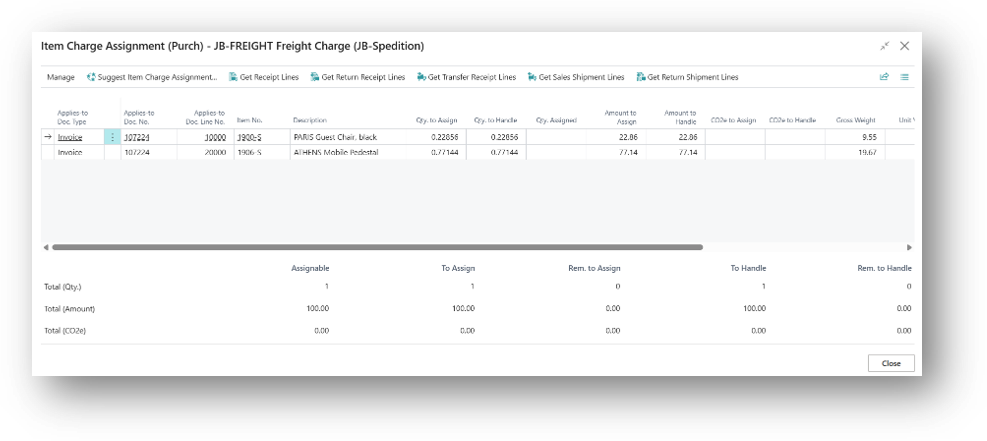
- When you close this page, the Qty. to Assign changes from 0 to your quantity.
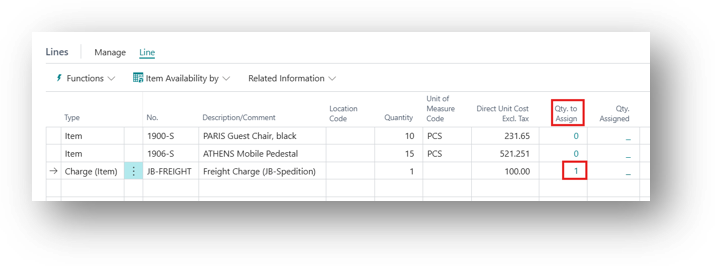
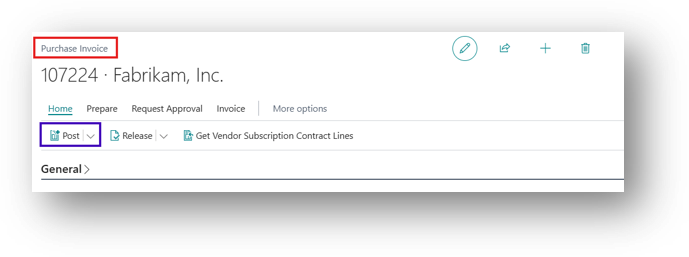
- Now you can Post this Invoice.
Conclusion
The item charge process makes sure that freight, insurance, customs duty and similar costs end up in the item cost instead of only in an expense account. As a result, inventory valuation and profit margins reflect what the goods truly cost.
Related Articles
If you work with item charges, these related articles may also help:
- Item Charges Concept on Purchase vs Sale Documents
- Standard Costing Method
- FIFO Costing Method
- Get Posted Document Lines to Reverse
Hope so this is Helpful 😃