

The Copy Document feature lets you create a new sales or purchase document by copying information from an Existing or Posted Document. It saves time on repeated transactions and reduces data entry errors.
Where to Find It
The action is available on sales and purchase documents such as Quotes, Orders, Invoices, Return Orders, and Credit Memos. Open the New Document and choose the Copy Document Action.
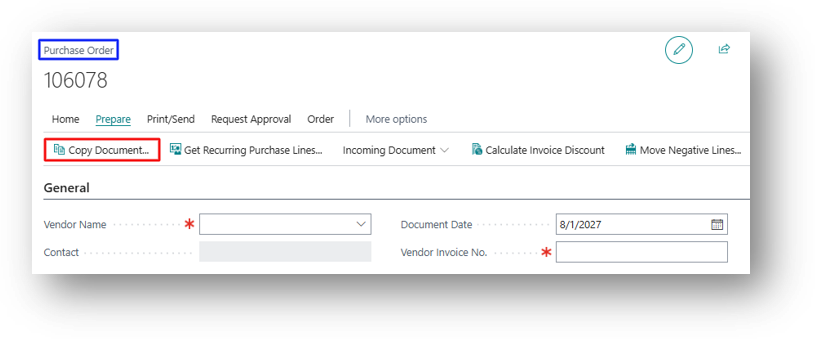
Fields on the Page
Let’s discuss the fields of Copy Document Feature:
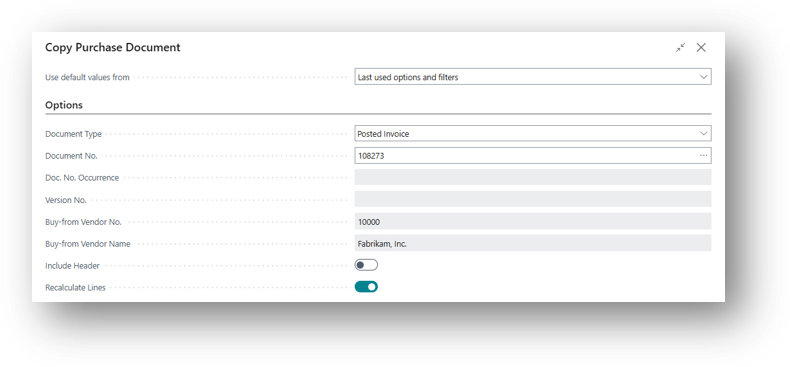
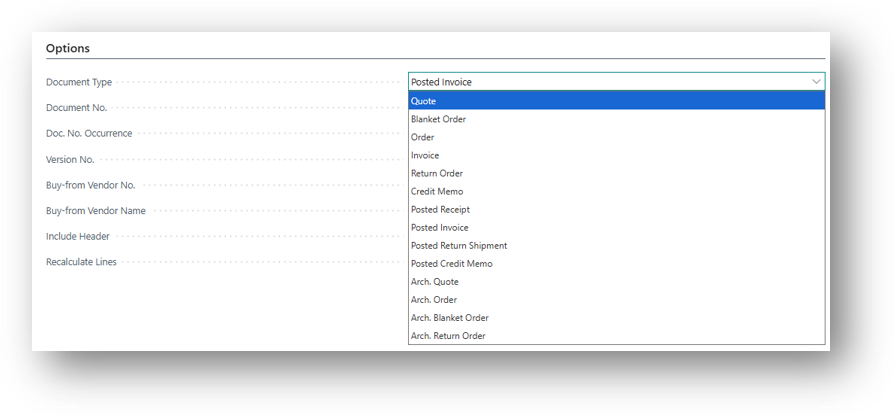
- Document Type: The Type of Source Document, for example Order, Invoice, Posted Receipt, or Posted Invoice. Just a note that you can copy from 14 different Sources.
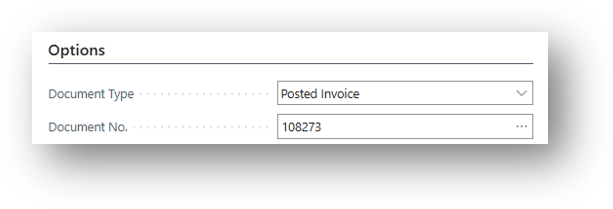
- Document No.: The source document you want to copy from.
- Include Header: Copies header details such as vendor or customer, payment terms, and other header fields from the source document.
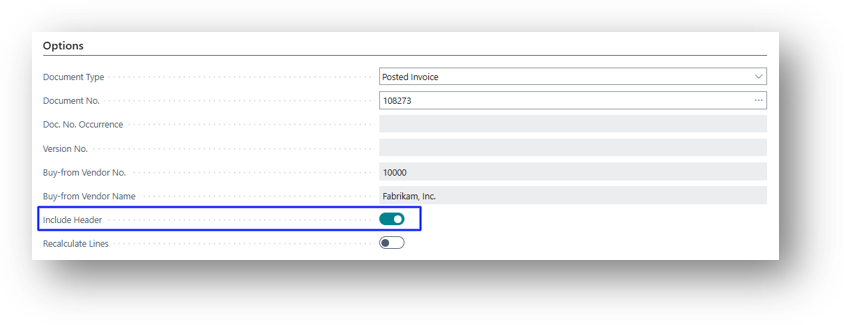
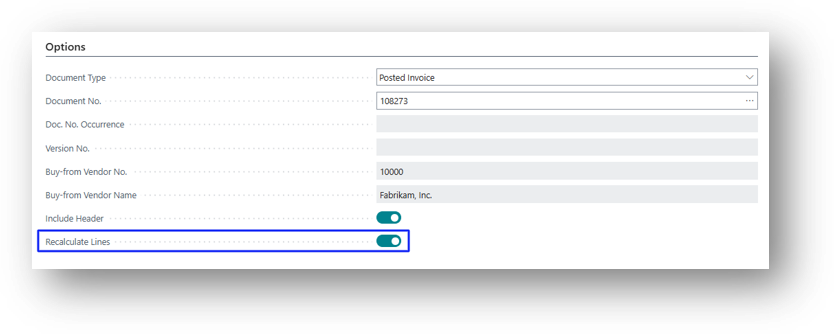
- Recalculate Lines: When turned on, prices and discounts are recalculated based on the current setup. When turned off, lines are copied exactly as they appear on the source.
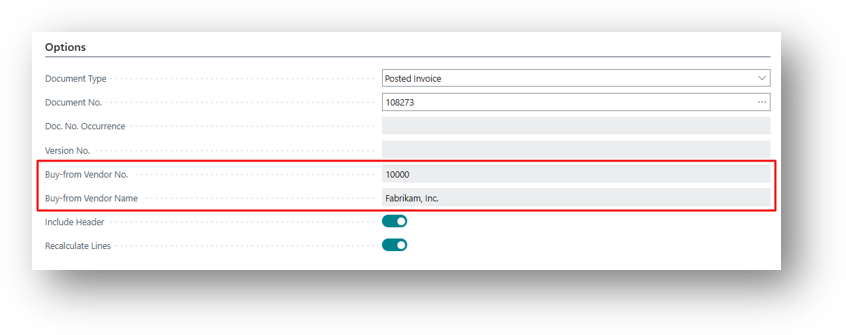
- If you select a Vendor related document than vendor number and name will auto appear as well.
- Doc. No. Occurrence – Specifies the number of times the No. value has been used in the Number Series.
- Version – Specifies the version of the document to be copied.
- Click on Ok and then document will be Copied.
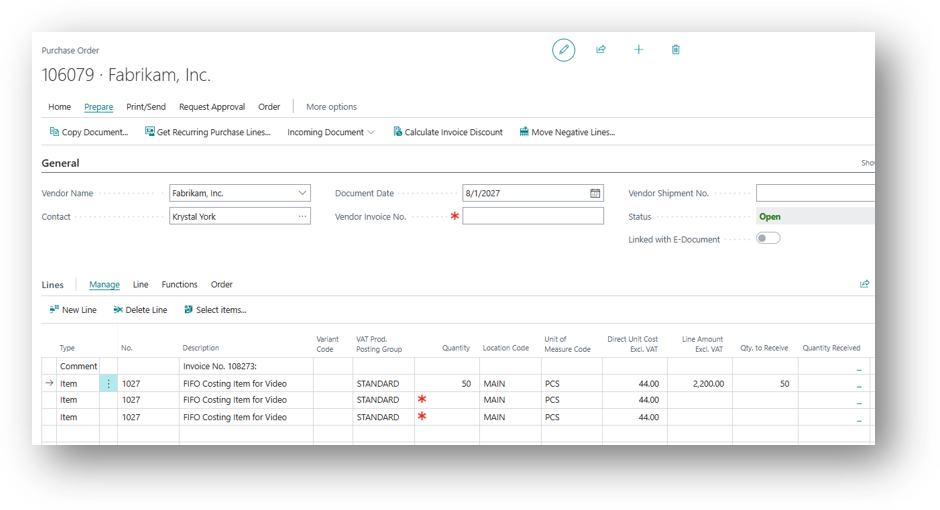
- Copied lines remain fully editable before posting.
- Use a new, empty document to avoid mixing old and new lines.
Hope so this is helpful 😃