
The Problem Item Attributes Solve
An item number and description tell you what something is called not:
- What it’s made of,
- How it Fits,
- Which Season it Belongs to.
When Customers or Sales staff ask about characteristics like colour, material, height, or model year, that information usually lives outside Business Central: in a spec sheet, a spreadsheet, or someone’s memory. Item Attributes bring that descriptive layer into the item master itself, so it becomes something you can search, filter, and report on.
What an Item Attribute Actually Is
An item attribute is a named characteristic like Colour, Material, Season, that you define once and then assign to items with a specific value.
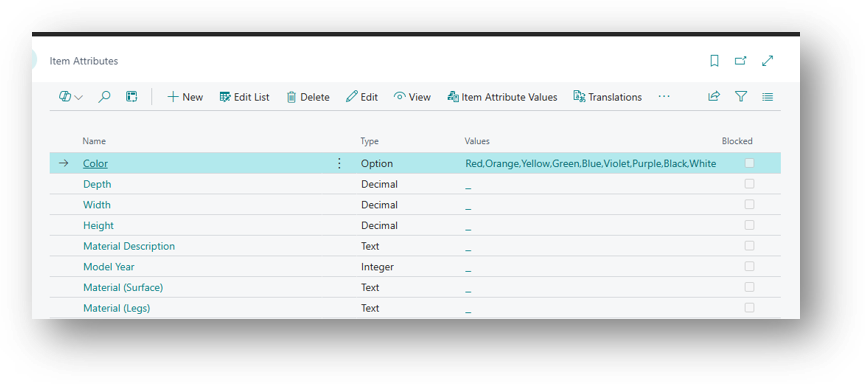
Each Attribute has a Type, which controls how its value is captured:
- Text – Free-Form Entry, [Useful for descriptions]
- Option – Fixed List of Choices you define once [e.g., Colour: Red, Blue, Black].
- Integer / Decimal – Numeric Characteristics [e.g., Weight or Height].
- Date – Characteristics like a Model Year or a Certification Date.
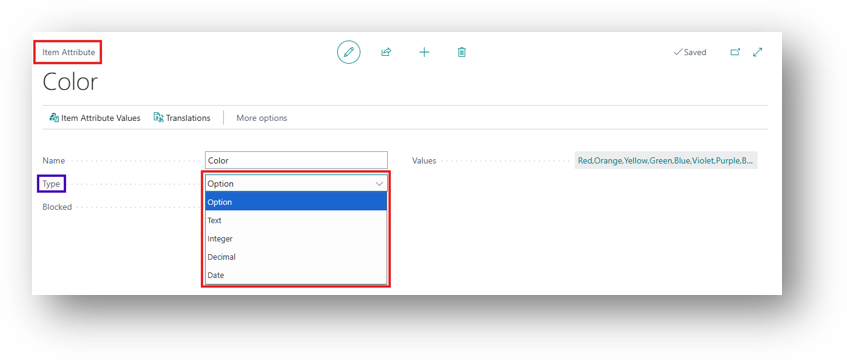
For any type other than Option, the value is entered individually on each item rather than picked from a predefined list.
Setting Attributes
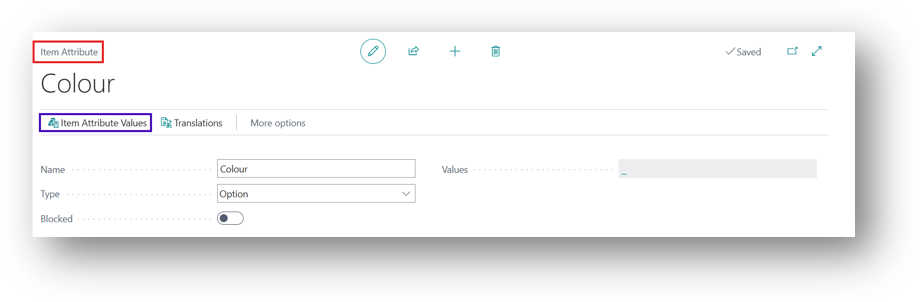
- Search for Item Attributes.
- Choose New to create the attribute.
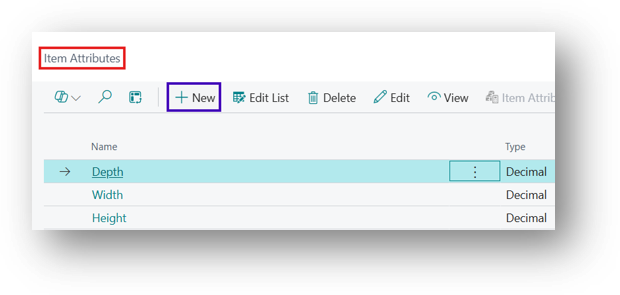
- Name – Specifies the Name of the Item Attributes e.g., Colour.
- Type – Specify the type which we discussed above. e.g., Option over here and in the Values will specify the list of Colours.
- On the Action Bar there is an Option of Item Attribute Values. Click on that.
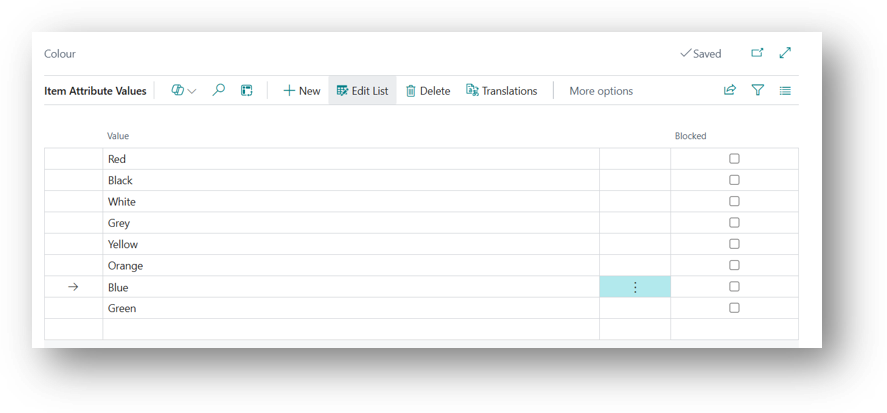
- Specify the List of Colours.
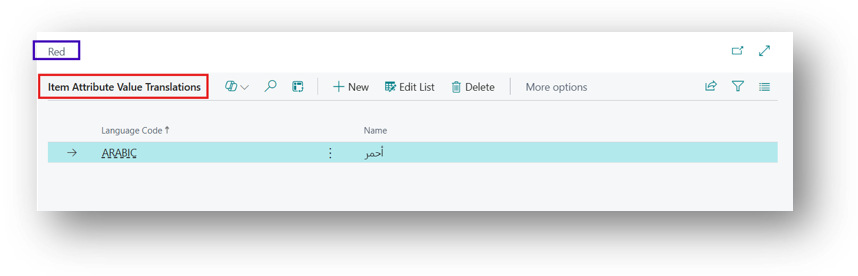
- Click on Translations if you want to Enter the translation for Values.
- Blocked – Specifies that the attribute cannot be assigned to an item. Items to which the attribute is already assigned are not affected.
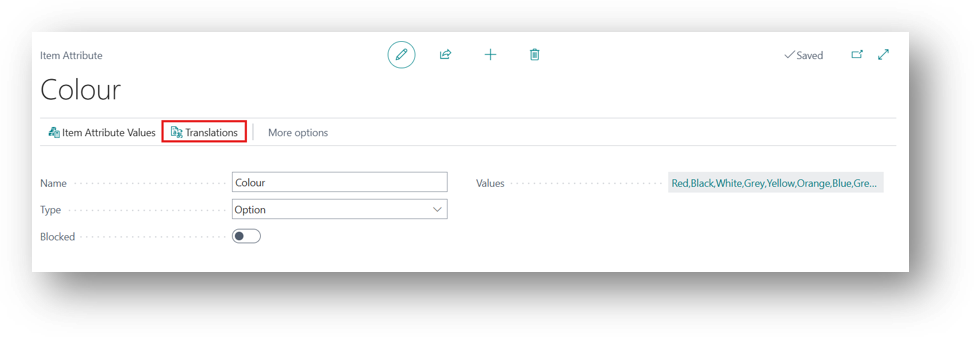
- Translations – The same way I have showed translation for Values. Translation works in a Same way here.
Hope so this is Helpful 😃