

Counting an entire warehouse from top to bottom is disruptive, time-consuming, and often unnecessary. A pallet of slow-moving packaging material doesn’t need the same counting attention as a high-turnover component that ships out every day. This is the problem that cycle counting solves and the Calculate Counting Period function is the tool that makes it practical to execute inside your ERP system.
- High Value or High Turnover Items – Counted Frequently (e.g., monthly)
- Moderate Turnover Items – Counted less often (e.g., quarterly)
- Low-value or Slow-Moving Items – Counted Infrequently (e.g., annually)
This targeted approach keeps inventory records accurate where it matters most, without pulling staff off the floor for a full count every time.
Setting Up Cycle Counting
Implementing cycle counting requires two pieces of configuration before you can start calculating counts.
Define Counting Periods
On the Physical Inventory Counting Periods page, you establish the rhythm of your counting program.
Count Frequency Per Year – From this you can specify how frequently you want system to calculate the Inventory Count.
- Monthly – 12
- Quarterly – 4
- Annually – 1
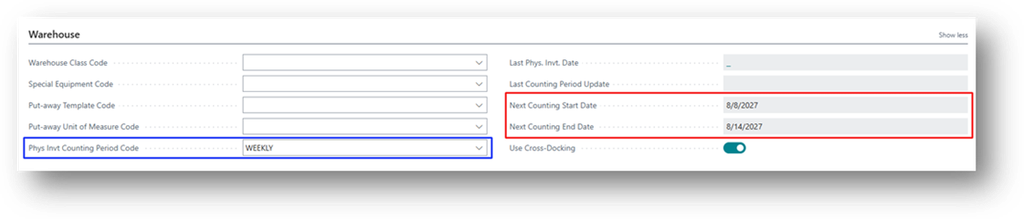
Assign Items to a Counting Period
We will assign the Period to the Item Card.
Running the Count
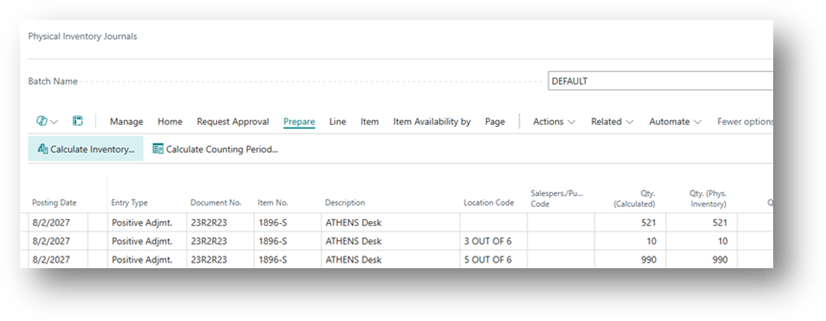
With periods defined and items assigned, the actual counting workflow happens on the Physical Inventory Journal page.
When you choose Calculate Counting Period, the system opens the Physical Inventory Item Selection page.
This page shows exactly which items are due for counting based on their assigned periods. No manual filtering or spreadsheet cross-referencing required.
Note – This list is dependent on Work Date rather than Posting Date.
Counting and Posting
Once the relevant items appear in the Physical Inventory Journal, the process continues just as it would for a standard physical inventory:
- Staff Physically Count the selected items and record the Actual Quantities.
- Show Qty. Calculated – Specifies that the calculated quantity is shown on the resulting report.
- Any discrepancies between the system quantity and the counted quantity are entered as adjustments.
- Now Post the Journal.