

What is a Job Queue?
A Job Queue in Business Central is a built-in scheduling and automation engine that allows the system to run tasks like reports, Codeunits, or batch jobs automatically, in the background, without user interaction.
Common Real World uses include:
- Sending Reminders and Finance Charge Memos Automatically
- Running Data Exports/Imports (EDI, integrations)
- Refreshing Power BI Datasets or Synchronizing Data
- Running Recurring Batch Posting Jobs
- Cleaning up Logs or Temporary Data
- Triggering Custom AL Codeunits for Automation
Core Concept
Each scheduled task is represented as one record in the Job Queue Entries table. This record stores everything the system needs to know what to run, when to run it, how often, and what to do if it fails. Below is a breakdown of every important field, explained individually.
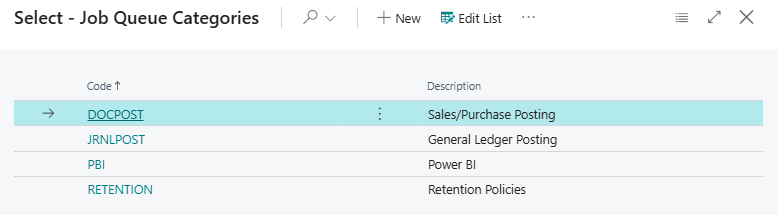
Job Queue Category
A separate simple table used purely for Grouping / Filtering.
General Fields
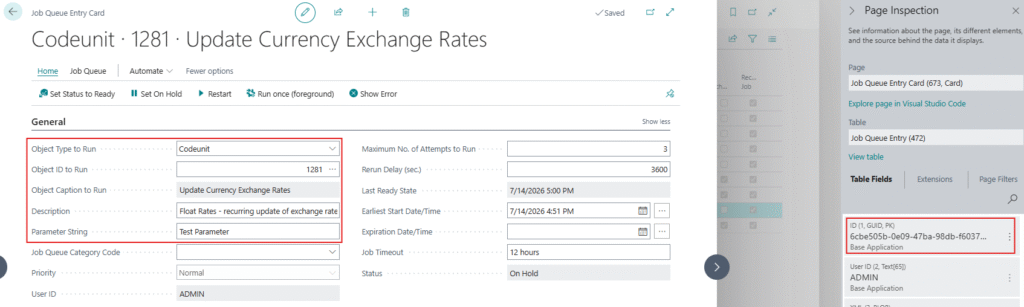
- ID – A unique system-generated GUID for the Job Queue Entry. Not editable — used internally to identify the record.
- Object Type to Run – Defines what kind of object the Job Queue will execute. Options are:
- Report – runs a specific report (e.g., posting routines, batch reports)
- Codeunit – runs a specific codeunit (most common for custom automation, since codeunits can contain any AL logic)
- Object ID to Run – The ID number of the Report or Codeunit selected above. This tells the system exactly which object to execute.
- Object Caption to Run – A read-only, auto-populated field showing the name/caption of the selected object.
- Description – A free-text field where the user gives the Job Queue Entry a meaningful name.
- Parameter String – An optional text field passed into the Codeunit or Report when it runs, (useful for generic/reusable codeunits).
Scheduling Fields
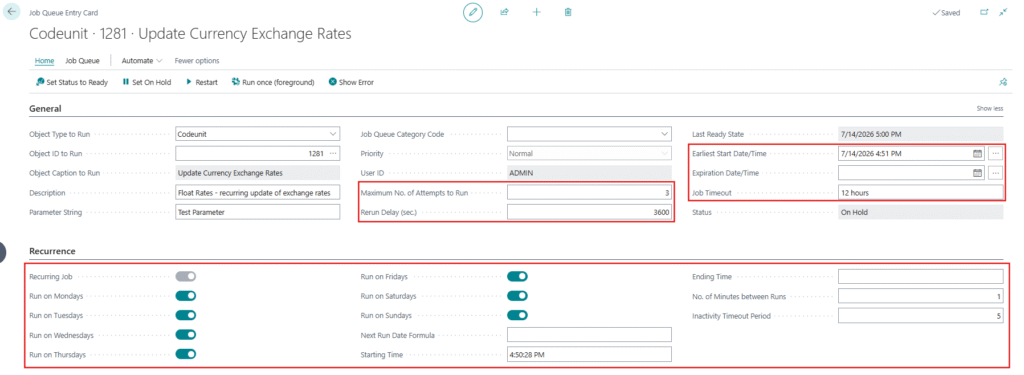
- Earliest Start Date/Time – The earliest date and time the job is allowed to start. The job will not run before this moment, even if the recurrence pattern says otherwise.
- If a job is configured to run every day at 7:00 AM, but you want it to start two days from today, set the Earliest Start Date/Time to the day after tomorrow at 7:00 AM. The job will begin on that date and then continue running daily at 7:00 AM.
- Expiration Date/Time – The date/time after which the Job Queue Entry will no longer run. Useful for temporary jobs (e.g., a migration task that should stop after a certain date).
- Recurring Job – A Yes/No (checkbox) field. If enabled, the job runs repeatedly based on the recurrence pattern defined below, instead of running only once.
- No. of Minutes between Runs – If recurrence is time-based, this defines the interval (in minutes) between each run.
- Like after Every 30 minutes.
- Run on – A set of checkboxes to define exactly which days of the week the job is allowed to run. This gives fine control
- A job can be set to run for all days (Mon–Sun).
- Starting Time – The time of day the recurring job window opens
- 08:00 AM. Combined with “Ending Time,” this defines the allowed execution window.
- Ending Time – The time of day after which the job will stop being triggered, even if it’s a recurring job. Together with Starting Time, it creates a valid time window.
- Only run between 8 AM–6 PM.
- Inactivity Timeout Period – Specifies how many minutes the system should wait before automatically restarting a recurring job that is on On Hold with Inactivity Timeout. The minimum value is 5 minutes.
- If you set it to 10 minutes, the job will automatically restart 10 minutes after it goes into the On Hold with Inactivity Timeout status.
- Rerun Delay (sec.) – If a Recurring Job needs to be re-triggered quickly after completion, this defines the delay (in seconds) before the next run starts.
- Maximum No. of Attempts to Run – Specifies how many times a job queue task should be rerun after a job queue fails to run. This is useful for situations in which a task might be unresponsive. For example, a task might be unresponsive because it depends on an external resource that is not always available.
- Last Ready State – Timestamp showing the last time the entry was in “Ready” status — useful to see if the scheduler is picking it up correctly.
- Job Timeout – Specifies the maximum time a job is allowed to run. If the job takes longer than this limit, it will be stopped.
- If Timeout is set to 30 mins, the job will stop automatically if it is still running after 30 mins.
- Next Run Date Formula – Specifies a date formula to calculate when the recurring job should run next. When you use a date formula, all other recurrence settings (such as daily or weekly) are ignored.
- If you enter 1D, the job will run again 1 day after its last run. If you enter 1W, it will run again 1 week later.
Status Fields
- Status – Shows the current state of the Job Queue Entry. Common values:
- On Hold – created but not active/scheduled yet
- Ready – scheduled and waiting for its turn to run
- In Process – Currently Executing
- Error – Last Run Failed
- On Hold with Inactivity Timeout – System Paused it due to Inactivity
Notification & Ownership Fields
- User ID – Specifies the ID of the User who posted the entry.
- Notify On Success – If enabled, the assigned user receives a notification when the job completes successfully.
- Error Message – If the job failed, this field displays the actual error text captured from the last failed run critical for troubleshooting.
Action Items
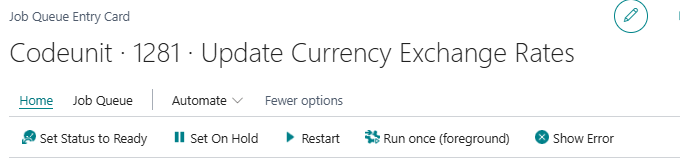
- Set Status to Ready – Changes the job status to Ready, allowing it to run according to its schedule.
- Set on Hold – Pauses the job so it will not run until it is set back to Ready.
- Restart – Restarts the selected job if it has stopped or failed.
- Run Once (Foreground) – Runs the job immediately while you wait. You can see the progress on your screen.
- Show Error – Displays the error message if the job failed.
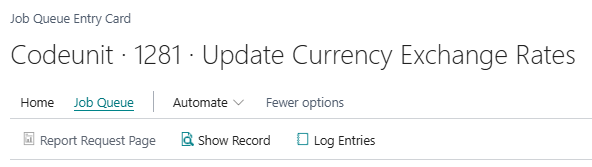
- Report Request Page – Opens the report request page where you can view or modify the report parameters before it runs.
- Show Record – Opens the record (such as a report or codeunit) that is linked to the selected job queue entry.
- Log Entries – Opens the job log to view the execution history, including successful runs, failures, and error details.
Job Queue Log Entries
Every time a Job Queue Entry runs, Business Central records the outcome in the Job Queue Log Entries table — a historical audit trail. Key fields there include:
- Status(Success / Error / In Process)
- Start Date/Time and End Date/Time
- Error Message (if failed)
- Object Type/ID Run

Behind the Scenes
How Job Queues Actually Run
- Business Central’s background scheduler continuously checks all Job Queue Entries with Status = “Ready.”
- It checks whether the current date/time falls within the allowed day-of-week and time window (Starting Time – Ending Time).
- If conditions match, the job moves to “In Process” and executes the linked Report or Codeunit under the assigned User ID’s permissions.
- Once finished, the result (success/failure) is recorded in the Job Queue Log Entries, and if it’s a Recurring Job, it gets rescheduled automatically for the next run.
- If it fails, the system retries based on Maximum No. of Attempts to Run, then marks it as Error and optionally notifies the user.