
Customers do not always order what you have in stock. When an item runs out in the middle of a sales order, the salesperson usually has to search for a similar item on their own or ask someone who knows the products. Business Central has a built-in feature for this known as Item Substitution. You define the alternative items on the item card. After that, Business Central offers them directly on the sales line when the stock is not enough.
Why Item Substitution Matters
In many businesses, such as spare parts, consumables, electrical items or office supplies, customers care more about getting a working item on time than getting one specific brand. Without a substitution list, the salesperson depends on personal product knowledge. As a result, orders get delayed, or the customer goes elsewhere.
With Item Substitution, the knowledge sits in the system. A new employee can offer the same alternatives as the most experienced one.
Setting Up Item Substitution
You set it up per item, and it takes less than a minute.
- Open the Item Card of the original item.

- Add a line for each item that can replace it.
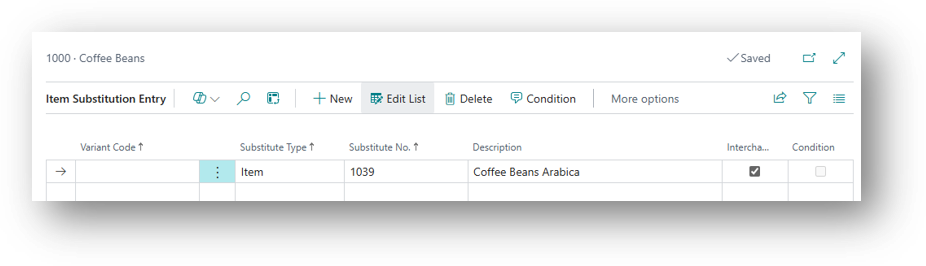
The main fields on the Item Substitution page are:
| Field | What It Does |
|---|---|
| Substitute No. | The item that can replace the original |
| Variant Code | The variant of the substitute, if you use variants |
| Interchangeable | Both items can replace each other |
| Condition | Marks that a condition applies to this substitution |
| Inventory | Current stock of the substitute |
| Relations Level | Shows how far the substitute is from the original item |
Interchangeable
If you select Interchangeable, Business Central also creates the reverse line on the substitute item. That means the original item becomes a substitute of the other item as well. You do not need to set it up twice.
Leave it unchecked when the replacement works only in one direction. For example, a higher-grade item can replace a standard one, but not the other way around.
How Item Substitution Works
A Sales Coordinator receives an order for 200 units of Item Coffee Beans. Only 138 units are in stock on Main Location. Item Coffee Bean Arabica is set up as a substitute with 500 units available.
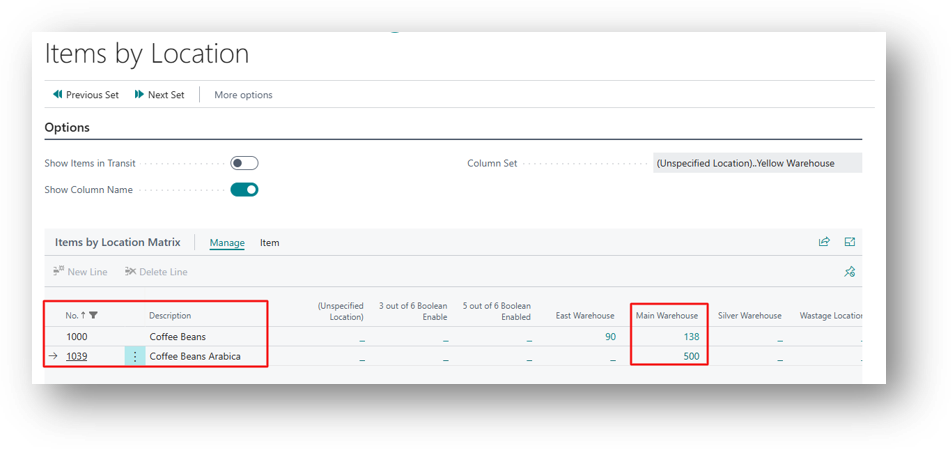
- Open Sales Orders and choose New.
- Add a line with Item A and enter 200 in the Quantity field.
- Business Central shows a message that the item is not available.

- Open the list. It shows each substitute with its available inventory.
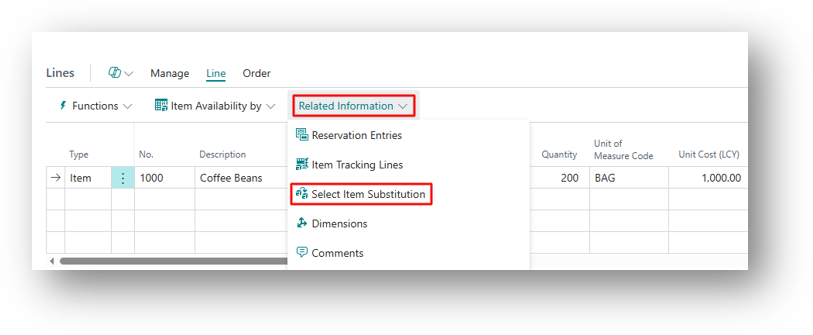
- Select Substitute Item.

- Business Central updates the line with Substituted Item and picks up the price from the new item.

The salesperson can also open this list manually from the sales line, even when stock is available. This is useful when the customer asks, “Do you have something similar?”
Hope so this is Helpful 😃