
Sometimes a field’s default label does not match how a client refers to it, so we need to start modifying field names (captions). The Item Card, for example, ships with a field labeled “No.”, but a client may prefer to see “Item Number” instead. This is a caption change, not a data change, and Business Central makes it straightforward through a page extension. For details, see Caption property on Microsoft Learn.
Identify the Field and Table
Before writing any code, confirm exactly which page, table, and field you are working with. Business Central’s built-in Page Inspection tool (Alt+CTRL+F1, or the info icon in the top right) shows this without opening Visual Studio Code.
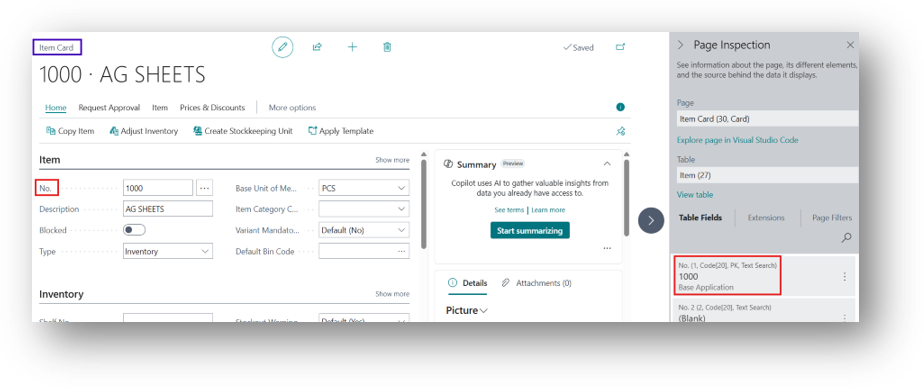
Page Inspection showing the Item Card (page 30), the Item table (27), and the No. field (field 1, Code [20], primary key)
Create a Page Extension for Modifying Field Names
Open AL in Visual Studio Code and create a page extension for modifying field names on the Item Card. Inside the layout, use modify() to target the existing field, then set its Caption property to the new label.
pageextension 50101 "Change in Captions" extends "Item Card"
{
      layout
     {
         modify("No.")
        {
             Caption = 'Item Number';
         }
     }
}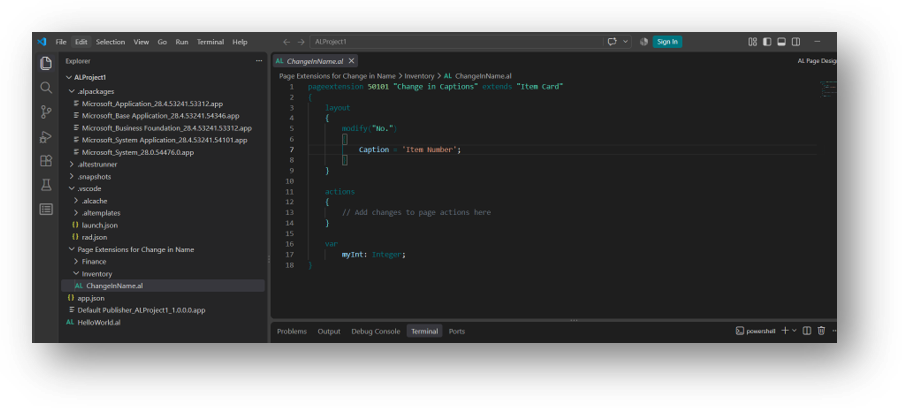
The Caption property is the only property changed here. Everything else about the field behaves exactly as before.
Build and Deploy
- Build the Extension (CTRL + SHIFT + B) and deploy it to your Sandbox Environment (F5 or Ctrl+F5 in VS Code).
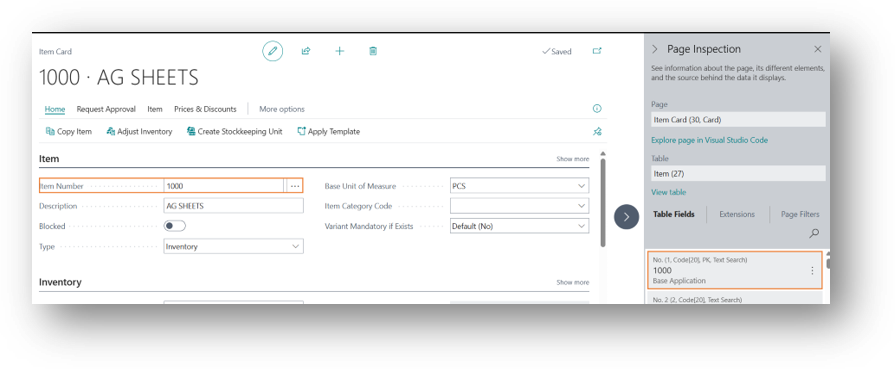
- Open the Item Card and confirm the field now shows “Item Number” instead of “No.”
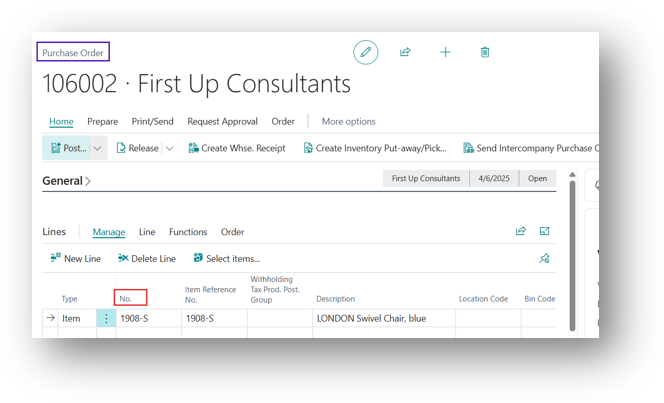
- Check that searching and lookups on the field still work as expected after modifying field names, since only the label changed (for example, on documents).
Keep in Mind When Modifying Field Names
- Caption changes are page-level. If the same field appears on other pages (list pages, lookup pages), apply the same modify() logic there if consistency is required.
- Multi-language setups can use CaptionML instead of Caption to provide translated labels per language.
- Renaming a caption does not rename the field in APIs, reports, or integrations, so downstream systems are unaffected.
Conclusion
Modifying field names with the Caption property gives users the labels they expect without touching the data. Because the field name in the table stays the same, reports, APIs and integrations keep working as before.
Related Articles
If you are modifying field names or other page elements, these related articles may also help:
- Modifying Card Page Names (Caption)
- Page Inspection
- Item Attributes
- Use of Web Services in Business Central
Hope so this is Helpful 😃