

Introduction
Excise tax is a duty levied on the production, import, or sale of specific goods such as tobacco, fuel, sugar, plastic, etc. Unlike VAT or sales tax, which applies broadly to most transactions, excise tax targets a narrow list of goods and is usually calculated on a physical measure of the product, such as weight, volume, or alcohol content, rather than on its price.
Business Central includes a native Excise Tax feature as part of its base application. This is not a country-specific localization. It is a general (W1) feature that any company can configure if their business deals with excisable goods.
Marketplace
If you don’t find Excise Duty Related Feature in your System, then you need to go to Marketplace and Install the Excise Duty Application.
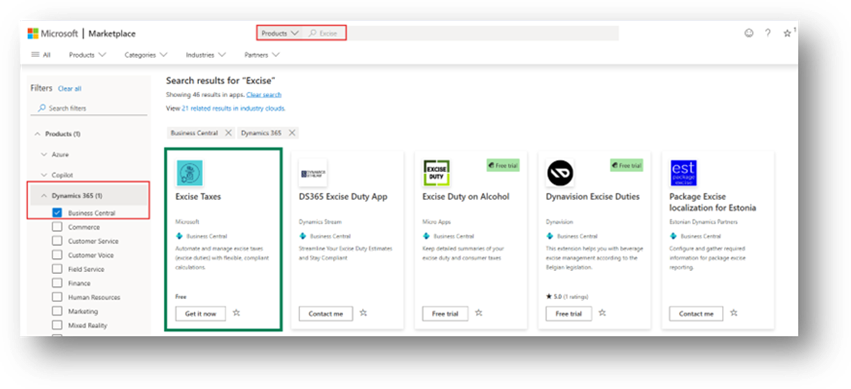
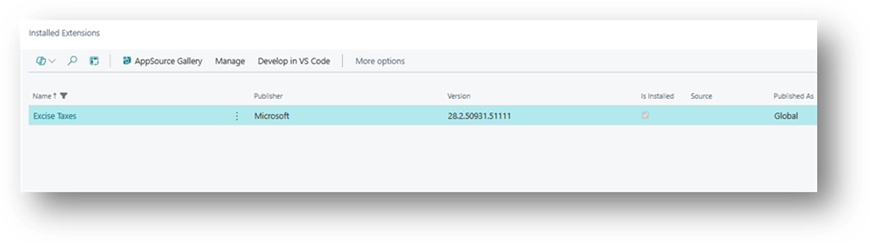
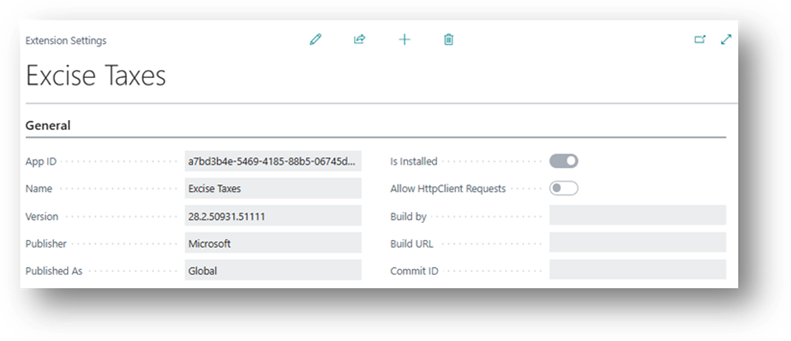
Once it will be Installed then you can check the Extension in “Extension Management” Page.
What Excise Tax Feature Actually Does?
The most important thing to understand before setup is this:
“The Excise Tax feature in D365BC is a calculation and reporting tool. It does not post to the general ledger, and it does not affect Item Costing”.
When you register excise tax entries, Business Central calculates the tax amount based on item ledger entry quantities and stores that amount for reporting purposes only. No G/L Entries are created, and the item’s unit cost is not adjusted. This is by design, not a bug. If your business needs the Excise Amount to appear in the general ledger or be capitalized into item cost, you need a separate mechanism (covered later in this article).
Core Setup Steps
Step 1 (Set Up Excise Tax Types)
Excise Tax Types represent the Category of Goods you want to Track Excise Tax for. Each type needs a Tax Basis, which defines how the tax is measured.
Available Tax Basis Options:
| Tax Basis | Typical Use Case |
| Weight | Tobacco, plastic |
| Sugar Content | Sugary beverages |
| Active Content | Cannabis or similar products |
| Volume | Fuel, petrol |
| Quantity | Cigarettes Counted per Stick |
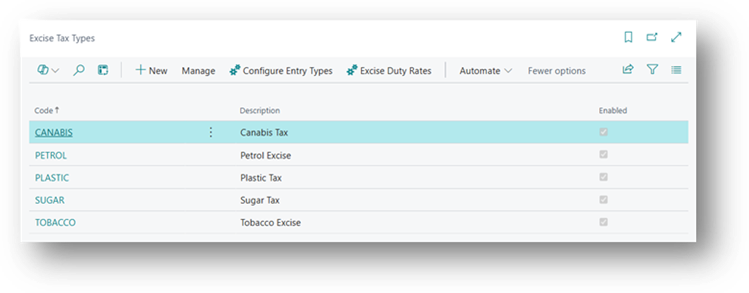
To Create a Type:
- Search for Excise Tax Types and select the related link.
- Enter a Code and Description.
- Select the Tax Basis.
- Turn on the Enabled toggle so the type becomes available on excise journals.
- Enter a Report Caption if you want a specific label to appear on excise reports.
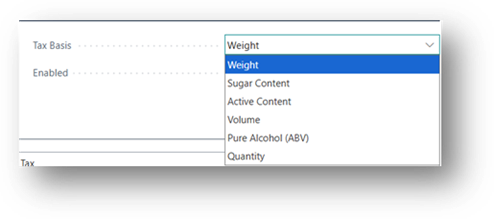
Tax Basis
Tax Basis is the field on an Excise Tax Type that tells Business Central which physical measure of the product the duty should be calculated on, instead of calculating it on price like VAT does. Business Central offers Six options.
- Weight,
- Sugar Content,
- Active Content,
- Volume,
- Pure Alcohol (ABV),
- Quantity.
The choice depends entirely on how the real-world tax law measures the product.
- Sugary drinks are taxed on how much sugar they Contain.
- In Perfumes, Alcohol is used so we can use Pure Alcohol value (ABV) can be used.
- Fuel is taxed on how much liquid is sold, so Volume is used,
- Items like plastic or tobacco are often taxed on Weight.
Once a Tax Basis is chosen for a type, every item assigned to that type must express its taxable content in that same unit, using the Quantity for Excise Tax field on the item card, so the system can calculate the final duty correctly.
Step 2: (Configure Entry Type)
Each Excise Tax type needs to know which item ledger entry types should count toward the excise-liable quantity. From the Excise Tax Types Card, choose Configure Entry Types.
Available entry types:
- Purchase
- Sale
- Positive Adjustment
- Negative Adjustment
- Output
- Assembly Output
There is no single correct combination. It depends on when your business becomes liable for the duty:
- A trader who imports finished excisable goods usually enables Purchase.
- A manufacturer who produces the excisable goods enables Output.
- A business liable at the point of final sale enables Sale.
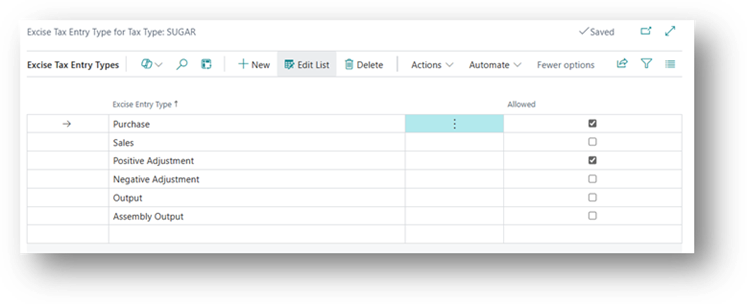
Enable only the Entry Types that Match the Actual Point of Liability. Enabling more than necessary can cause the same quantity to be counted twice.
Step 3 (Set Up Excise Duty Rates)
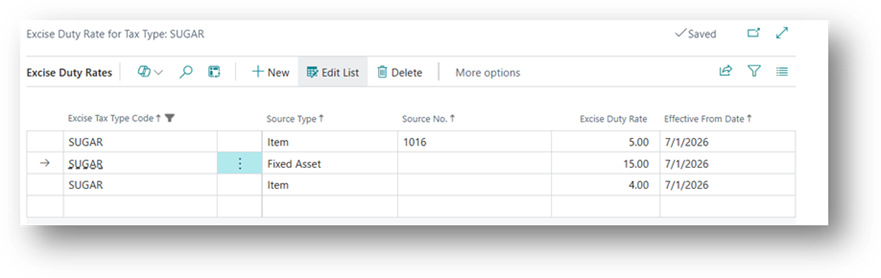
From the Excise Tax Types page, choose Item/FA Rates. Here you define the actual rate charged per unit of the tax basis.
Key fields:
- Source Type: Nature of Type on which Item should be Applied. The same tax type can carry different rates for each.
- Item
- Fixed Asset
- Source No.: To understand this, you need to understand that first that there are 4 Primary Keys in this Table:
- Excuse Tax Type Code
- Source Type
- Source No.
- Effective From Date
If you want to apply the Tax on Specific Item or Fixed Assets you can add the Tax Amount over here.
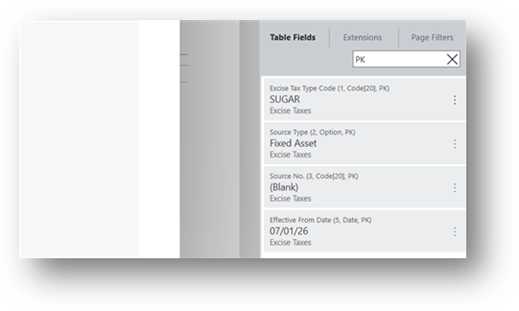
- Excise Duty: The Rate Amount Per Unit of the Tax Basis.
- Effective From Date: The date the rate becomes active. This allows you to add a new row with a future date when rates change, without deleting the old rate. Business Central automatically picks the correct rate based on the transaction date.
Step 4 (Assign Excise Tax to Items or Fixed Assets)
On the Item Card or Fixed Asset Card, go to the Excise Tax FastTab and set:
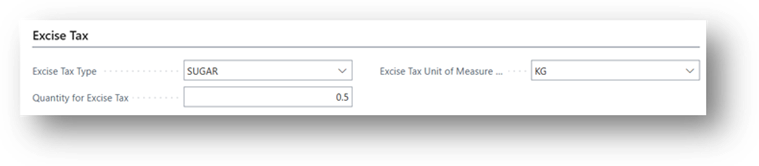
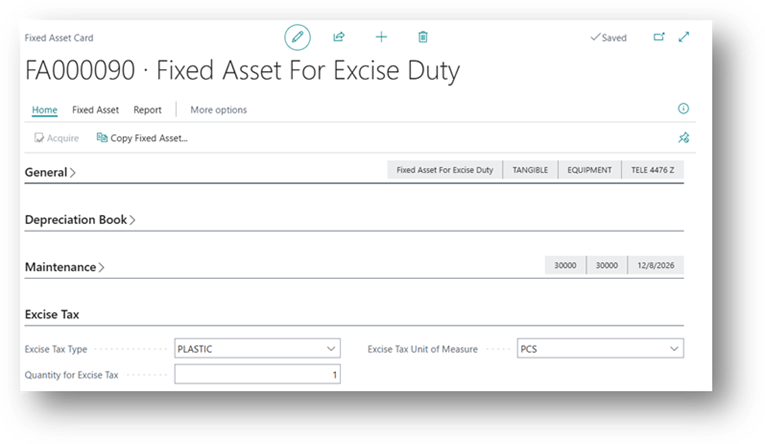
- Excise Tax Type: The Type of this “Item / Fixed Assets” belongs to (example: SUGAR).
- Excise Tax Unit of Measure Code: The Unit the Tax Basis is measured in (example: KG for sugar content).
- Quantity for Excise Tax: How much of that unit exists per base unit of the item.
- For Example, 5GBP is apply when you Purchase 1 Kg of Sugar. And Item is for 500g Packet so this code will be for 0.5 (500/1000).
- For Fixed Asset let’s assume that 15GBP is apply when you will purchase one Fixed Asset.
An item can only be assigned one excise tax type. Multiple excise taxes cannot be combined on the same item.
Step 5 (Journal Template and Batches)
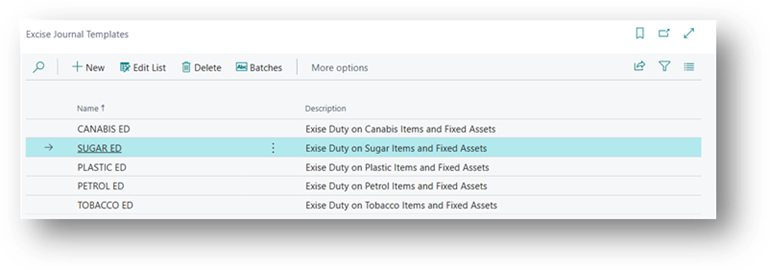
The Best Approach is to create a Separate Journal Template for Each Category. Furthermore Separate Batches will be created for Every Type.
- If you want to create one Template and one batch to manage every point then still you can do that too.
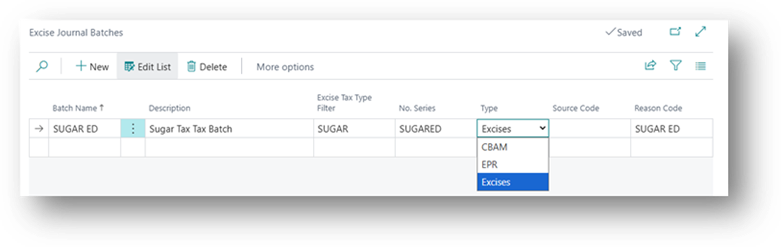
Excise Journal Batches
List of fields is explained under:
- Batch Name – From which Bank it is Connected.
- Description – Description of this Batch.
- Excise Tax Type Filter – This field is connected to excise tax type. If you want to connect this batch with any category.
- No. Series – Only No. series that is connected with Excise Duty Process. In short, document number for Excise duty Register line.
- Type – There are 3 types is it.
- Excise: Traditional Duty.
- EPR: Environmental Fee.
- CBAM: EU Carbon Tax.
- Source Code – Identifies the origin of a G/L Entry which process (Purchases, Sales, Item Journal, Costing, etc.) generated it. It’s system-generated, not manually set.
- PURCHASES — Entry comes from Purchase Invoice Posting.
- INVTPCOST — Entry comes from Inventory to G/L Costing/Adjustment process.
- Usage
- Filter/analyze entries by source
- Audit Trail – shows which routine created the entry
- Restrict Posting Permissions per user/journal via Source Code Setup
- Reason Code – Specifies the reason code for the journal batch.
Step 6 (Excise Journal)
The journal used to calculate and register Excise/EPR/CBAM Tax Entries, and it pulls quantities from Item/FA Ledger Entries to compute the Duty Amount.
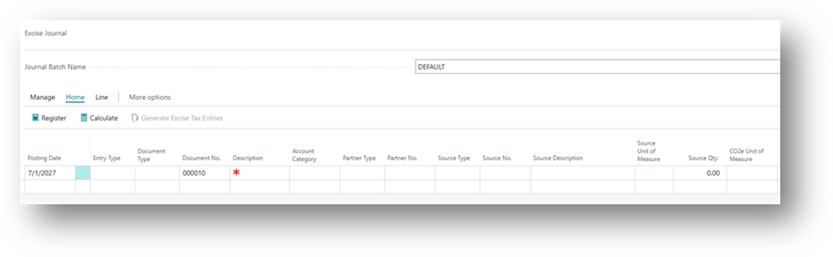
- Excise Tax Type – Specifies the Excise Tax Type for this journal line.
- Excise Entry Type – Type is like what is the Entry Nature. E.g. Purchase, Sales, etc.
- Document Type – Type is like what is the Source. E.g. Invoice, Credit Memo, etc.
- Partner Type – It’s a Vendor or a Customer. If it is blank, then you are doing a Direct Entry and you are not linking it with Purchase Or Sales Document.
- Partner No. – Vendor No. or Customer No.
- Source Type – Specifies the value of the Source Type field like Item, Fixed Asset, Resource, etc.
- Source No. – Specifies the value of the Source No. field.
- Source Description – Description of the Source Number.
- Source UOM – Specifies the value of the Source Unit of Measure field.
- Excise Tax UOM – Specifies the unit of measure for the excise tax quantity.
- Source Quantity – Displays the source quantity after it has been converted to the Base Unit of Measure.
- Quantity for Excise Tax (Sugar Tax) – Specifies the quantity for excise tax calculation.
- Excise Duty Rate (Sugar Tax) – Specifies the excise duty applied to this journal line.
- Tax Amount (Sugar Tax) – Specifies the calculated excise tax amount for this journal line.
Before jumping to Calculate and discuss the lines. Check the Posted Purchase Invoice.
For Items
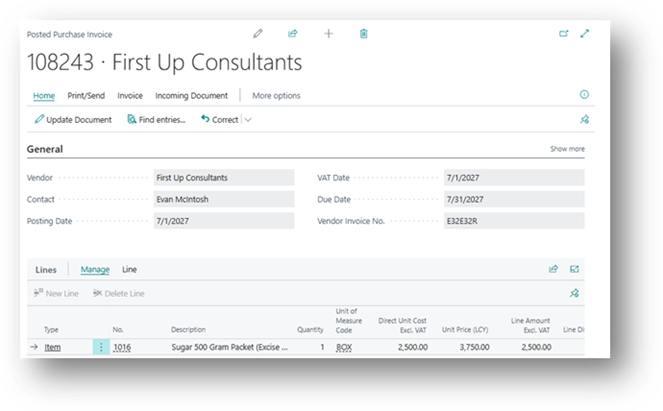
Will click on “Generate Excise Tax Entries” to bring the Lines in Excise Journal.
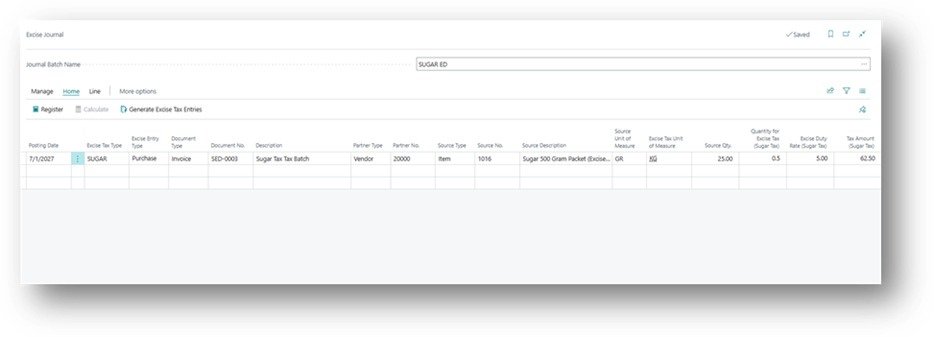
Calculation
Formula to calculate the value:
Excise Tax Amount = Source Qty (Base UOM) x Quantity for Excise Tax x Excise Duty Rate
1 Box = 25 KG’s = 50 Packets of Sugar
Quantity for Excise Tax (Sugar Tax) = 0.5 (On Item Card)
Source Quantity = 25 (Because we have specified Excise Duty rate against KG)
= 25 * 0.5 * 5 = GBP 62.50
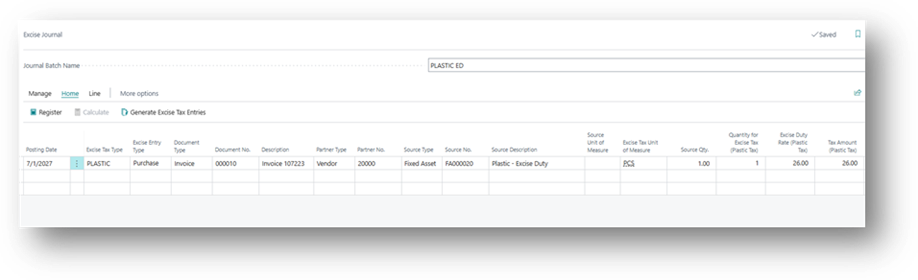
For Fixed Assets
The Process is Absolutely Similar for Fixed Assets.
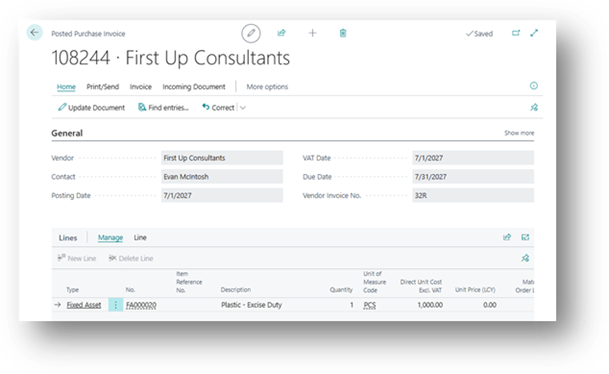
Calculation
Formula to calculate the value:
Excise Tax Amount = Source Qty (Base UOM) x Quantity for Excise Tax x Excise Duty Rate
1 PC = 1 Fixed Asset
Quantity for Excise Tax (Plastic Tax) = 1 (On Fixed Asset Card)
Source Quantity = 1 ; Excise Duty Rate = GBP 26
= 1 * 0.5 * 26 = GBP 62.50
Step 7 (Excise Taxes Transaction Logs)
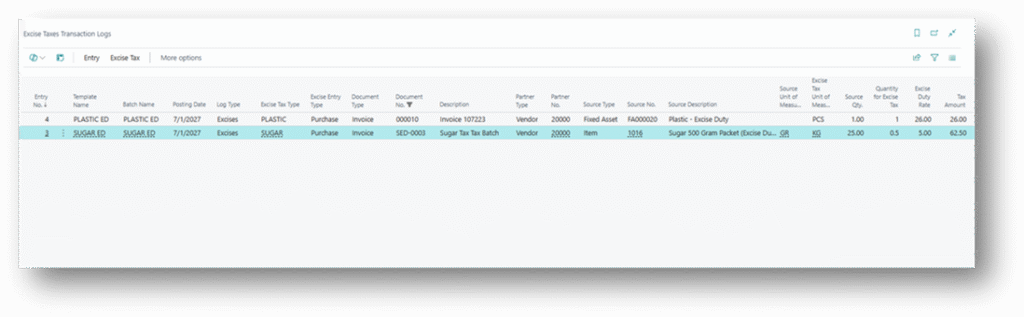
After Registering, the results can be reviewed on the Excise Taxes Transaction Logs page, which allows drilling down into the underlying item ledger or fixed asset ledger entries. As mentioned earlier, this step does not create any general ledger entries. It only produces a calculated record for reporting and compliance purposes.
Bridging the Gap
Step 8 (Getting Excise Tax into Costing and G/L)
Since the native feature stops at calculation, businesses that need the excise amount reflected in item cost or in the General Ledger must use a separate mechanism. The standard way to do this in Business Central is through Item Charges.
Steps
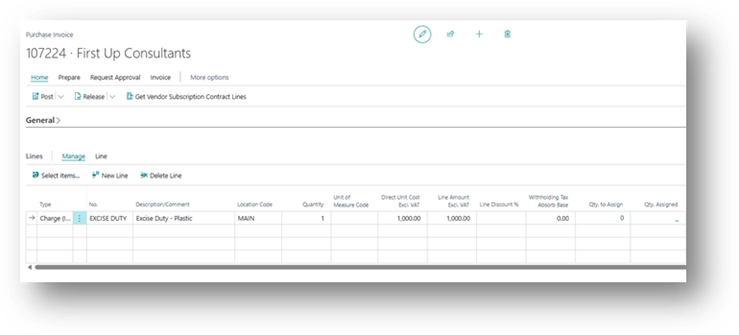
- Create an Item Charge (example code: EXCISE-SUGAR) and map it to the appropriate G/L accounts on the Item Charge Card.
- If you want to create 1 Item Charge “Excise Duty” then it will become hard to track that this Excise Duty of which Category.
- On the Purchase Order or Invoice, add a charge line of type Charge (Item) using that Item Charge code, with the calculated excise amount.
- Use Assign from Purchase to link the charge line to the relevant item line.
- When Posted, the Amount is Capitalized into the Item’s Unit Cost and Posted to the G/L account defined on the Item Charge Card.
Do You Even Need the Excise Tax Feature?
If a Business only cares about the Financial Impact, Item Charges alone can achieve that without Touching the Excise Tax feature at all. So why use both?
The two features serve different purposes:
- The Excise Tax Feature provides an Automated Calculation engine for complex tax bases (weight, volume, ABV, sugar content) and produces a structured audit trail suitable for regulatory reporting.
- Item Charges only capture the financial and costing impact. The amount must be entered manually, with no calculation logic behind it.
If a business has a simple, fixed rate with no government reporting obligation, Item Charges alone may be sufficient. But if the business must file excise reports with a tax authority, or if the calculation involves a variable basis like Weight or sugar content across many items, the Excise Tax feature is still necessary to get an accurate, auditable calculation. Item Charges would then be used on top of it, simply to carry that already-calculated figure into cost and the general ledger.
Summary
- Excise Tax in Business Central is a base application feature, not a country-specific localization.
- It calculates and reports excise-liable quantities and amounts based on item or fixed asset ledger entries.
- It does not post to the G/L and does not affect Item Costing.
- To Reflect Excise Duty in Costing and the G/L, pair the feature with Item Charges, using the Excise Tax feature for calculation and compliance, and Item Charges for the financial posting.