Dimensions in Business Central are one of the most used, and most underused, features. Before looking at Global Dimensions, Default Dimensions, or Dimension Combinations individually, it helps to understand what a dimension actually is and why it exists.
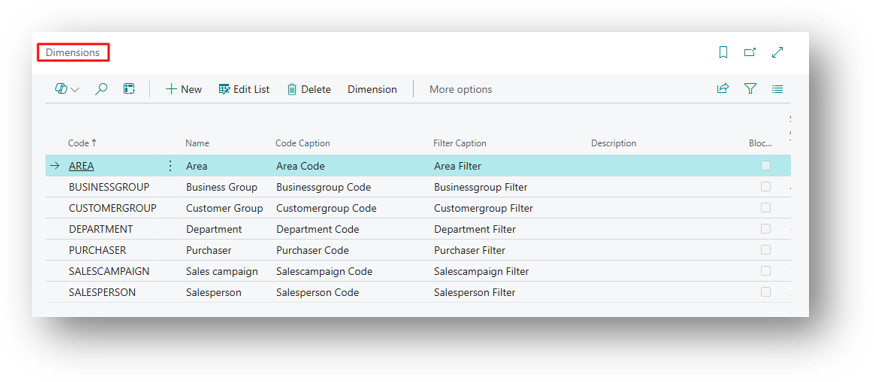
What Is a Dimension in Business Central
A dimension is a tag you attach to a transaction so you can analyze it later from an angle the chart of accounts does not give you. A G/L account tells you what was spent.
A Dimension Tells You
- For Whom
- For Where
- For What
For example, dimensions in Business Central tell you:
- Which Department
- Which Project
- Which Customer Group
- Which Salesperson
In October, the company spent a total of $5,800 on Office Supplies under G/L Account 8210. Instead of creating four separate G/L accounts for each department, the company uses dimensions in Business Central. It keeps the single Office Supplies account and tags every entry with a Department dimension.
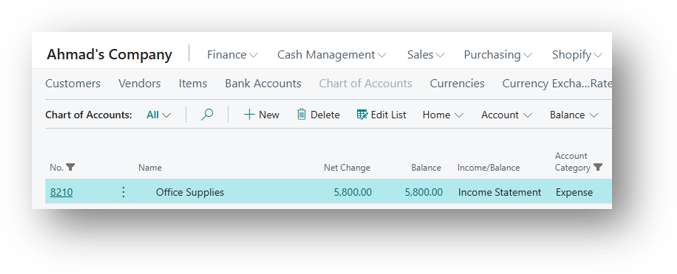
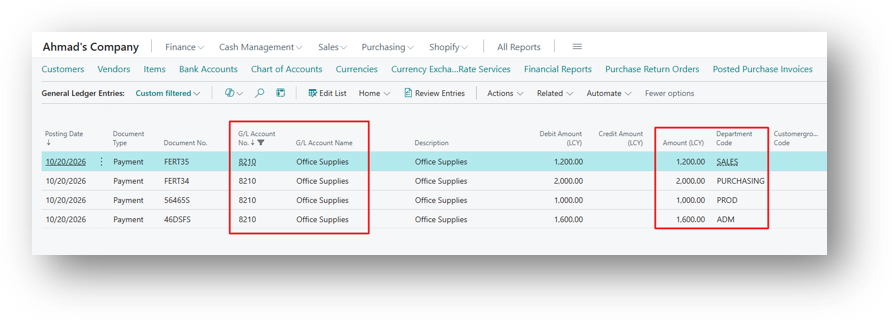
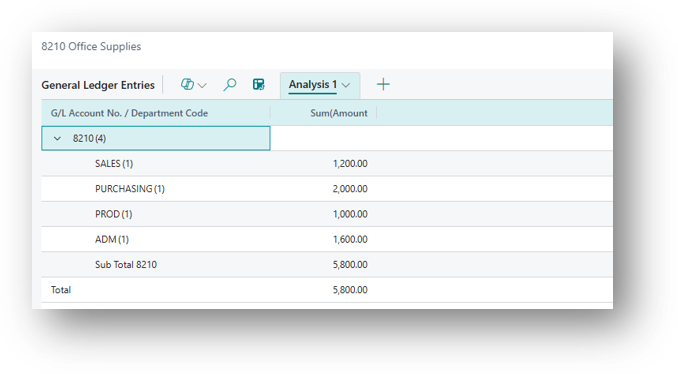
On the G/L Entries page, account 8210 still shows one combined balance of $5,800 for October. But when you add Department as a filter or as a column on an account schedule, Business Central breaks that same $5,800 down by Department without touching the chart of accounts. Run the Trial Balance by Dimension report, or filter G/L Entries by Department = Sales, and you get exactly the $1,200 that department spent, pulled from the same single account.
That’s how it bifurcates the values.
Why Not Just Use More G/L Accounts
Without dimensions in Business Central, you could create a separate G/L account for every department’s office supply, but that approach does not scale. Add a few departments, a few locations, and a few projects, and the chart of accounts balloons into hundreds of near identical accounts that are hard to maintain and even harder to report on cleanly.
For the full setup steps, see the Microsoft Learn guide on working with dimensions in Business Central.
Hope so this is Helpful 😃