When an item uses the Average costing method, Business Central must decide at what level it calculates the average cost. You set this average cost calculation type in the Average Cost Calc. Type field in Inventory Setup. In this article, we will post real purchase orders and a sales order in a Business Central sandbox and see how the cost of goods sold changes with each option.
Where to Find the Average Cost Calculation Type Setting
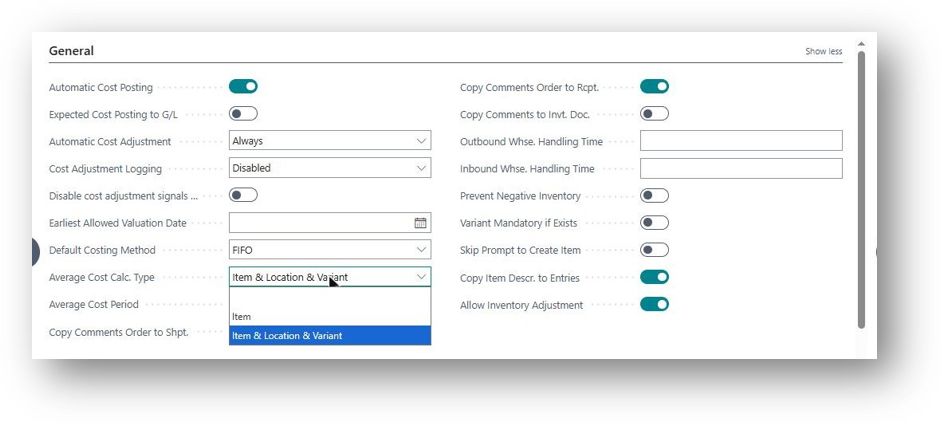
Search for Inventory Setup and look at the General FastTab. The Average Cost Calc. Type field sits right below Default Costing Method, and next to it is Average Cost Period.
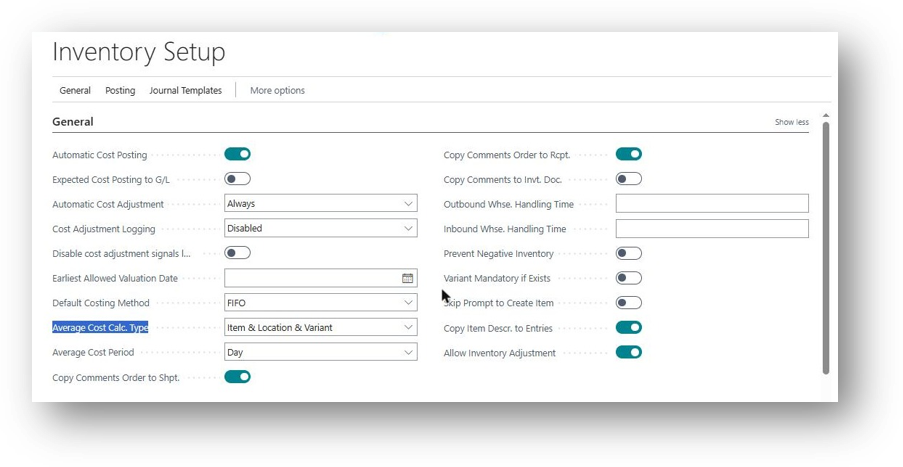
The field has two options:
| Option | How Average Cost is Calculated |
|---|---|
| Item | One average cost per item. All inbound entries of the item are averaged together, regardless of location or variant. |
| Item & Location & Variant | A separate average cost for each combination of item, location and variant. Stock at one warehouse does not affect the cost at another warehouse. |
The average cost calculation type applies only to items whose Costing Method is Average. Therefore, it does not affect FIFO, LIFO, Specific & Standard Items.
Example Scenario
We will purchase the same item at two locations at different costs and then sell from one location. We post all documents on the same date (8/1/2027), so the Average Cost Period (Day) does not influence the result.
| # | Document | Location | Quantity | Unit Cost | Amount |
|---|---|---|---|---|---|
| 1 | Purchase Order 106085 | MAIN | 10.00 | 100.00 | 1,000.00 |
| 2 | Purchase Order 106086 | EAST | 10.00 | 200.00 | 2,000.00 |
| 3 | Sales Order 101055 | MAIN | 5.00 | ? | ? |
The question is simple: what is the cost of the 5 units sold from MAIN under each average cost calculation type?
Step 1: Create an Item with Average Costing
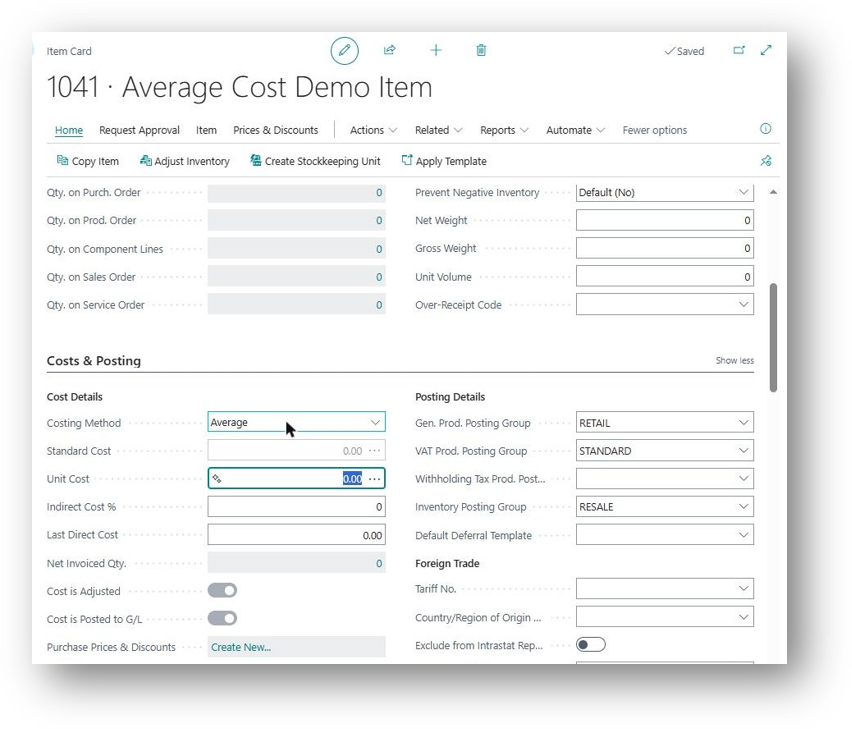
First, create a new item (here 1041, Average Cost Demo Item) using the item template. Then, on the Costs & Posting FastTab, set Costing Method to Average, so the average cost calculation type applies to it.
Step 2: Post the First Purchase Order (MAIN)
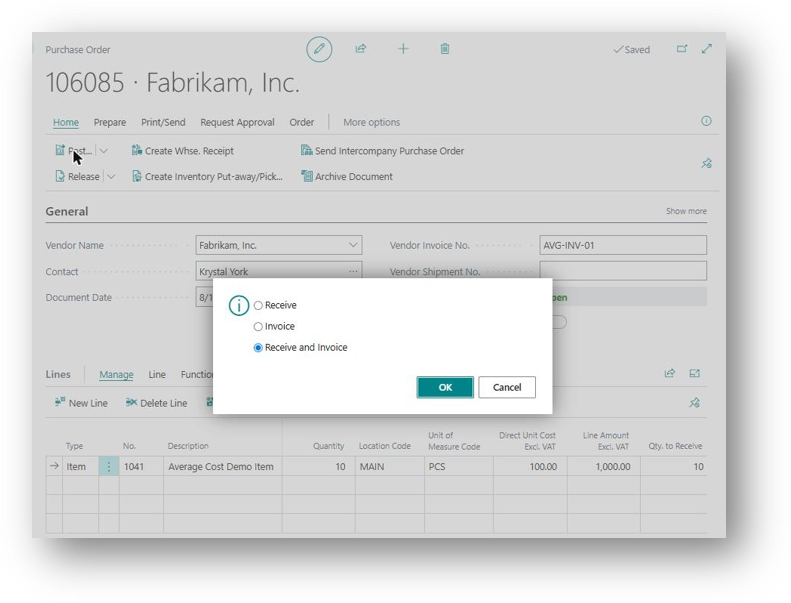
Next, create a purchase order for vendor 10000 with one line: item 1041, Quantity 10, Location Code MAIN, Direct Unit Cost 100.

Then, choose Post, select Receive and Invoice, and choose OK. Business Central posts the order as purchase invoice 108288.
Step 3: Post the Second Purchase Order (EAST)
Similarly, create another purchase order for the same item: Quantity 10, Location Code EAST, Direct Unit Cost 200. Post it with Receive and Invoice (posted invoice 108289).

Step 4: Post the Sales Order (MAIN)
After that, create a sales order for customer 10000: item 1041, Location Code MAIN, Quantity 5, Unit Price 300. Post it with Ship and Invoice (posted invoice 103314).

Result 1: Item & Location & Variant
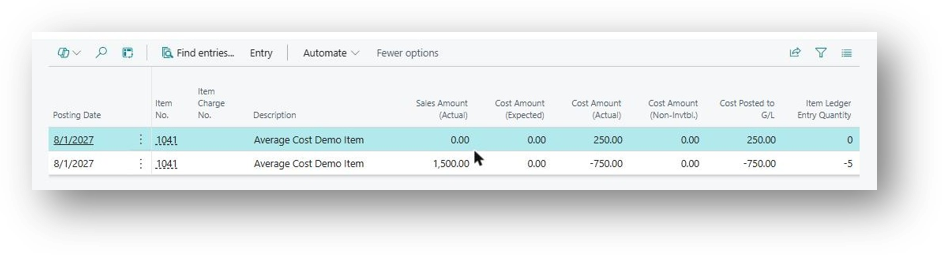
Open Item Ledger Entries for item 1041. The sales shipment from MAIN carries a Cost Amount (Actual) of -500.00, which is 5 x 100. Business Central used only the MAIN purchase, because under this average cost calculation type each location has its own average cost.
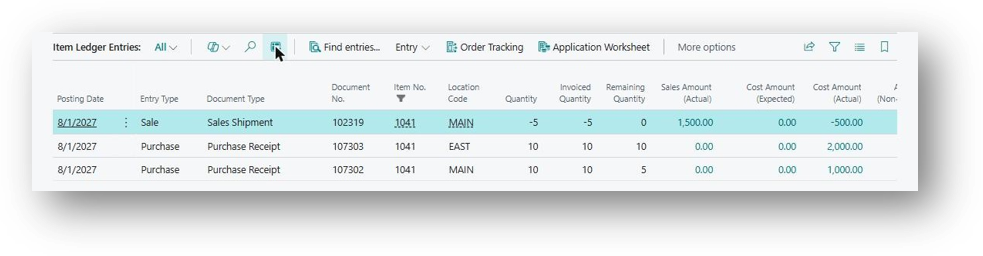
Drill down on the cost amount to see the Value Entries. Two Entries exist for the sale:
- At first, Business Central posted the invoice at -750.00. At posting time, Business Central used the unit cost on the item card, which was 150 ((1,000 + 2,000) / 20).
- Because Automatic Cost Adjustment is set to Always, Business Central created an adjustment entry of +250.00 right away, correcting the cost to the MAIN average of 100.
Tip: If you create stockkeeping units (SKUs) for each location, Business Central uses the SKU unit cost at posting, so the first value entry is already closer to the location cost.
Step 5: Change the Average Cost Calculation Type to Item
To compare, open Inventory Setup, choose Edit, and change Average Cost Calc. Type to Item. Business Central shows a warning, because it must adjust every item entry for average cost items again.

Choose Yes. A message confirms the change and asks you to run Adjust Cost – Item Entries.

Step 6: Run Adjust Cost – Item Entries
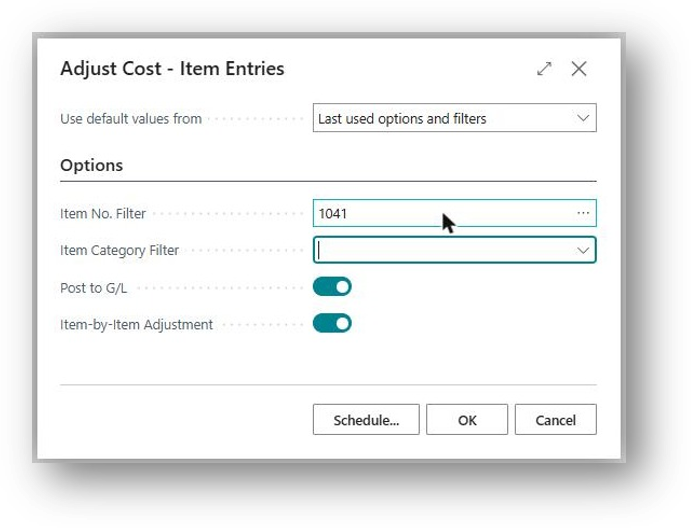
Search for Adjust Cost – Item Entries, set Item No. Filter to 1041, keep Post to G/L enabled, and choose OK.
Result 2: Item
Open Item Ledger Entries again. The same sale now shows a Cost Amount (Actual) of -750.00, which is 5 x 150. As a result, with the Item average cost calculation type, Business Central averaged both locations together.

Also, in Value Entries, a new adjustment entry of -250.00 reverses the earlier location correction.

Average Cost Calculation Type Comparison
| Average Cost Calc. Type | Average cost used | COGS for 5 Units | Remaining Value |
| Item & Location & Variant | 100 (MAIN Only) | 500.00 | MAIN 500, EAST 2,000 |
| Item | 150 (MAIN + EAST) | 750.00 | 2,250 for the item |
The quantities are identical. However, the average cost calculation type changes the cost flow, which directly affects inventory value per location and the gross margin of each sale. After the demonstration, we changed the setting back to Item & Location & Variant and ran the batch job again. The sale then returned to a cost of 500.

Which Average Cost Calculation Type Should You Choose?
- Item & Location & Variant suits companies whose warehouses have different landed costs (freight, duties, regional suppliers) and need location-wise margins.
- Item suits companies that treat inventory as one pool and want a single company-wide average cost.
- Decide this before go-live. Changing it later forces Business Central to re-adjust all average cost entries, which can take a long time in a live company.
- Always run Adjust Cost – Item Entries after changing the setting and check the impact on posted G/L inventory values.
Related Setting: Average Cost Period
The Average Cost Period field (Day, Week, Month, Quarter, Year, Accounting Period) decides the time window over which the average is calculated. In this example it was Day, and all postings were on one date. We explain this field in detail, with its own example, in a separate article.
Hope so this is Helpful 😃