

Microsoft Copilot is one of the most powerful AI features introduced in Business Central. It assists users in drafting texts, summarizing data, generating forecasts, and automating repetitive tasks. In many areas — such as sales order suggestions, item descriptions, and financial analysis — Copilot can save time and improve accuracy.
However, not every business need Copilot active across all modules. In some cases, the prompts or automated suggestions may feel distracting, not business-relevant, or simply unnecessary for your current workflow.
That’s why you may want to Disable Copilot (Either Fully or Partially).
Turn-Off Copilot
To see the list of Copilot features in Business Central. You need to search “Copilot & Agent Capabilities”.
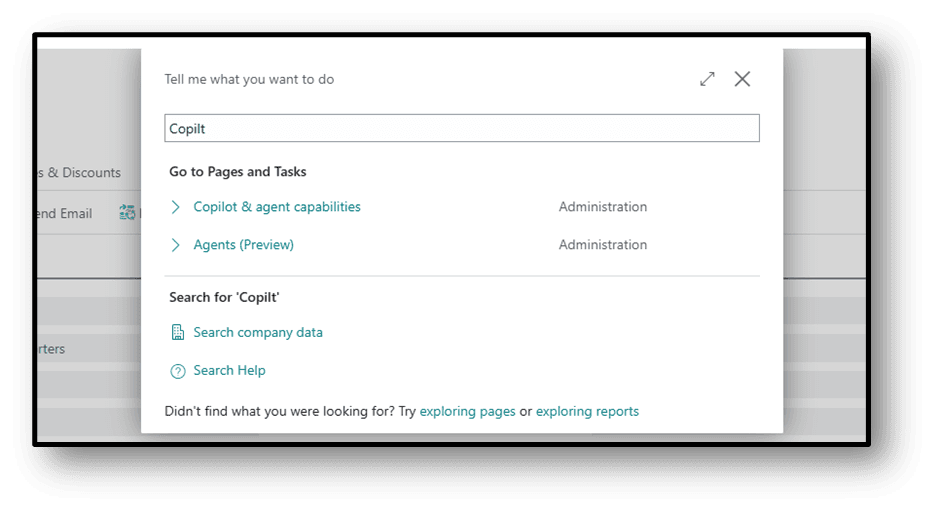
A list will open then.
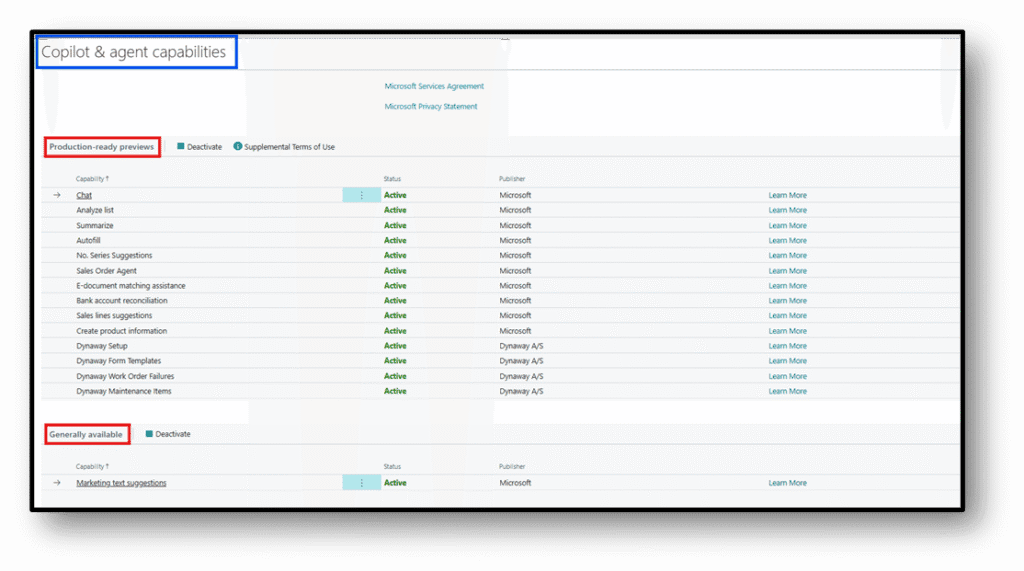
Copilot and agent capabilities are active by default when they’re available in preview or generally available.
The page lists all available Copilot and AI-related features and their status (Active or Inactive). The features are divided into two sections: preview and generally available.
- To turn on a feature, select it in the list, and then select Activate.
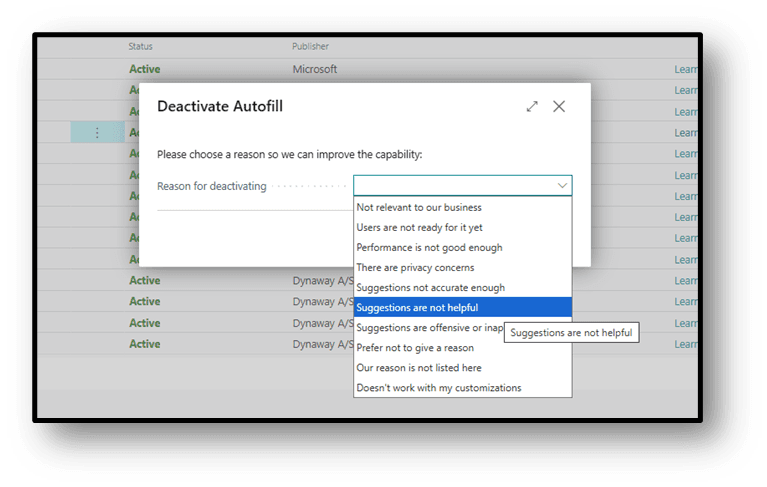
- To turn off a feature, select it in the list, and then select Deactivate.
Showing 1 Example over here and same process will apply on all Points.
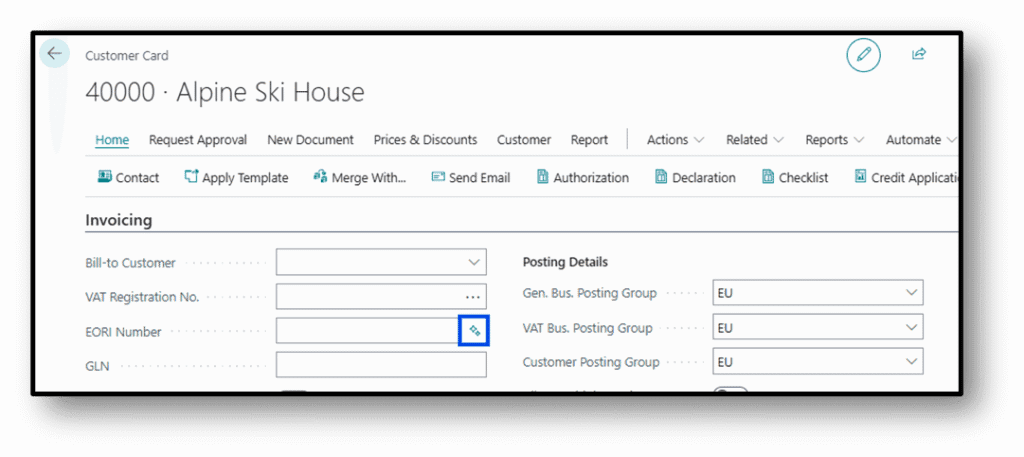
You can see here that Copilot button is coming, and Autofill feature is active. Now I will deactivate it, and you can see the difference.
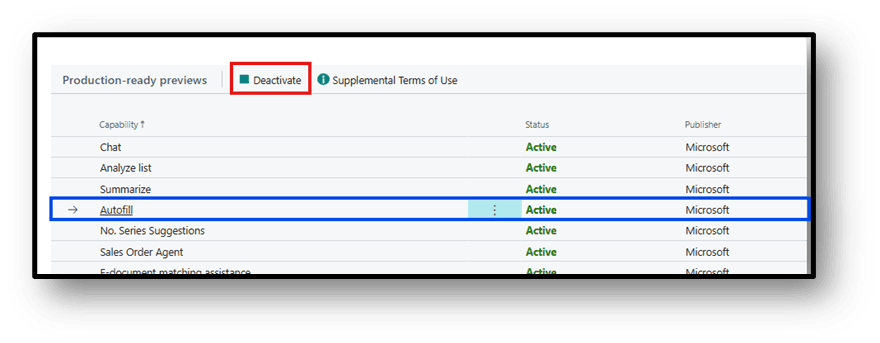
When you click on Deactivate then you can specify the Reason of Deactivating that.
Now I will reload the system and go back to the Same Page.
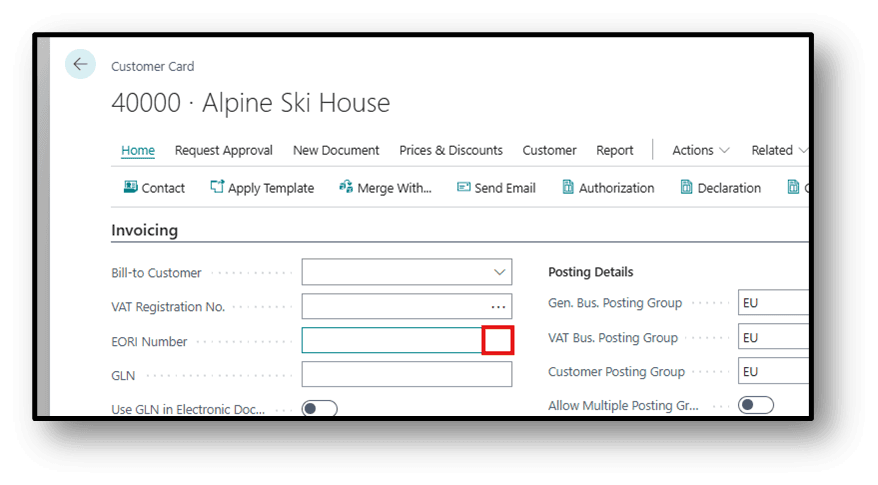
As you can see there is no suggestions are coming.
I hope you find this article helpful.
Best Regards,
Ahmad Subhani
D365 Business Central Functional Consultant
Email – ahmadsubhani424@gmail.com
WhatsApp – +923357687164