When you apply a configuration package, Business Central normally runs the table triggers, the same way it does when a user types data on a page. The Skip Table Triggers option, however, lets you apply the data without running those triggers. In this Article, we will apply the same type of customer data twice, once with the option off and once with the option on and compare the results.

How to Process Skip Table Triggers
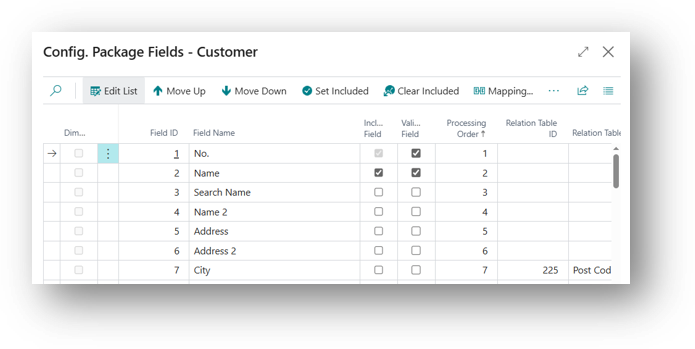
- First, create a package with the code SKIP TRIGGERS and add table 18 – “Customer”. Then, on the Fields page, I included only the No. and Name fields.
- Next, export and then create the Excel file for the package and enter one customer. For the first test the customer is CFGC001.

- Then click Import from Excel, select the file and click Import in the preview window.
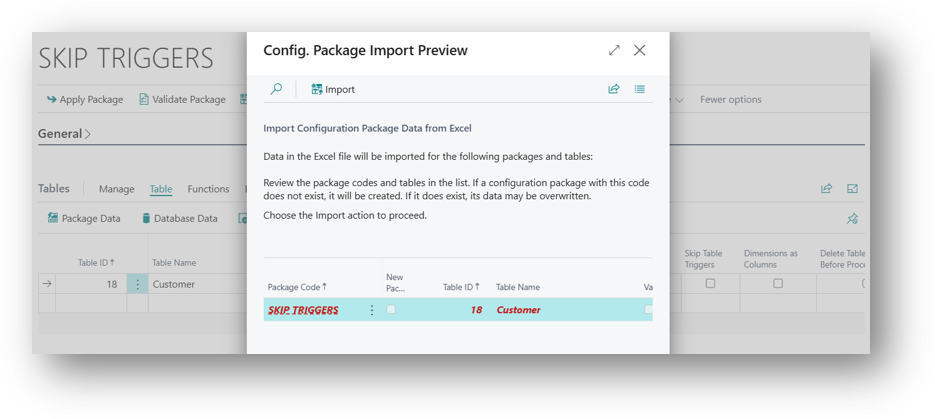
- Business Central then imports the package and shows the table line.

Boolean is Disabled
- The option is a column in the package table grid. Next, scroll to the right until you see Skip Table Triggers. For the first test, it stays unchecked.
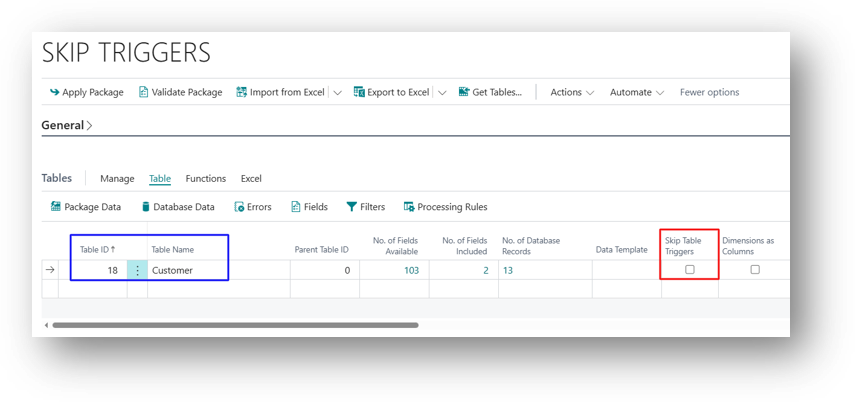
- Then click Apply Package and confirm with Yes.

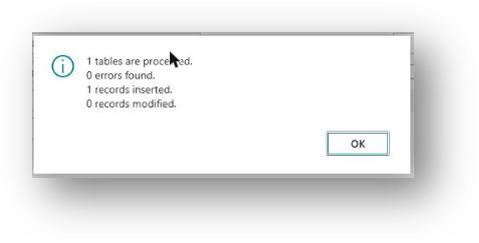
- As a result, Business Central shows 1 record inserted and 0 errors.
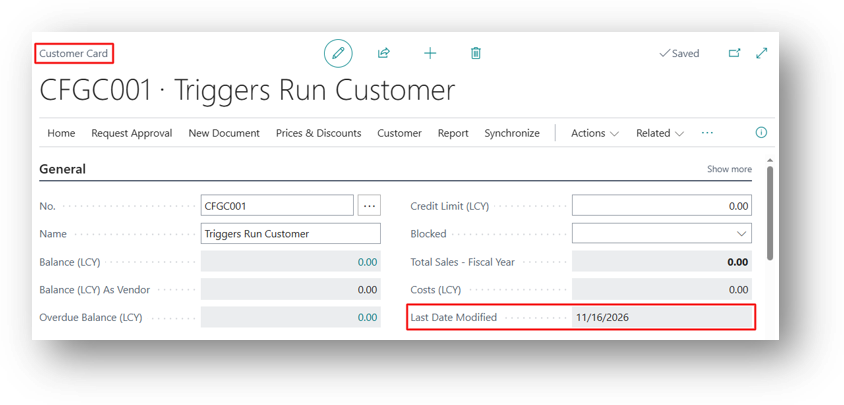
- Then open customer CFGC001 (option off). The Last Date Modified field shows the current date, because the table triggers ran.
Boolean is Enabled
- Next, import a second file with customer CFGC002 in the same package.

- Then tick Skip Table Triggers on the Customer line.

- Import the file again, then click Apply Package. As before, the result shows 1 record inserted and 0 errors.

- Finally, open customer CFGC002 (option on). The customer exists with the same No. and Name, but Last Date Modified is empty, because the table triggers did not run.

Points to Consider for Skip Table Triggers
- Option Off: The table triggers run and Business Central fills fields like Last Date Modified automatically.
- Option On: The data is written directly and the table triggers are not executed.
- Use it carefully. Skipping triggers also skips the table’s built-in logic and checks, so use it only when you are sure the data is already correct, such as in a bulk data migration.
Hope so this is Helpful 😃