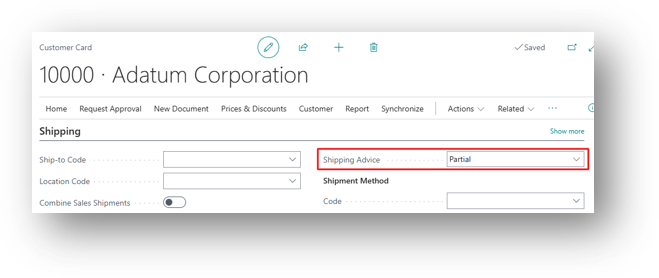
Most users never look at the Shipping Advice field on a sales order in Business Central. Yet this one field decides whether an order can leave the warehouse in parts or only as one complete shipment.
Where to Find Shipping Advice
- The default value comes from Customer Card > Shipping FastTab
- Sales Order > Shipping and Billing FastTab

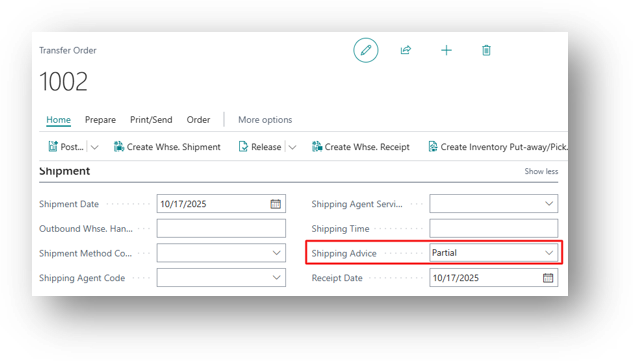
- The same field is also available on Transfer Orders > Shipment FastTab
Shipping Advice Options
| Option | What It Does |
|---|---|
| Partial | You can ship the order in multiple shipments. This is the default Shipping Advice value. |
| Complete | You must ship the order in full. Business Central does not allow a shipment that leaves any quantity behind. |
Example
Customer Adatum Corporation orders 100 units of Item 1896-S and 50 units of Item 1900-S. However, only 50 units of Item 1896-S are available in stock.
- Shipping Advice = Partial: You set Qty. to Ship to 50 for Item 1896-S and post the shipment. The remaining 50 units then ship later.

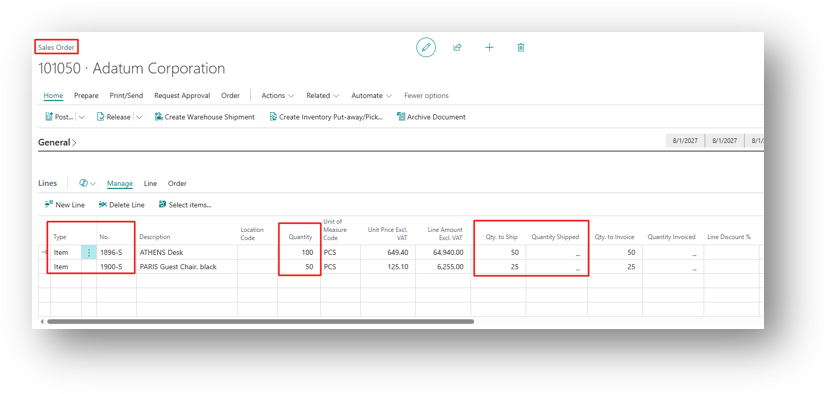
I ran Preview Posting, and it shows no errors. The item ledger entries show the details of the partial shipment.


- Shipping Advice = Complete: Posting stops with an error that asks you to change the field to Partial. The order waits until every line can ship in full.


Now, when I run Preview Posting on this order, it gives an error that you cannot post a partial quantity because the order is set to Complete.

Now let’s ship the full quantity, and the system allows the posting.

The same check applies when you post a warehouse shipment. With Complete, the warehouse shipment must cover the full order.
When to Use Complete
- Customers who do not accept back orders
- Project or kit deliveries where all items must arrive together
- Export orders shipped in one container
Hope so this is Helpful 😃