
Items Not on Inventory Feature is Available on Calculate Inventory < Physical Inventory Journal
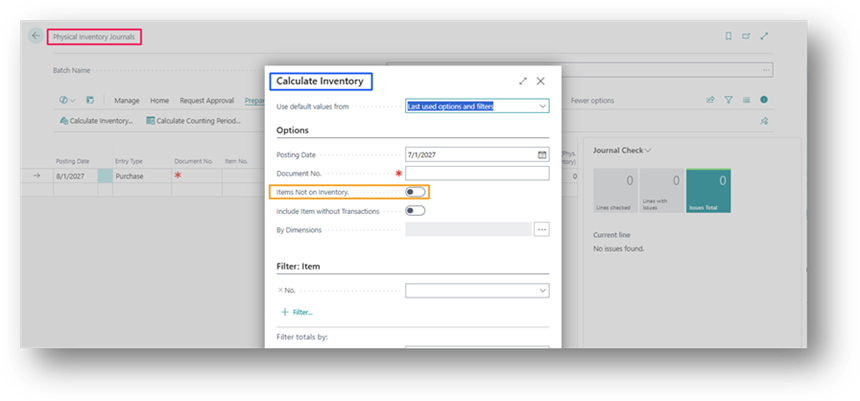
When you run the Calculate Inventory action on the Physical Inventory Journal, Business Central only pulls in items whose Qty. (Calculated) is greater than zero. Meaning the system already believes some quantity of that item exists in stock. Items sitting at zero in the system are skipped by default.
The Items Not on Inventory option changes this. When turned ON, it forces the journal to also include items whose calculated quantity is 0, giving them a line so they can still be physically verified. Let me show you that with Example.
Example
Say Item 1020 Shows 0 units in the system (Perhaps due to an unposted receipt or a data entry gap). During a routine count, the warehouse staff finds 10 units physically on the shelf.
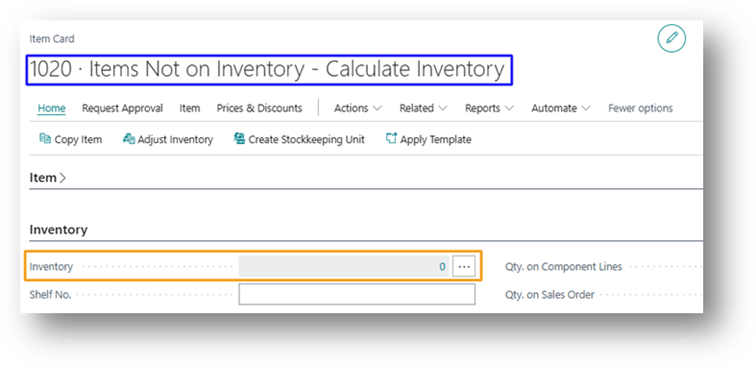
But Remember there were some transactions done for this Item.
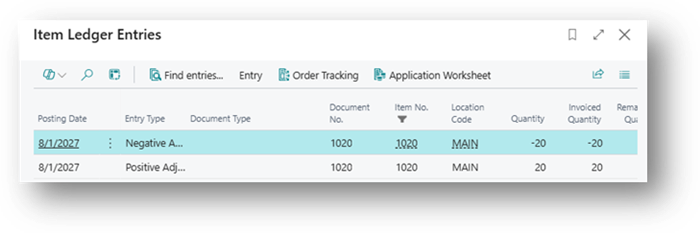
Boolean Disabled
- This Item never appears on the count sheet, and those 10 units stay invisible to the system. Let’s test this:
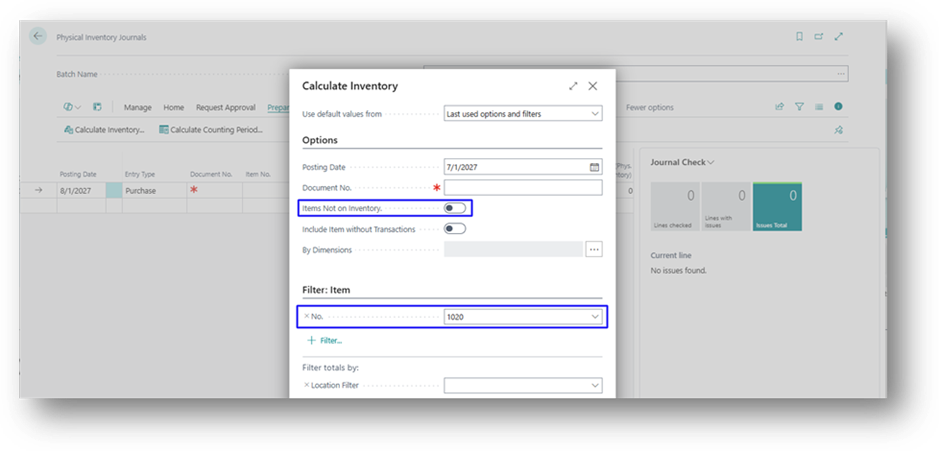
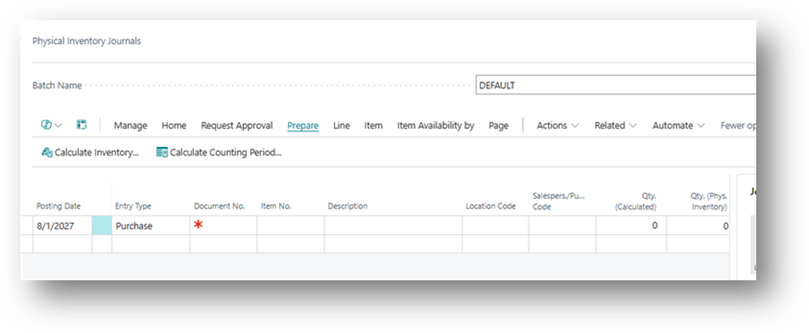
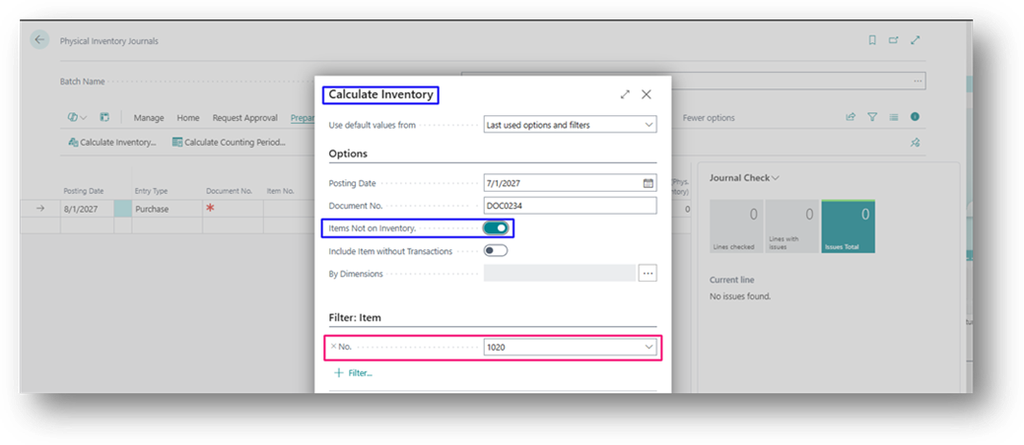
Boolean Enabled
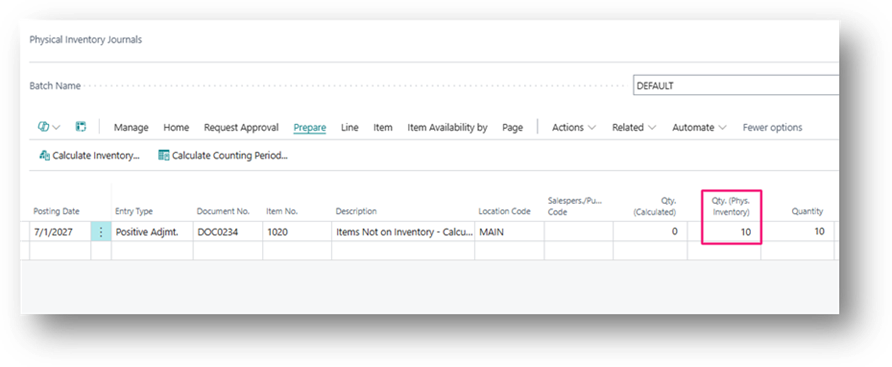
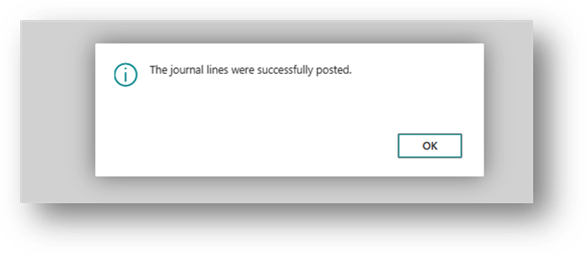
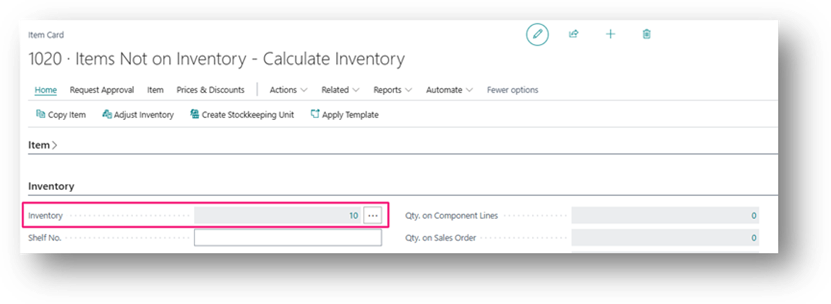
- Item appears with Qty. (Calculated) = 0. The staff enters 10 in Qty. (Phys. Inventory), and posting creates a positive adjustment of 10 units, bringing the system in line with reality.
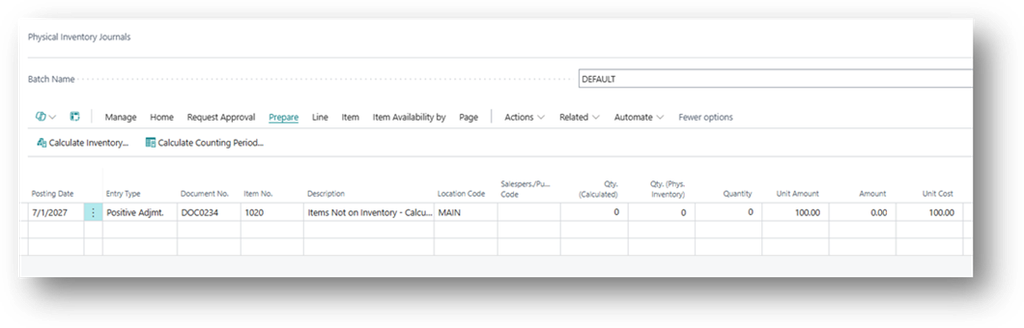
This option is especially useful for catching stock that “shouldn’t” exist on paper but is genuinely sitting in the warehouse.