
What is Standard Cost?
Standard Cost is a Pre-defined expected cost for producing an item. Instead of recording the actual cost every time production runs, you freeze a Standard Cost and compare it against what actually happened. The difference is called a Variance.
Example: You estimate it costs 500 to produce Item A. You run production and it actually costs 520. The 20 difference is your variance and Business Central records it automatically.
What Makes Up a Standard Cost?
For a Manufactured Item, Standard Cost has 3 Main Components:
| Component | What It Covers |
| Material Cost | Raw materials and Sub-Assemblies from the Production BOM Sub-Assemblies – Items used as components in a finished good that are manufactured separately using their own Production BOM before being consumed in the parent item’s Production BOM. |
| Capacity Cost | Machine and Labor time from the Routing |
| Subcontractor Cost | Work sent to outside Vendors |
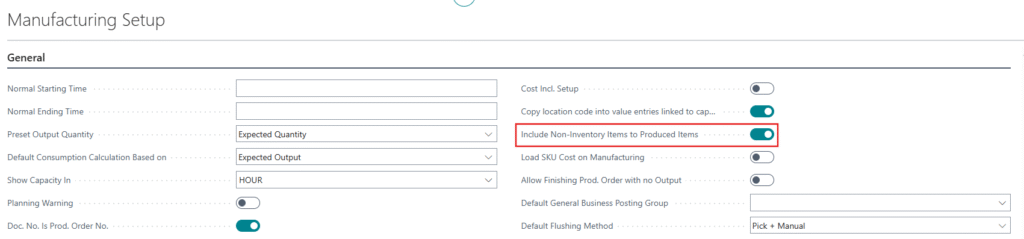
Non-Inventory Cost: Consumables or Services used during production that do not go into inventory.
(Enabled separately in Manufacturing Setup)
When enabled, non-inventory costs appear as separate value entries on the output and post variances to a dedicated Material Non-Inventory Variance Account.
Material Cost — Two Ways to Calculate
When calculating Material Cost for a Finished Good, Business Central offers two approaches:
- Single Level — Takes the Cost of Direct BOM Components, without breaking Sub-Assemblies Apart.
- Rolled Up (Multi-Level) — Drills into Every Sub-Assembly recursively and Sums only the pure Material Cost at Every Level.
Frame – $80
Seat – $20
Wheel Assembly
Rim – $20
Tire – $15
Spokes – $10
Capacity
Wheel Assembly Capacity – $5
Bicycle Assembly Capacity – $30
| Single Level | Rolled Up Cost | |
| Frame | $80.00 | $80.00 |
| Seat | $20.00 | $20.00 |
| Wheel Assembly | $50 | |
| Rim | – | $20.00 |
| Tire | – | $15.00 |
| Spokes | – | $10.00 |
| Total Material Cost | $150.00 | $145.00 |
| Wheel Assembly Capacity | – | $5.00 |
| Bicycle Assembly Capacity | $30 | $30.00 |
| Total Capacity Cost | $30.00 | $35.00 |
| Total Cost | $180.00 | $180.00 |
Capacity Cost
Capacity cost comes from the Routing — machine and work centre time required to produce the item.
It has Two Elements:
- Direct Cost — Actual Shop Rate for the Operation (e.g., 50/hour for a Machine Centre).
- Indirect Cost — General Factory Overhead like electricity, lighting, heating — expressed as a percentage or fixed overhead rate on the work centre.
One important rule for setup time: setup time is prorated over the lot size. If setup takes 1 hour and your lot size is 10 units, each unit absorbs 6 minutes of setup cost. You set the lot size on the Item Card under the Replenishment tab.
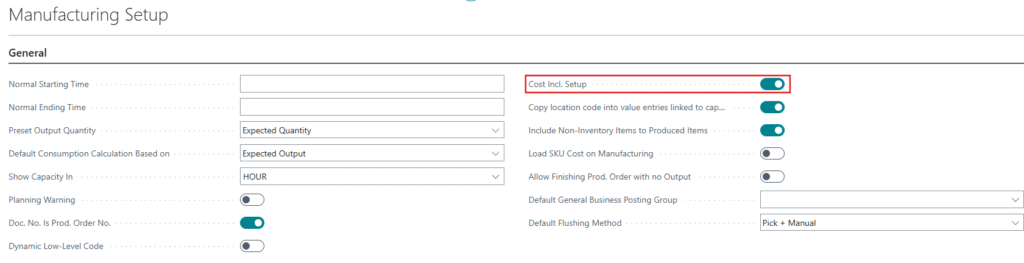
If you want setup time included in planning but excluded from standard cost, turn off Cost Incl. Setup in Manufacturing Setup.
Scrap Cost
Scrap set on the Production BOM or Routing increases the required component quantity, which directly increases the material cost in the standard cost calculation.
Example: Component costs 10. With 10% scrap on the BOM, Business Central plans for 11 units — so material cost for that component becomes 11 instead of 10.
Scrap is explained in more Detail in a Separate Document.
How to Calculate and Set Standard Cost
Option 1 — Manual Entry
Go to Item Card and type the Standard Cost directly. Simple but not recommended for manufactured items with complex BOMs.
Option 2 — Calculate from Item Card
Go to Item Card > Production group > Calc. Production Std. Cost
Two Calculation Levels are Available:
- Single Level — Calculates the cost of only the selected item. It assumes the costs of all components and sub-assemblies are already correct.If you update the cost of Bicycle, only the Bicycle cost is recalculated. The cost of the Wheel Assembly (sub-assembly) is not recalculated.
- All Levels — Recalculates the cost of the selected item and every sub-assembly below it, starting from the lowest level and rolling the costs up to the finished item. If the cost of the Tire changes, running All Levels recalculates the Wheel Assembly first, then updates the Bicycle cost with the new Wheel Assembly cost.
Updating Standard Costs — The Proper Process
When costs change (raw material prices go up, labor rates change), you do not just edit the Item Card directly. Business Central provides a structured process through the Standard Cost Worksheet.
Who Does What
| Role | Task |
| Procurement Manager | Updates purchased item costs |
| Production Manager | Updates work/machine center rates |
| Controller | Manage Sheets, Roll-Ups and Implements |
Process
We will adjust the Standard Cost Step by Step:
-
Step 1 (Procurement Manager)
Navigate to: Search > Standard Cost Worksheet > Suggest Item Standard Cost
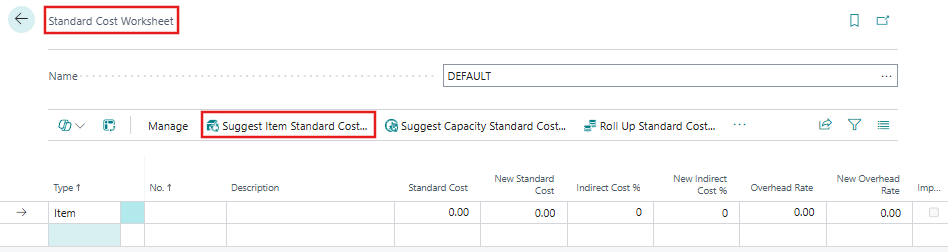
This creates suggestions for new standard costs on purchased items. Nothing is changed yet — these are only proposals.
-
Step 2 (Production Manager)
Navigate to: Search > Standard Cost Worksheet > Suggest Work/Mach Ctr Std Cost
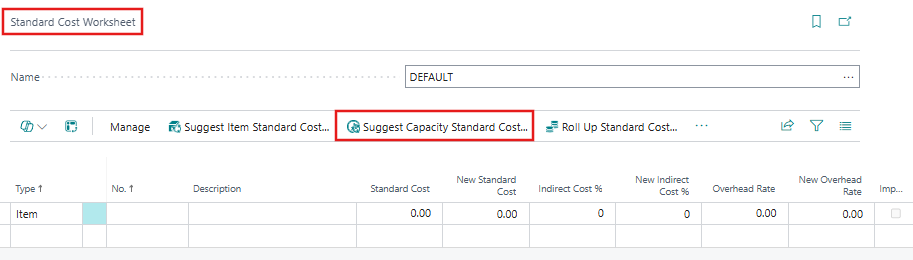
This creates suggestions for updated capacity rates on work centers, machine centers, and assembly resources. Again, nothing is changed yet.
-
Step 3 (Controller)
We can Create Multiple Worksheets in the System the same way normally Batches are created in the Journal.
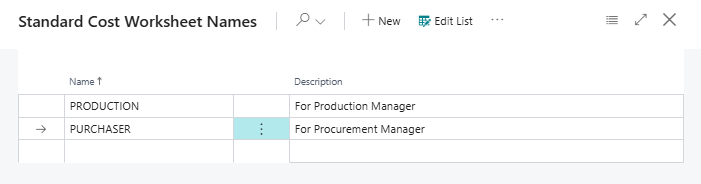
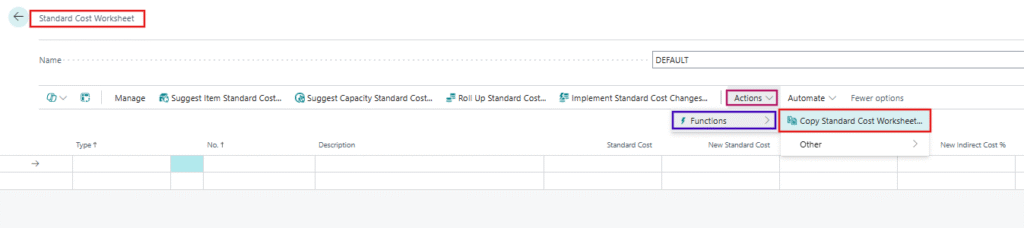
If the Purchaser and Production Manager used separate Worksheets, the controller uses Copy Standard Cost Worksheet to bring everything into one worksheet.
-
Step 4 (Controller)
Navigate to: Standard Cost Worksheet > Roll Up Standard Cost
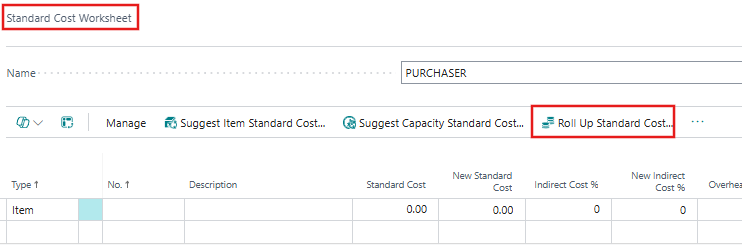
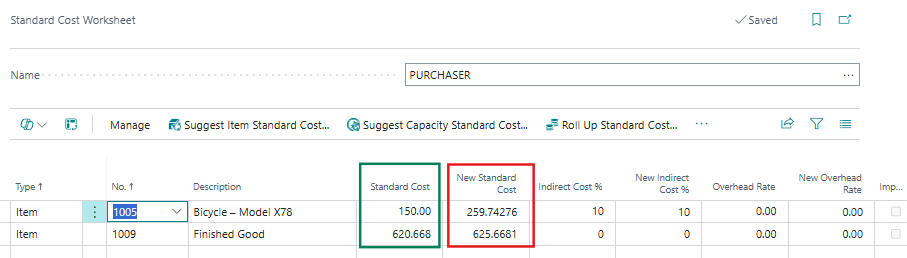
This Recalculates the Cost of all Manufactured and Assembled Items using the Suggested Component and Capacity Costs. Costs are applied at every BOM level from bottom to top. By using the feature, the worksheet shows what the new standard cost of each finished good will be.
-
Step 5 (Controller)
The controller compares Old and New Costs. If any deviation is unacceptable, adjustments are made before proceeding.
-
Step 6 (Controller) —> Item Revaluation Journal
Navigate to: Standard Cost Worksheet > Implement Standard Cost Changes
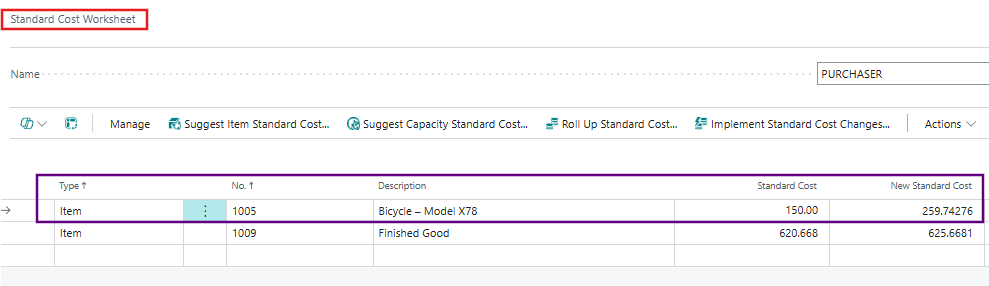
This does two things:
- Updates the Standard Cost field on all affected Item Cards
- Item Journal Template: Creates a Revaluation Type Line to revalue existing inventory at the new standard cost.
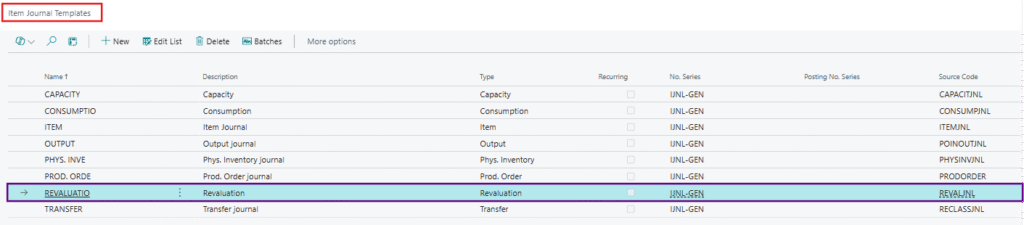
- We will change the Existing Item Standard Cost.
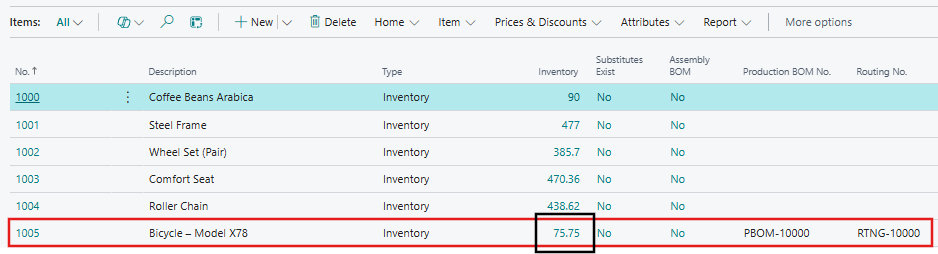
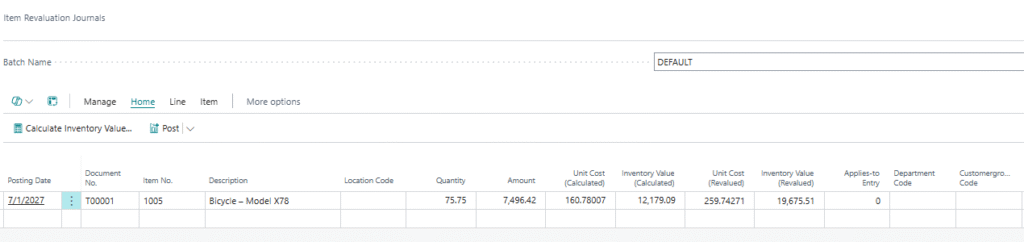
General Ledger Entries are:
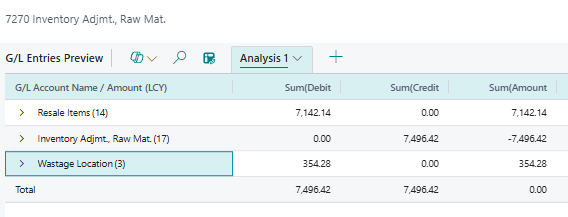
Inventory Value for both Finished Goods and Wastage Item will Increase.
Inventory Adjustment COGS Account will Decrease. (Variance Decreasing)
-
Step 7 — Run Supporting Batch Jobs
After implementing, run these two batch jobs to keep everything in sync:
- Adjust Cost – Item Entries — Ensures all Value Entries are Correctly Adjusted.
- Post Inventory Cost to G/L — Posts any Remaining Inventory Cost Differences to the General Ledger.
Variances
Once Standard Costs are set and production runs, Business Central automatically compares actual costs to standard costs and posts variances. In manufacturing, common variances are:
| Variance Type | Cause |
| Material Variance | Actual component consumption differs from planned |
| Capacity Variance | Actual machine/labor time differs from routing |
| Subcontractor Variance | Actual subcontractor invoice differs from standard |
| Overhead Variance | Actual overhead differs from applied overhead |
Variances are visible in Production Order Statistics and posted to dedicated variance accounts in the G/L.
Key Points to Remember
- Standard cost is frozen until you deliberately change it, daily price fluctuations do not affect it.
- Always use All Levels calculation after any change to Purchase Item Costs or Routing Rates that affect Sub-Assemblies.
- The Standard Cost Worksheet does not support Stockkeeping Units (SKUs).
- After implementing a Standard Cost Change, always post the Revaluation Journal to keep Inventory Values correct in the G/L.