

Vendor Bank Accounts Setup
In Business Central, vendor bank accounts are used to store supplier payment details so payments can be processed smoothly and without manual errors.
To set it up,
- Open the vendor card.
- Go to the Bank Accounts section.
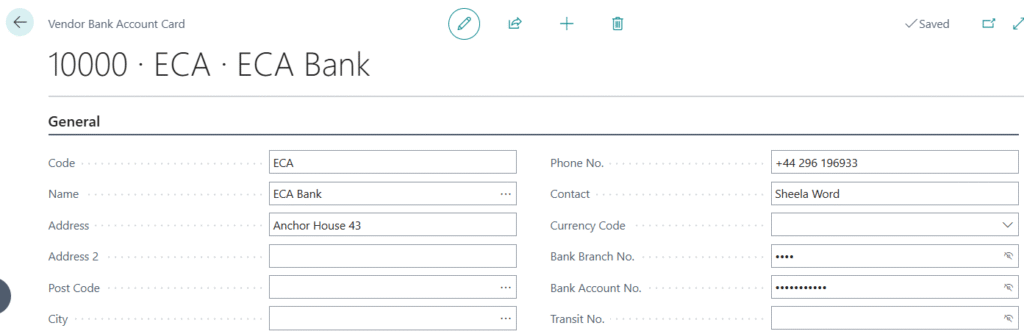
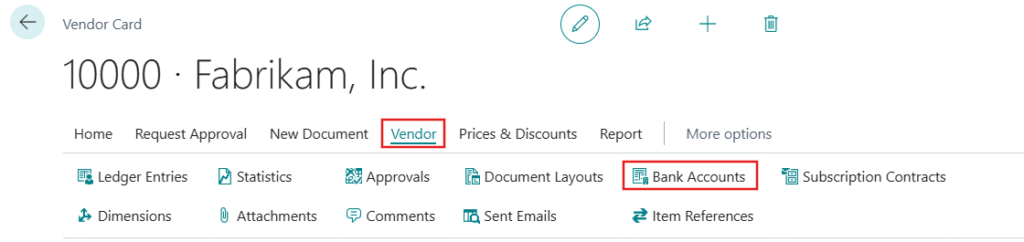 3. From there, you can either add a new bank account or select an existing one and enter the required banking details like account number, IBAN, and SWIFT code. Some fields may be hidden and can be shown if needed.
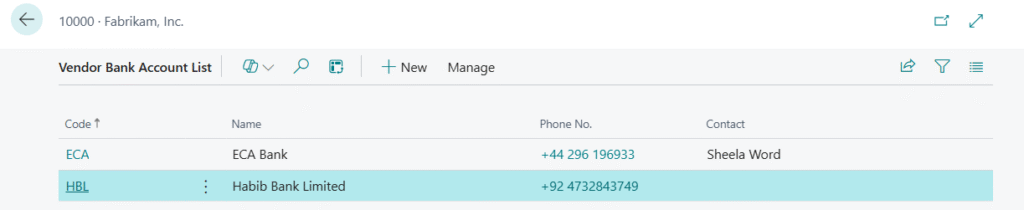
If a vendor has multiple bank accounts, you can also set one as preferred from the Payments section. This ensures the system automatically picks the correct account when creating payment journals or exporting payment files.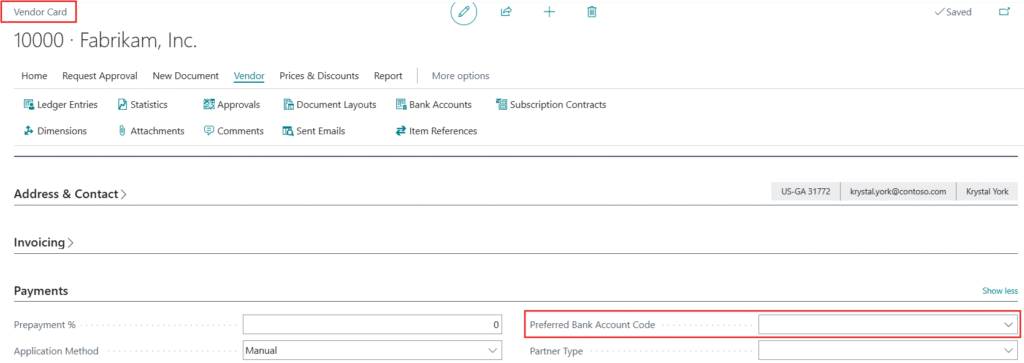 Overall, this setup helps make vendor payments faster, more accurate, and easier to manage.