Specifies if you want to allow manual adjustment of the inventory in the item card.
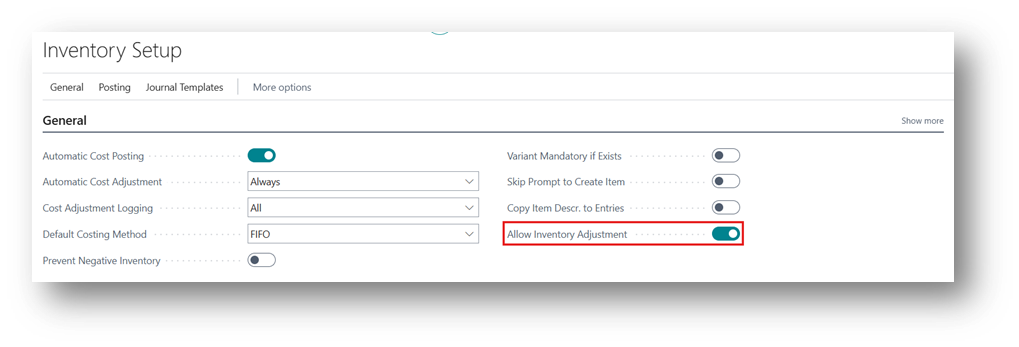
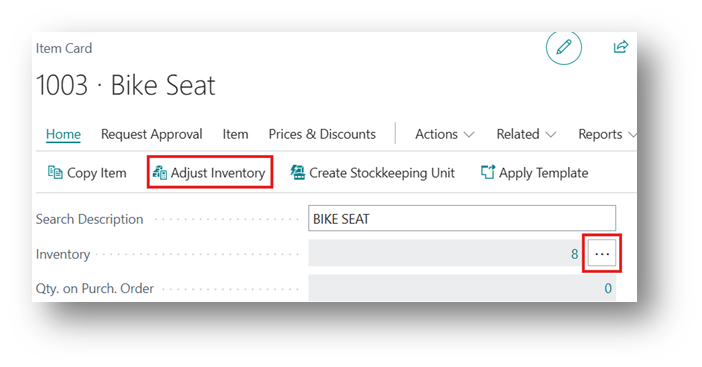
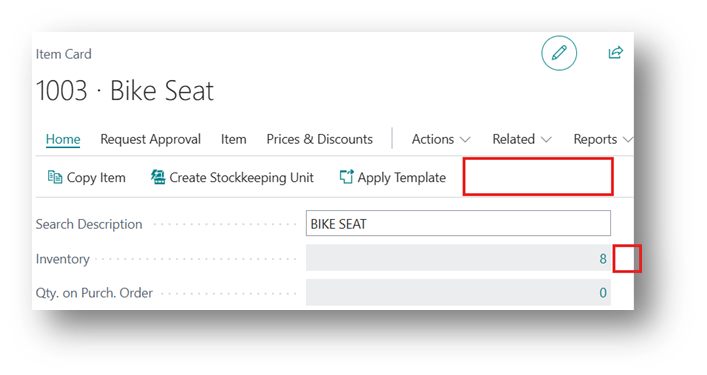
By Enabling this Boolean you will see 2 Different things on Item Card.
- Adjust Inventory (Button in Action Bar)
- 3 Dots against Inventory Field
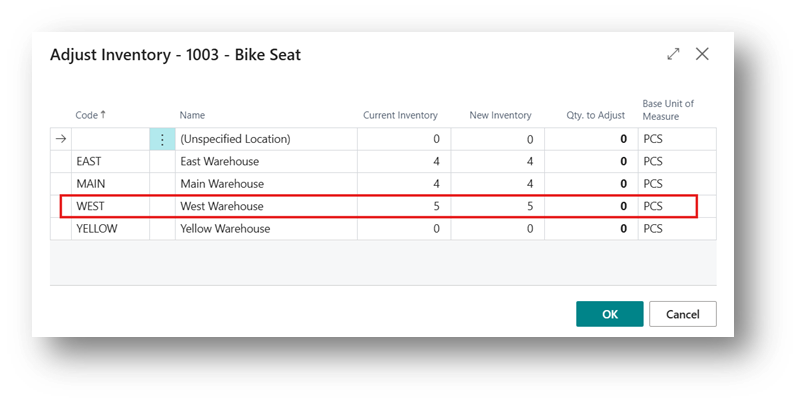
New window will open and in the “New Inventory Column” you can see that this is something which is Editable. In the example showed under there were 0 Quantity in the West Location and by clicking on Ok it will post an entry in the system.
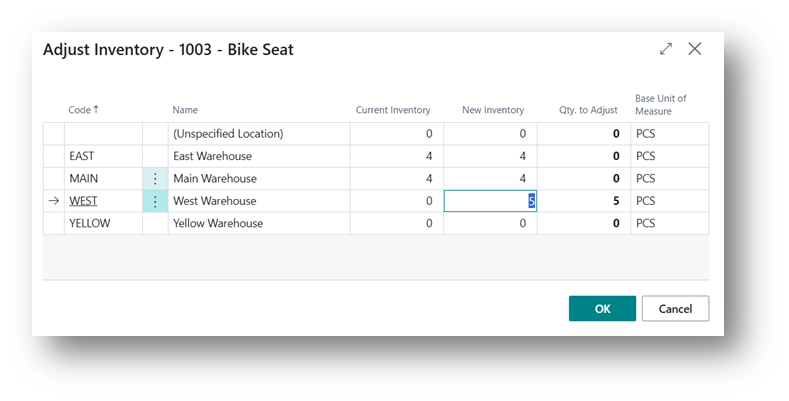
Go back and come back to same option and you will see the quantity in the Current Inventory column.
If we disable the Boolean on Inventory Setup, then you will not see this option on Item Card.
Hope so this is Helpful 😃