For items that use the Average costing method, Business Central needs to know over which time window the average cost is calculated. This is controlled by the Average Cost Period field in Inventory Setup. In this article, we will post purchase and sales orders on different dates in a Business Central sandbox and compare the cost of goods sold with the Day and Month periods.
Where to Find the Average Cost Period Setting
Open Inventory Setup. On the General FastTab, the Average Cost Period field is right below Average Cost Calc. Type.

| Option | Average Cost is Calculated Per |
|---|---|
| Day | Posting date. This is the most detailed option. |
| Week | Calendar week. |
| Month | Calendar month. |
| Quarter | Calendar quarter. |
| Year | Calendar year. |
| Accounting Period | Accounting periods defined on the Accounting Periods page. |
Example Scenario
Inventory Setup has Average Cost Calc. Type = Item & Location & Variant and Average Cost Period = Day. All entries are at location MAIN.
| # | Posting Date | Document | Quantity | Unit Cost | Amount |
|---|---|---|---|---|---|
| 1 | 8/1/2027 | Purchase Order 106087 | 10.00 | 100.00 | 1,000.00 |
| 2 | 8/1/2027 | Sales Order 101056 | -5.00 | ? | ? |
| 3 | 8/15/2027 | Purchase Order 106088 | 10.00 | 200.00 | 2,000.00 |
Step 1: Create an Item with Average Costing
Create item 1042, Average Cost Period Demo Item from the item template and set Costing Method to Average on the Costs & Posting FastTab.

Step 2: Post the First Purchase Order (8/1/2027)
Create a purchase order for vendor 10000: item 1042, Quantity 10, Location Code MAIN, Direct Unit Cost 100. Post it with Receive and Invoice (posted invoice 108290).

Step 3: Post the Sales Order (8/1/2027)
Create a sales order for customer 10000: item 1042, Location Code MAIN, Quantity 5, Unit Price 300. Post it with Ship and Invoice (posted invoice 103315).

Step 4: Post the Second Purchase Order (8/15/2027)
Create a new purchase order and choose Show more on the General FastTab. Change the Posting Date to 8/15/2027.
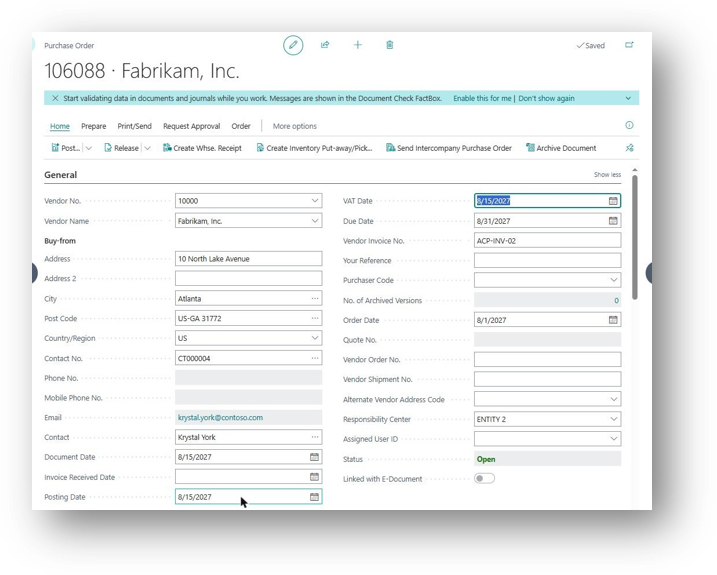
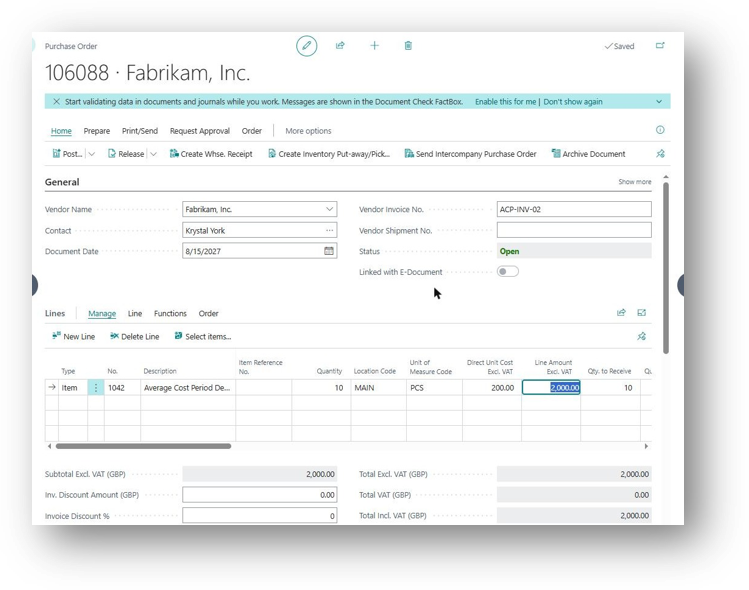
Add the line: item 1042, Quantity 10, Location Code MAIN, Direct Unit Cost 200. Post it with Receive and Invoice (posted invoice 108291).
Result 1: Average Cost Period = Day
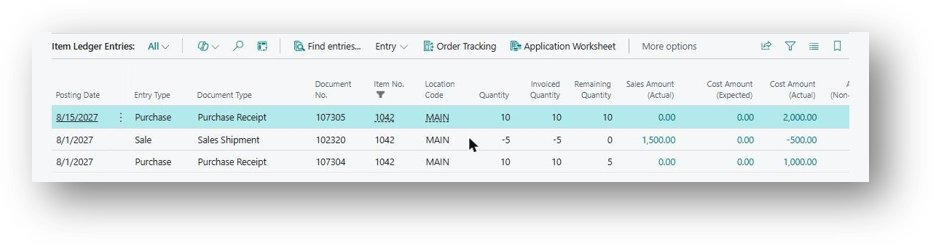
Open Item Ledger Entries for item 1042. The sale on 8/1/2027 has a Cost Amount (Actual) of -500.00 (5 x 100). The average for 8/1 includes only the purchase of that day, so the purchase on 8/15 has no effect.
Step 5: Change the Average Cost Period to Month
In Inventory Setup, choose Edit and change Average Cost Period to Month. Business Central warns that all item entries must be adjusted.
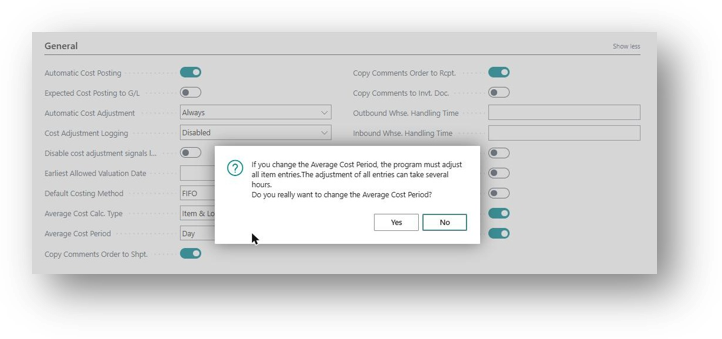
Choose Yes. A message confirms the change and asks you to run Adjust Cost – Item Entries.

Step 6: Run Adjust Cost – Item Entries
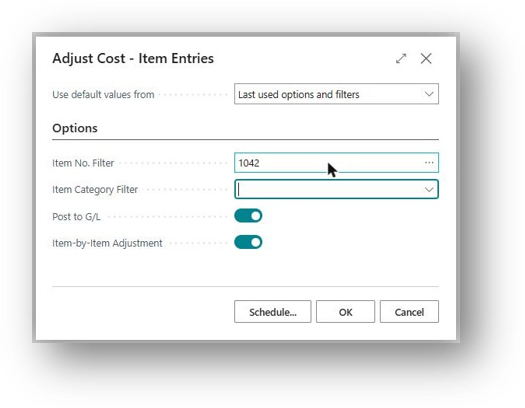
Run Adjust Cost – Item Entries with Item No. Filter = 1042 and Post to G/L enabled.
Result 2: Average Cost Period = Month
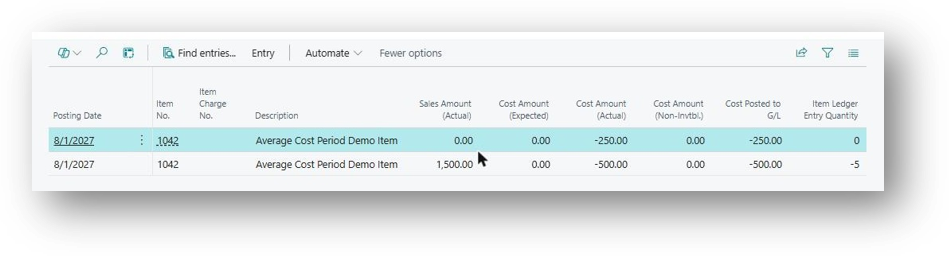
The same sale now shows a Cost Amount (Actual) of -750.00. August 2027 is one period, so its average is (1,000 + 2,000) / 20 = 150, and the sale is valued at 5 x 150.

In Value Entries, the original entry of -500.00 is kept, and an adjustment entry of -250.00 is added with posting date 8/1/2027, even though it was caused by the purchase on 8/15.
Average Cost Period Comparison
| Average Cost Period | Inbound Entries in the Average | Average Cost | COGS for 5 Units |
|---|---|---|---|
| Day | 8/1 purchase only (10 x 100) | 100.00 | 500.00 |
| Month | 8/1 and 8/15 purchases (20 units, 3,000) | 150.00 | 750.00 |
After the demonstration, the period was changed back to Day, and the batch job was run again. The sale returned to a cost of 500.

Hope so this is Helpful 😃