
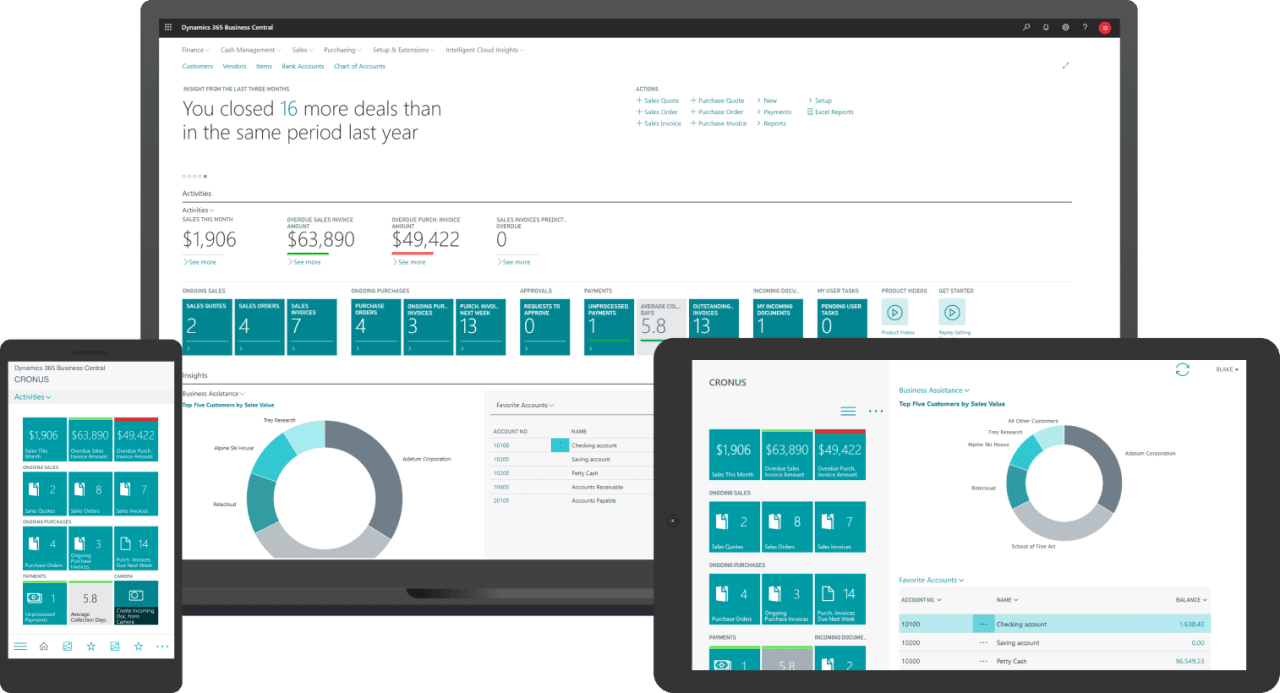
Microsoft Dynamics 365 Business Central users can keep track of changes made to data in the system using the Change Log Setup feature. As a result, it is possible to track and audit any changes or deletions made to existing records as well as the creation of new ones.
Once configured, the Change Log Configuration will keep track of changes made to specific tables and their fields. In addition to the old and new values of the modified fields, this information may include the name of the user who made the change, the date and time of the change, and the type of change (insert, modification, or deletion).
If you want to work on the Change Log Setup, search it in the search bar and enable the toggle of Change Log Activated.
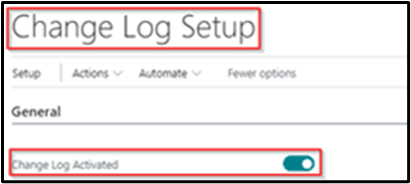
Change Log Activated
One thing to remember regarding enabling Change Log Setup is that we need to select all the modules we want to select for the Audit trial. It is better to select the required tables rather than enabling all points. This is because your system will be overburdened with stuff you do not want to keep track of. For that, go to Set-up and then select Tables.
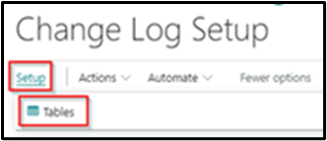
Setup — Tables
When you click on the table, a new window will open, showing several options.
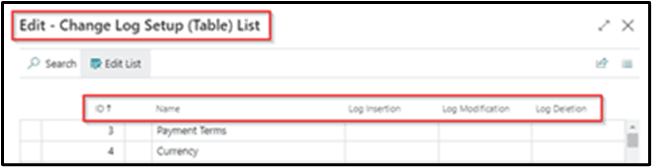
Change Log Setup (Table) List
ID: The ID of the Table.
-
- Name: The name of the table for which we want the Log.
-
- Log Insertion: If we enable it in the customer table, then whenever we enter a new customer master, it will create a new Log entry.
-
- Log Modification: If we enable it in the customer table, then whenever we modify a customer master, it will modify that Log entry.
-
- Log Deletion: If we enable it in the customer table, then whenever we delete a customer master it will delete that Log entry.
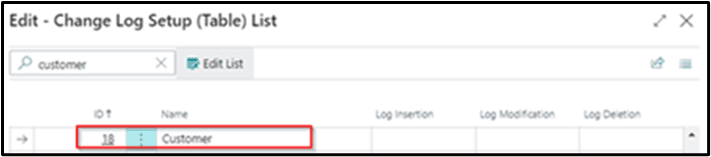
Customer Table
There are two further options present in every Log Insertion, Log Modification, and Log Deletion, as shown below:

Further Options
Some Fields allow you to manually select the field of the customer on which the Log entry will be made. All Fields allow you to select the fields automatically.
To select the fields manually, click on Some Fields.

3-Dots
-
- Select the required fields of the customer master and then mark the log insertion, modification, and deletion (depending on your requirements).
-
- Log Modification: The same description is for the log modification.
-
- Log Deletion: The same description is for the log deletion.
-
- After that, you can check the entries from the Change log Entries.
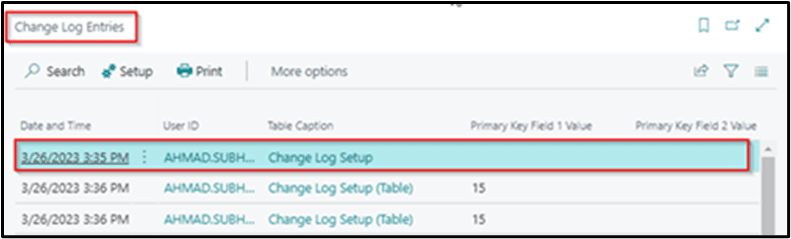
Change Log Entries
I hope you find this article helpful.
Best Regards,
Ahmad Subhani
D365 Business Central Functional Consultant
Email – ahmadsubhani424@gmail.com
WhatsApp – +923357687164